 Figma
 API
 Web to code extension
 Adobe XD
 Discord
 Twitter
 GitHub


 Blog

How to Publish a Website with Manus: Preview, Go Live, and Check the Result10 min read
Reading Time: 7 minutesTo publish a website with Manus, build it in the website builder, review its preview, click Publish, and test the resulting live site outside the editor. Manus documents a native, Manus-managed hosting route, with custom-domain support for eligible projects. A task conversation or internal preview is not the public website. Decide whether you want Manus hosting or an independently managed deployment before you promise a launch address.
Use a narrow brief for the first version. A ceramics studio page with classes, instructors, and a verified booking link can be checked in one sitting. A membership system with payments and customer data needs much more than a convincing design. Keep approved content, assets, and destinations ready before you ask Manus to build.
How to publish a website with Manus and AgentGrid.io
1. Prepare an AgentGrid destination alongside Manus
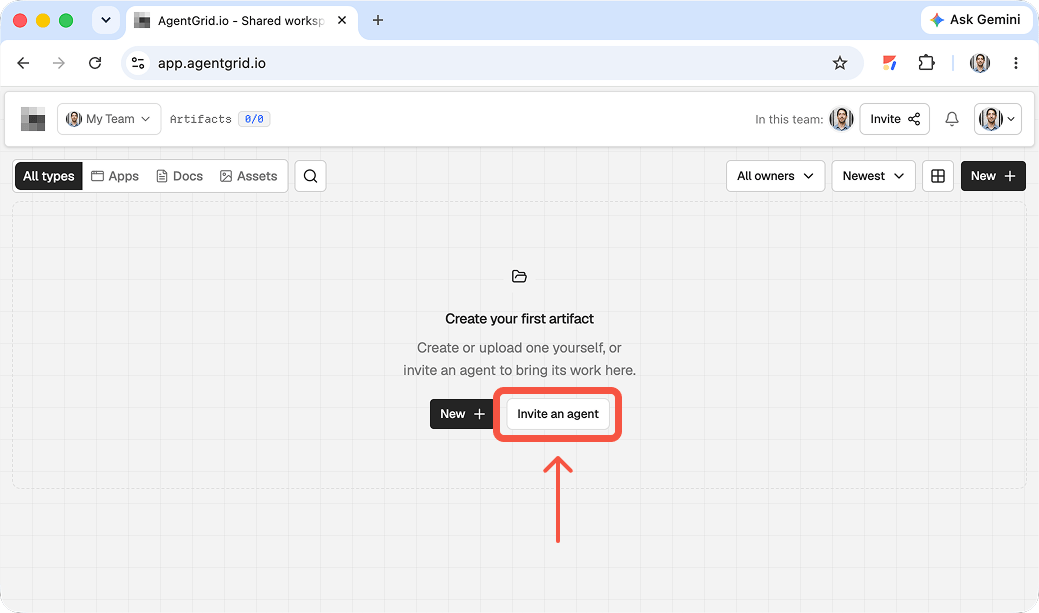
Manus can build and host a website, but its task, preview, checkpoint history, and published manus.space URL belong to Manus. To create an AgentGrid working copy, sign in at app.agentgrid.io, select the team that should own it, and choose a workspace the intended collaborators can access. Use a restricted workspace when the site includes internal material. AgentGrid’s quickstart explains the team and workspace split. Keep the Manus task for comparison. Manus’s web app page describes its code export and native website hosting, not a live AgentGrid integration.
2. Arrange access for the person or agent doing the handoff
If a cloud agent or script needs advance access, invite it through AgentGrid agent administration. Interactive coding agents usually self-connect with the CLI. Choose a recognizable identity, give Read and Write when needed, and reserve Publish for a specifically authorized deployment. Deliver the one-time invite and confirm it was redeemed; an unredeemed invite is not an active connection. The invitation guide gives the consent steps. Skip this for a manual handoff. For a human collaborator, arrange the appropriate team role and workspace access instead. Neither a Manus collaborator invitation nor a Manus site URL grants AgentGrid workspace access by itself.
3. Move source files, not just the Manus URL
If code export is available to your Manus project, export the complete web app codebase, then unpack and review the actual source, assets, configuration, and entry point. Manus says its website projects support full code export. Remove credentials and dependency or build directories before importing. In AgentGrid choose New → Upload Folder or New → Import from ZIP, select app, and inspect the resulting files and preview. The AgentGrid import guide says this creates a new artifact with its own history; later Manus edits do not flow into it. If the Manus app relies on hosted database, authentication, secrets, or integrations, validate each separately in the new environment rather than assuming the exported frontend reproduces the whole service. If export is unavailable but the page is publicly reachable and your AgentGrid plan permits URL import, Clone website captures supported content from a Manus URL into editable HTML, not the full-stack source or a sync.
4. Send the right review or deployment link
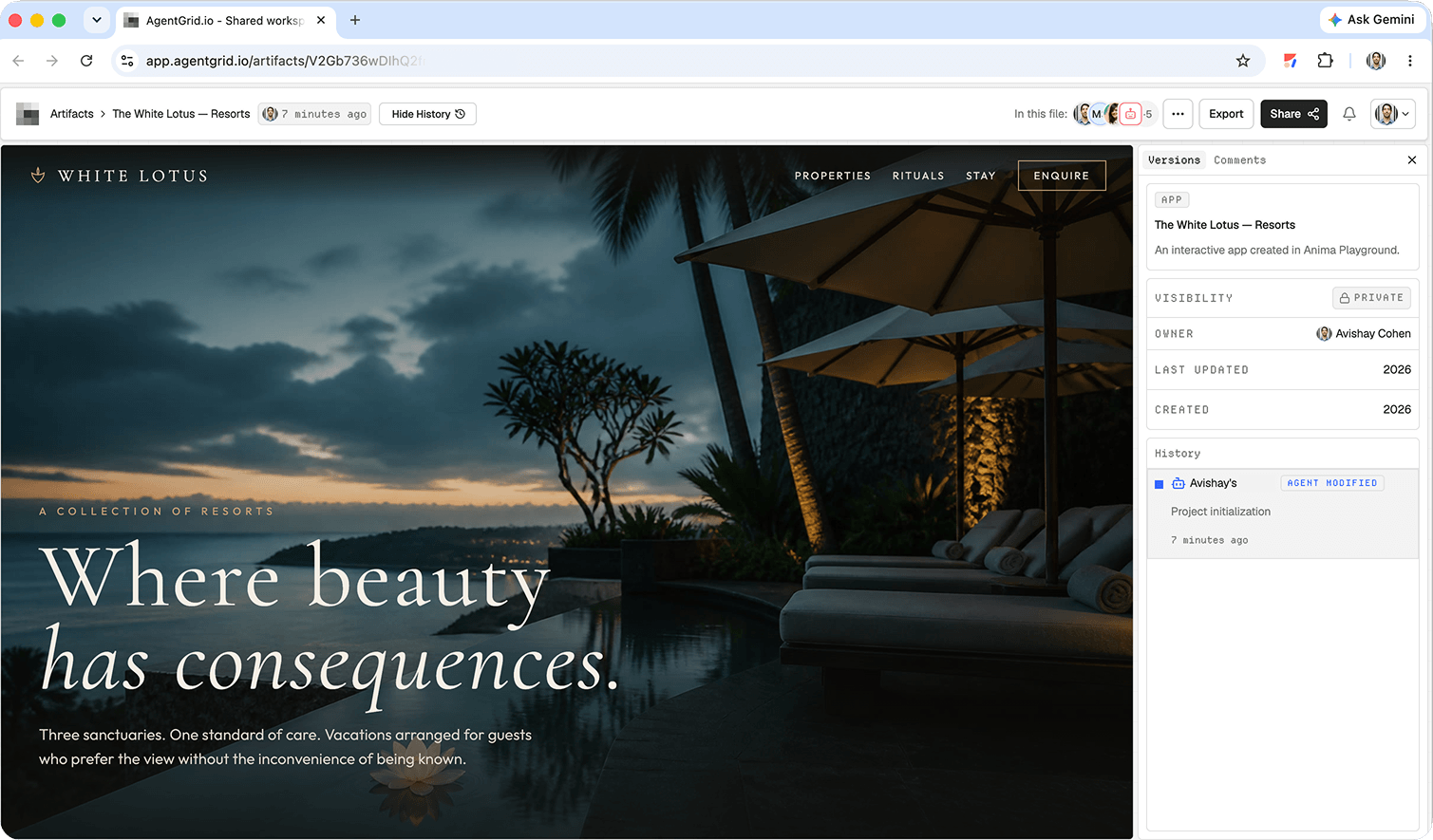
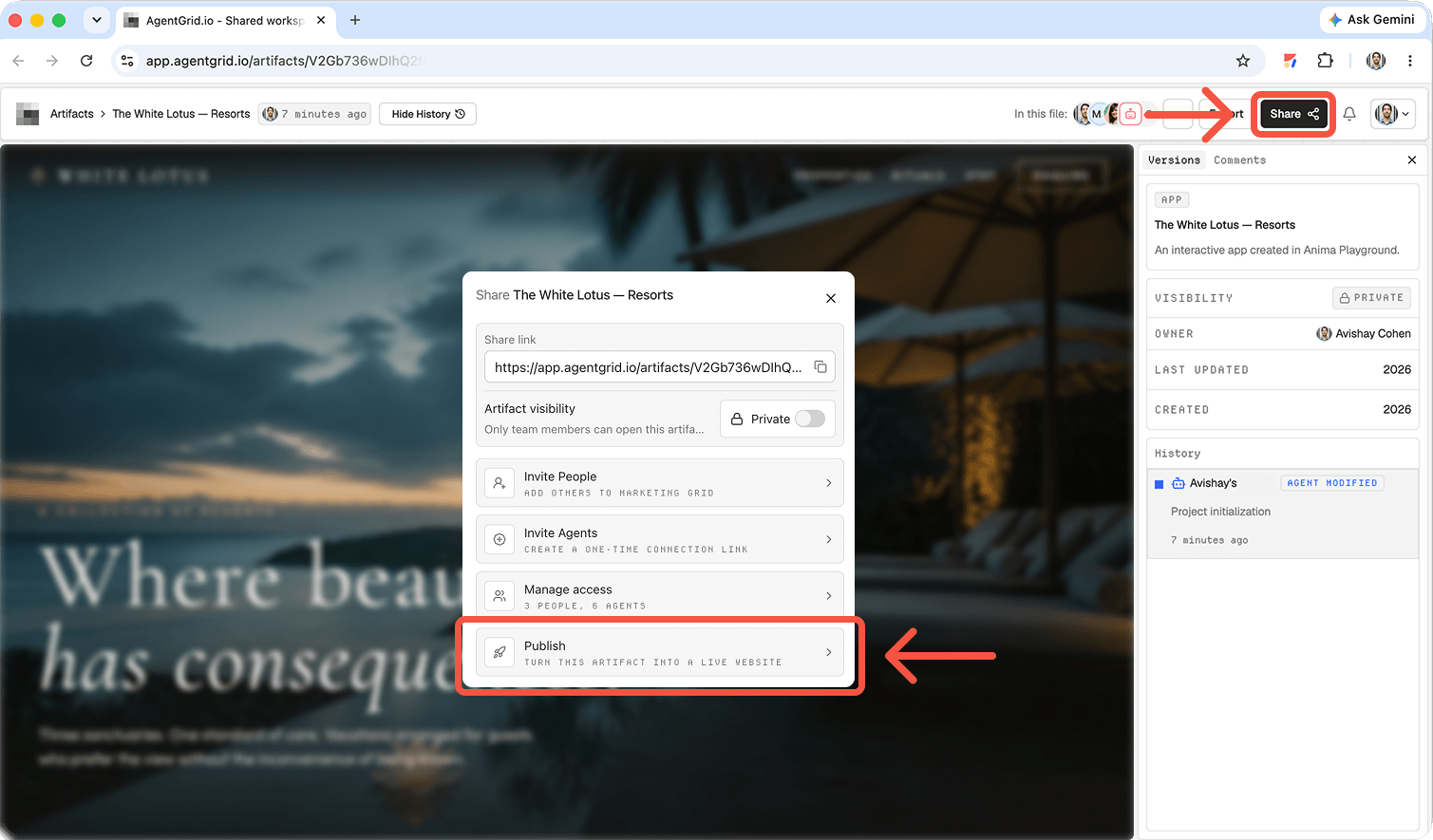
For review within the authorized workspace, open the AgentGrid artifact and use Share to copy its private artifact link. That link does not make it public or grant workspace access to an outsider. If you have publish permission and explicitly want AgentGrid to host a public copy, publish the artifact, confirm its public state, and open the returned URL. AgentGrid’s share and publish guides explain the boundary and the need to republish later edits. Manus publication is a different action: its website documentation tracks a deployed checkpoint and visibility for the Manus site. Label both links; publication and private sharing never cross over.
What Manus publishing actually does
The Manus website publishing guide distinguishes preview from deployment: when you click Publish on a completed web app, Manus handles the deployment infrastructure and serves a live site. This is not an automatic deployment to Vercel, Netlify, GitHub Pages, or WordPress. A custom domain is a separate setup involving a domain you control and the DNS instructions Manus supplies. The live URL, not the task share link, is what a visitor should test.
Manus also documents editing and previewing. Treat generated copy as a draft: check dates, testimonials, prices, and functionality before launch.
How to publish a website with Manus
1. Give Manus a complete but bounded brief
Specify the audience, intended action, sections, visual direction, real assets, and what must not be invented. Tell the builder whether a button links to an existing service or requires a new form with data storage. These are different implementation jobs.
Example prompt: “Build a responsive website for a neighborhood ceramics studio. Include a homepage, class schedule, instructor bios, pricing, and a Book a class action linking to [approved booking URL]. Use warm neutral colors and accessible contrast. Do not invent testimonials or class dates. Show a preview and list missing content before publishing.”
Replace the placeholder URL with your actual booking destination. Supply approved dates and photos, not a vague request to fill in the blanks. If you need a contact form, specify the fields, consent language, recipient or data store, and how you will verify a submission. Never include production secrets in a public page or unnecessary sensitive information in a prompt.
2. Review the preview as a customer
Follow the site from its first heading to the final action. Click navigation and CTA links, test the mobile menu, read every claim, and look for placeholder images or text. Check a narrow phone viewport, heading order, contrast, keyboard focus, and meaningful image descriptions. If a form exists, send safe test data and confirm the result appears in the intended inbox or system. A form’s “success” message by itself is not delivery evidence.
Ask for targeted corrections instead of a complete rebuild: “Keep the layout, replace the schedule with these approved dates, fix the mobile navigation, and leave the booking URL unchanged.” Review the new preview and compare its important details against the prior version. If a stakeholder must approve content, hold the launch until that approval is recorded.
3. Publish to Manus hosting
Once the site is ready, use the Publish control described in Manus’s guide. Manus deploys the application and returns a live site address. Open that address in a private browser window, not only inside the project workspace. Copy the live address to your launch note and state what was verified. If the site needs updates, request a small change and confirm the public version after the subsequent deployment.
Pre-publish prompt: “Audit this page for broken links, mobile overflow, accessibility problems, missing page title and description, and unfinished placeholders. List what changed and what remains unresolved. Do not connect a custom domain until I approve the DNS changes.”
Do not ask Manus to declare the site launch-ready without checking the result yourself. Confirm whether your account and project expose the publishing controls described by the current guide, since product availability and UI can vary.
4. Connect a domain only when you own the decision
If you have a domain, follow the DNS records Manus provides for that project. Coordinate with whoever manages the registrar. Verify the intended hostname, HTTPS, and both apex and www versions if you plan to use both. A purchased domain or changed DNS record is not proof that the right site version was published. Do not remove old DNS records until you know what else they serve.
Record the owner of the domain and the owner of the Manus project. Keep a rollback path for an incorrect launch, and verify that booking, contact, and analytics destinations still work on the branded address.
Manus hosting versus an external host
Manus lists two hosting modes: default Autoscale for variable traffic, and Reserved for persistent workers or real-time connections. Review the project’s hosting choice and usage costs before launch. Use external hosting when your team requires its own Git release process or infrastructure. Confirm what your project can export and what the receiving host needs. Native Publish does not create a Vercel or Netlify deployment, and an external copy will not update the Manus-hosted site.
Launch checks beyond clicking Publish
- Accuracy: verify names, prices, hours, testimonials, and images against approved sources.
- Function: test every primary button and any form with safe data; confirm the actual destination or received submission.
- Accessibility: navigate with a keyboard, inspect focus, read mobile text, and check image descriptions and contrast.
- Search basics: make the page title, meta description, H1, and introductory copy explain the real offer.
- Operations: save the live URL, domain owner, update owner, known issues, and a route to roll back mistakes.
Test the live page from a signed-out session after publishing and after a domain change. The editor’s view may differ from what a first-time visitor receives.
Keep collaboration separate from deployment
A live site tells people what currently appears, but not who signed off on it or which detail remains unresolved. Keep a shared brief with approved copy, asset rights, test outcomes, live URL, and requested next edits. The Muse website publishing walkthrough shows a different, artifact-first review path. The guide to a shared drive for agents and humans explains why a chat answer is not always a durable work product. If the next editor uses another assistant, see sharing a file between Claude and ChatGPT. None of those handoffs automatically republishes a Manus project.
Troubleshooting Manus website publishing
The preview works but visitors cannot reach the website
Verify that you used Publish and copied the live website address rather than a task or preview link. Open it while signed out. Check whether the project is still in preview and whether access settings restrict visitors.
The custom domain points to the wrong page
Compare the project-specific DNS instructions with the current records. Check both intended hostnames and HTTPS, and allow for DNS changes to propagate. Do not delete unrelated records blindly; coordinate with the domain owner before changing them.
A button or form works visually but not operationally
Inspect its actual URL or submission destination on the published site. For a backend action, submit safe test data and confirm receipt. If the workflow is not implemented, replace it with an approved external destination or remove the promise from the page.
FAQ
Does Manus publish websites itself?
Yes. Its website builder documents native Publish with Manus-managed deployment. Verify the returned live address before announcing the site.
Can I connect my own domain?
Manus documents a custom-domain path. You still need control over the domain’s DNS and must verify the site and HTTPS after setup.
Is a Manus preview the same as a public website?
No. Preview is where you inspect and revise the project. Publish deploys the website; test access separately using the live URL.
Can I use an external host instead?
Only after confirming the project handoff or export options and the external host’s requirements. Manus’s native Publish action is not an external deployment.
Bottom line: Brief narrowly, review the preview, publish deliberately, and verify the public site and owner before sending the link to customers.