 Figma
 API
 Web to code extension
 Adobe XD
 Discord
 Twitter
 GitHub


 Blog

How to Publish a Website with Perplexity Computer10 min read
Reading Time: 7 minutesPerplexity Computer offers two documented publishing routes. Choose Publish for a Perplexity-hosted pplx.app address, or Publish with Vercel for a deployment through your connected Vercel account. Unlike an agent that only prepares code for an external host, Computer has a native publish flow. But the URL, visibility policy, custom domain, and update process differ by route.
This walkthrough uses a conference microsite as the example. Build and approve a private preview first, decide where the public site belongs, then verify the live page in a signed-out browser. A generated preview or a successful publish message is not proof that your registration link and visibility settings are correct.
How to publish a website with Perplexity Computer and AgentGrid.io
Perplexity Computer can carry out multi-step work and produce files or reports. AgentGrid.io supplies a separate workspace where a team can inspect a chosen output and decide whether to publish it. The practical connection in this tutorial is a deliberate export and import, not a native Perplexity Computer integration or a transfer of its whole task history.
1. Prepare the AgentGrid review space
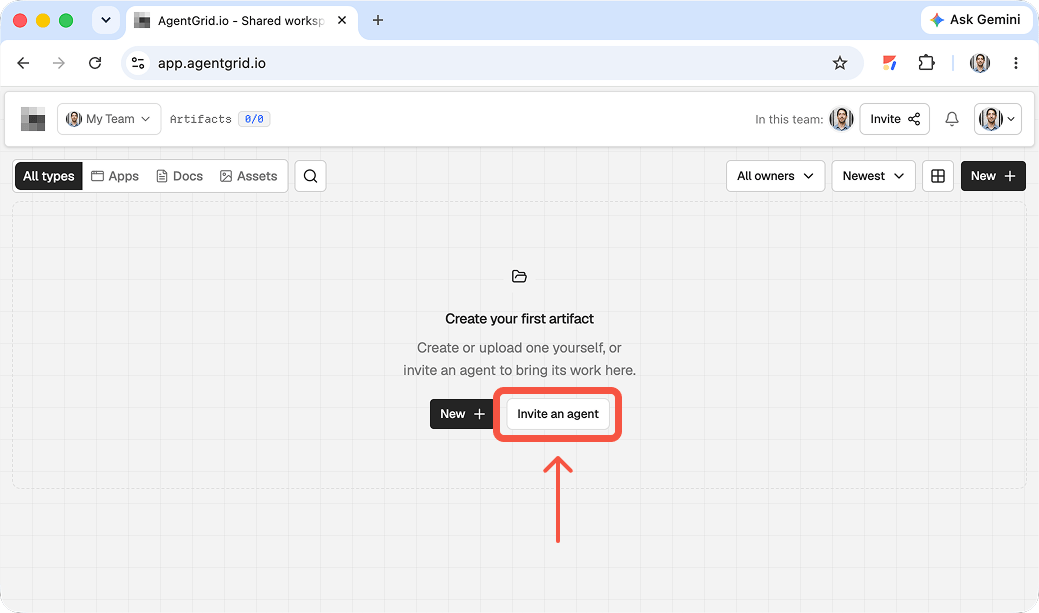
Create or select the workspace that will own this project. Confirm the reviewers are members of the right team and decide what material may be visible there. AgentGrid has an agent invite flow, but you do not need to use it to review a Perplexity Computer deliverable. Do not interpret an AgentGrid invitation as evidence that Perplexity Computer can accept it or act inside the workspace. Keep the two accounts and their access boundaries separate, and plan a human-mediated handoff for the finished file.
Give Perplexity Computer a clear brief, such as a one-page research explainer with source links and a small visual summary. Ask it to distinguish findings from recommendations and identify claims that need independent checking. A polished output can still contain an outdated figure or unsupported inference; the reviewer needs the underlying sources, not just a persuasive layout.
2. Make one artifact the review target
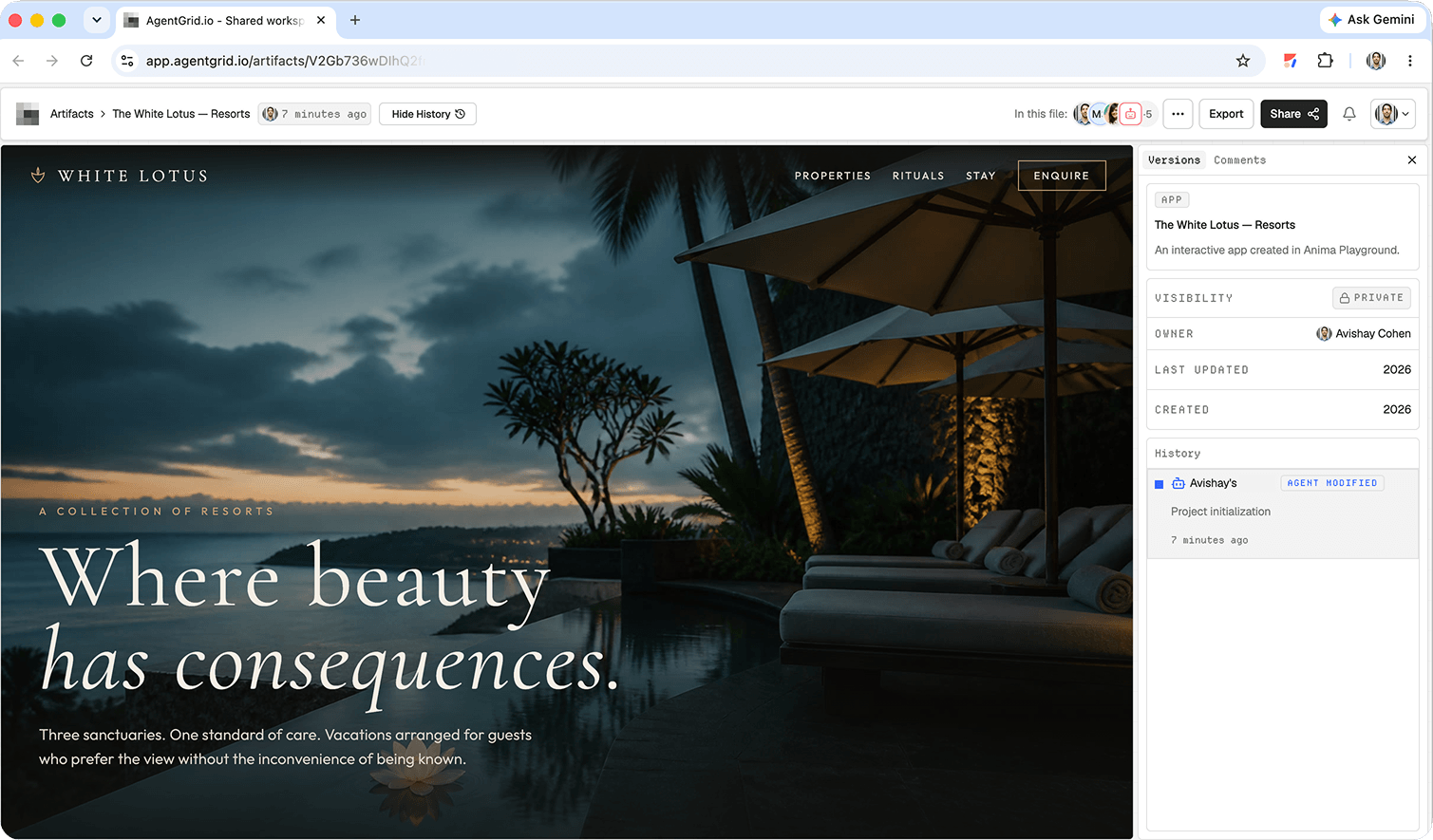
Inspect the generated deliverable in Perplexity first. Export or download the files actually available from that task, then check their contents before moving them. For a self-contained site, gather its page files and assets into a ZIP and use AgentGrid’s ZIP import. For a report, import a supported document or create an AgentGrid document from the reviewed text. Open the artifact and test its layout, links, source attribution, and images. Imported files do not automatically retain Perplexity Computer’s research context or future updates.
3. Review the claims, not just the layout
Invite the intended human reviewers to the AgentGrid artifact. Have them leave specific comments on factual statements, missing source context, data freshness, and anything that should remain private. AgentGrid supports comments on artifacts. Correct the workspace artifact directly, or import a corrected export as a new artifact and send reviewers its new link. Document any unresolved caveats in the deliverable itself before asking for release approval.
4. Release a deliberate snapshot
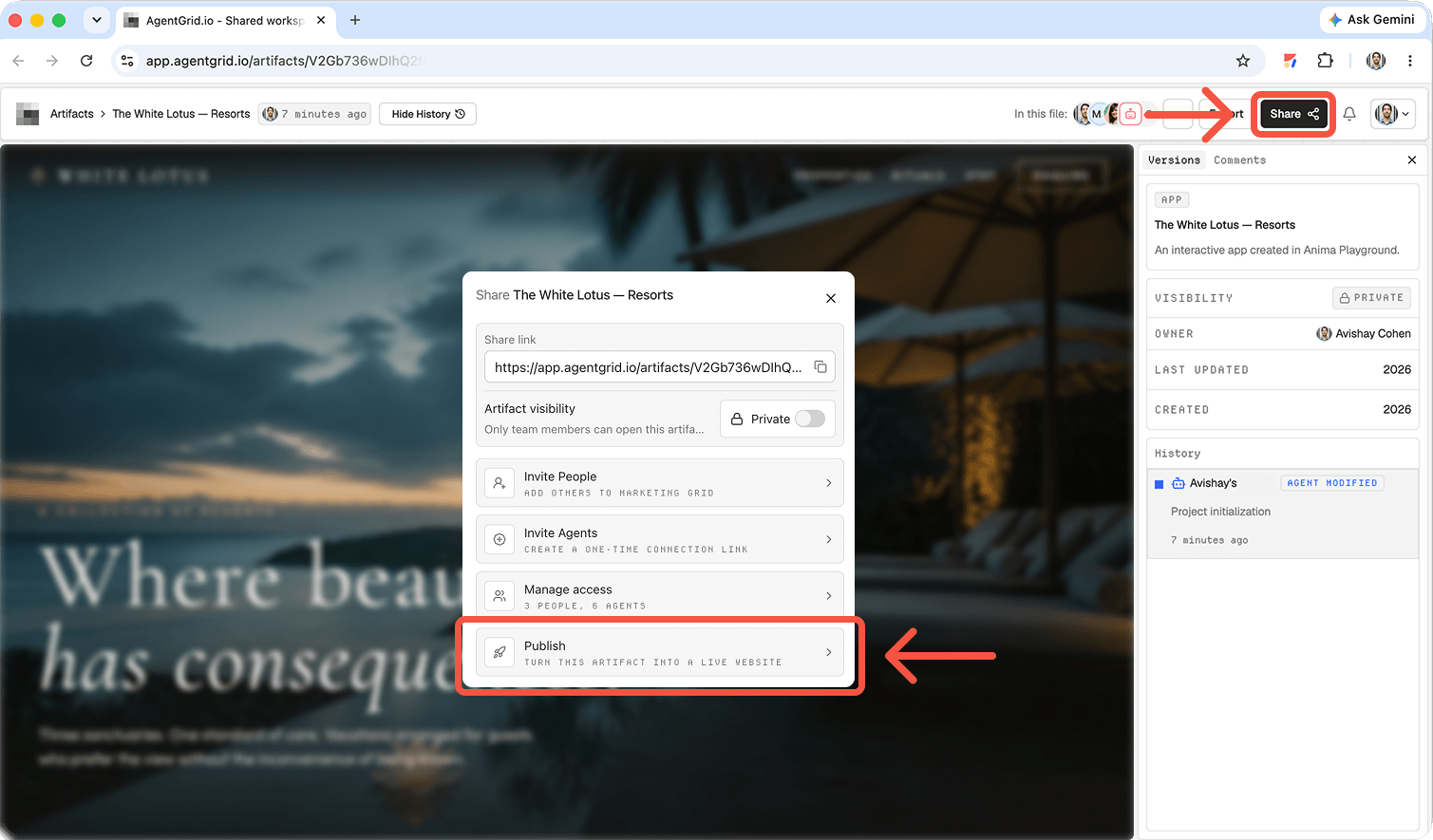
A named human owner should sign off on the content and public visibility. Use AgentGrid’s publish flow only after that check, then open the public URL in a browser session without workspace access. Compare the visitor-facing page with the approved artifact, including citation links and embedded assets. If you rerun Perplexity Computer or revise the AgentGrid artifact later, the public deployment does not update automatically. Review and publish again when the new version is ready.
pplx.app or Vercel: which publishing route fits?
| Decision | Publish to pplx.app | Publish with Vercel |
|---|---|---|
| Hosting destination | Perplexity-hosted site | Your connected Vercel account |
| Web address | Customizable pplx.app address | Vercel deployment address; configure a branded domain in Vercel |
| Visibility | Check Computer and organization sharing controls | Check Vercel project and deployment access separately |
| Best fit | Fast publishing without setting up a second host | Existing Vercel workflow or a custom domain |
Choose based on who will maintain the website, not just which button is fastest today. Document who controls the publishing account and where to change the URL if the conference details evolve.
Build in preview before choosing a host
Suppose a marketing lead needs a conference microsite by Friday. Rather than asking Computer to “make a website,” give it the event name, audience, approved schedule, registration destination, and constraints. Ask for a preview first. Perplexity’s publishing help page says website work starts in a private preview, so the draft is not automatically a public site.
Prompt: Build a responsive conference microsite for [event] using this approved agenda and speaker list: [details]. Include a prominent Register button pointing to [URL], an accessible FAQ, and mobile-friendly schedule. Do not invent speakers or sponsors. Show a preview, flag missing assets, and do not publish until I approve.
Inspect the draft on desktop and mobile. Check names, times, time zones, registration links, image rights, keyboard navigation, contrast, and the SEO title. If Computer used research to fill gaps, verify every factual claim against your own event source. Ask it to fix specific defects, not just to make the site “more polished.”
Give Computer an approval-ready brief
Supply the approved event title, schedule with time zones, speaker bios, sponsor marks, image permissions, and registration destination. Ask it to flag missing facts instead of filling them from assumptions. Set acceptance criteria for responsive navigation, accessible schedule markup, descriptive image text, and a working call to action. The stronger the inputs, the less time a reviewer spends separating plausible copy from accurate copy.
Option 1: publish natively to pplx.app
Open the website preview and select Publish in its publish view. Perplexity describes this as publishing to a customizable pplx.app address. Review visibility before you send the link: a deployed site can still be private, shared with specific people, limited to an organization, or public, depending on your settings and organization controls. A live URL is not necessarily a public URL.
When Computer changes the site, Perplexity says it can republish to the same pplx.app URL. That makes it convenient to iterate on a campaign without circulating a new link. But do a fresh browser check after every update: see whether the revised headline, registration link, and mobile menu are present on the published version rather than only in preview.
Prompt: Audit the website preview for broken links, inaccurate event details, missing metadata, and mobile layout issues. List your fixes. After I approve, publish to a public pplx.app URL and return the live URL plus the visibility setting you selected.
Visibility is a separate decision from deployment
Perplexity’s help documentation distinguishes a deployed site from the audience allowed to see it. Depending on settings and organization policy, the site may be private, shared with named people, restricted to an organization, or public. For a marketing microsite, verify that the public option is available and intentional. A link that works for its creator may fail for a visitor outside the account.
Option 2: publish through the Vercel connector
Choose Publish with Vercel when you need a custom domain or want the site hosted and governed in Vercel. Connect your Vercel account if prompted, authorize deployment, and ask Computer for the deployed link and status. Perplexity’s help page is explicit that this option uses its connector, not Perplexity’s own hosting. Custom domains, environment settings, and access control then belong in your Vercel account.
Do not apply Perplexity’s pplx.app visibility assumptions to the Vercel site. Ask the owner of the Vercel project to review production settings, domain DNS, environment variables, and rollback before using the branded URL. Organization administrators can restrict public publishing, which may remove the Vercel option. If it is missing, check policy and account connection rather than assuming the preview is deployed.
Prompt: We have approved the preview. Use Publish with Vercel for this site, confirm which Vercel project receives it, and return the deployment URL. Do not change DNS or set a custom domain until our site owner approves the destination.
What changes when Vercel owns the deployment?
Perplexity’s Vercel action uses a connected external account, so the account owner should confirm the target project and its production settings before approval. A branded domain requires domain and DNS configuration on the Vercel side. Confirm the final hostname, certificate, environment settings, and the release or rollback process with that owner. Do not carry over a pplx.app visibility assumption to the Vercel deployment.
What if a second agent needs to work on it?
Computer is useful for generating and publishing the first version; a team may still need a durable review or handoff process. Compare the artifact-first approach in our Muse website guide, the rationale for shared work between humans and agents, and the practical steps for moving a file between Claude and ChatGPT. Those are collaboration patterns, not proof that a Perplexity project syncs automatically into another workspace or host.
A second collaborator needs more than a screenshot of the preview. Record the latest approved content, assets, destination URL, and who owns updates. If you move the project into a shared artifact workspace, treat that as an explicit import or connection with its own permissions and publishing action, not an automatic Perplexity sync. The three AgentGrid.io images below illustrate this optional handoff, not Perplexity Computer’s own UI.
Launch checklist for either publishing path
- Approve the preview: confirm speaker names, time zones, agenda, image rights, and registration URL.
- Choose the destination: identify pplx.app or the specific Vercel account and project, plus the intended audience.
- Publish deliberately: inspect visibility or project settings before sending the link.
- Test the public result: use a signed-out browser, mobile viewport, and real registration action.
- Record ownership: save the live URL, publishing account, revision, and instructions for future updates.
If any check fails, fix the preview or deployment settings and repeat the public verification. A local preview, private share, and open web page can all look identical to the author while behaving differently for visitors.
FAQ
Can Perplexity Computer publish without Vercel?
Yes. Select Publish for a Perplexity-hosted pplx.app site. Check visibility if you need anyone on the web to open it.
Can I attach a custom domain directly to pplx.app hosting?
Perplexity’s documented custom-domain route is Publish with Vercel. Manage the domain in Vercel rather than treating the native address as your branded host.
Will publishing a private site make it searchable?
Do not assume that. Visibility settings and your organization’s policy can keep a deployed site restricted. Verify with an unauthenticated browser session before sharing publicly.
Is a pplx.app URL automatically public?
No. Check the site’s selected visibility and any organization restrictions, then test the URL outside your account.
Can I reuse the same address after editing?
Perplexity documents republishing changes to the same pplx.app address. Verify that the new version appears on the public URL after republishing.
Bottom line: Use pplx.app for the simplest native launch; choose Vercel for a custom domain and Vercel-managed infrastructure. In both cases, approve the preview and test the actual live URL.