 Figma
 API
 Web to code extension
 Adobe XD
 Discord
 Twitter
 GitHub


 Blog

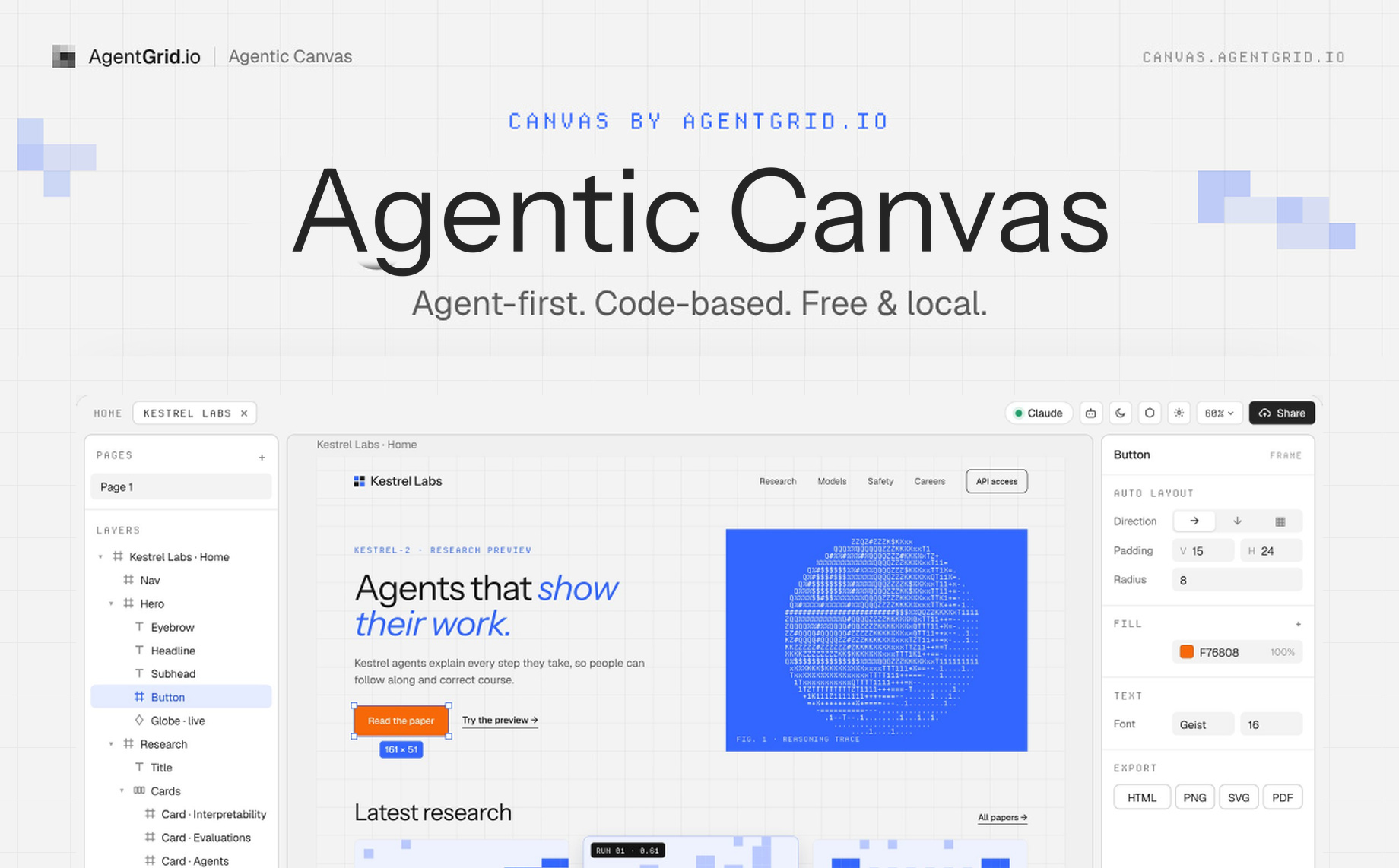
Agentic Canvas: Design With AI Agents9 min read
Reading Time: 6 minutesAI agents can generate a website in minutes. Then you want to move a button, compare two layouts, collect a few screenshots, or fix the spacing yourself. Suddenly you are back to explaining a visual change in another prompt. Sometimes it is easier to drag than to prompt.
That is why we built Agentic Canvas by AgentGrid.io. It is a free AI design canvas where you and an MCP-capable agent work on the same real HTML and CSS page. Bring in HTML, start with a design or image, or ask your agent to build a page. Then select, move, resize and edit what it made. You can open Agentic Canvas without creating an account.
Here is a simple way to use it: bring in an HTML page or image, arrange and edit it visually, ask Claude or ChatGPT to refine an animation or interaction, then export the HTML. You can step in by hand at any point instead of starting another prompt from scratch.
What is Agentic Canvas?
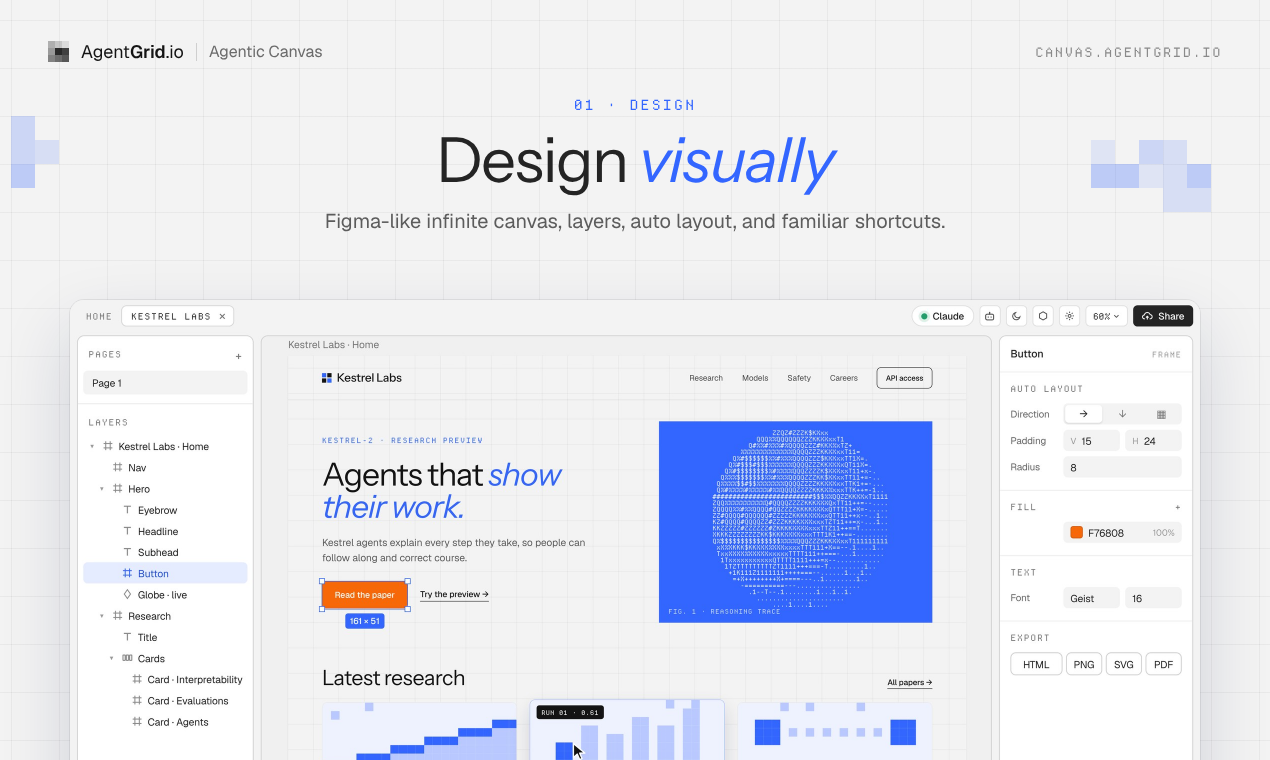
It is a visual workspace for designing real web pages with an AI agent. The canvas has familiar frames, layers, an inspector and layout controls, but its frames are code-based rather than static pictures. An agent that connects through MCP can read the current page and make changes. You see the result, adjust it by hand, and let the agent continue from the updated design.
Think of it as a place where the person who sees what needs fixing and the agent that can write the code work on the same thing.
Why we needed a canvas for AI agents
1. Visual collaboration without another prompt loop
When you make a landing page, product screen or marketing asset with Claude or ChatGPT, the first draft is only the start. You may want three copies of a hero, a tighter grid or a different call to action. Describing every visual decision in chat is slow, especially when you already know exactly what to change.
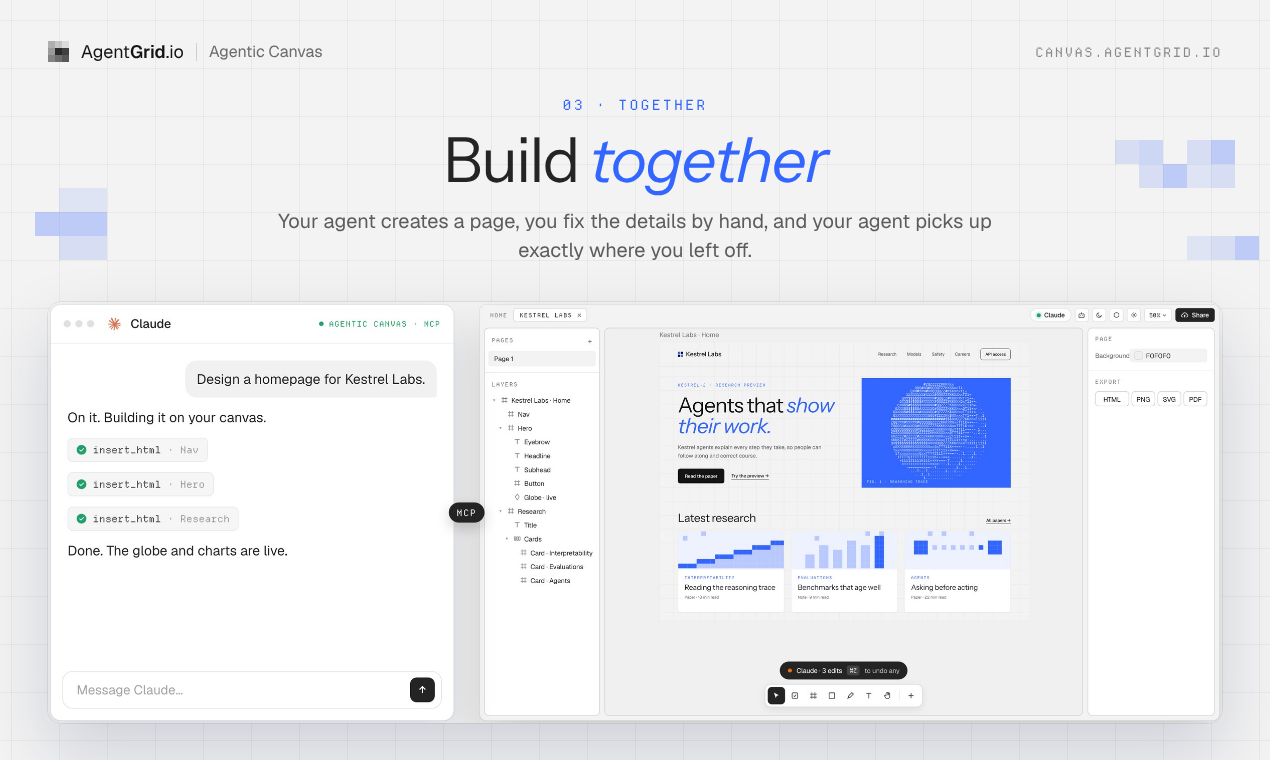
In Canvas, you can make that change directly. The agent can then read the page as it exists now, not a verbal description of a version that has already changed. It does the heavy lifting, you make the final calls by hand, and it picks up where you left off.
2. A place to gather visual context
Some ideas begin as a mood board, not a specification. Gather screenshots, reference pages, images and text, arrange them spatially, and add the material that helps explain what you are trying to make. An AI agent can work from the design in front of you rather than guessing from a long chat history.
That matters for brand work. A layout reference, a piece of copy and a screenshot can communicate an intention faster than another paragraph about the mood you want.
3. Why the canvas uses real HTML and CSS
Why build a design tool on HTML and CSS? Because coding agents already read and write code fluently. To me, asking an agent to work through a separate design format is like asking a native English speaker to think in English but read and write Chinese. The extra translation can lose details, and it costs time and tokens. I have argued before that design is code. Here, that idea is literal.
With Agentic Canvas, a frame is a real page, auto layout maps to CSS flexbox, and grids are CSS grids. You can edit a button visually, ask your agent to add an animation or interaction, and export the code when you are ready. Live pages can run scripts, hover states and responsive behavior on the canvas. This is not a picture you have to rebuild later.
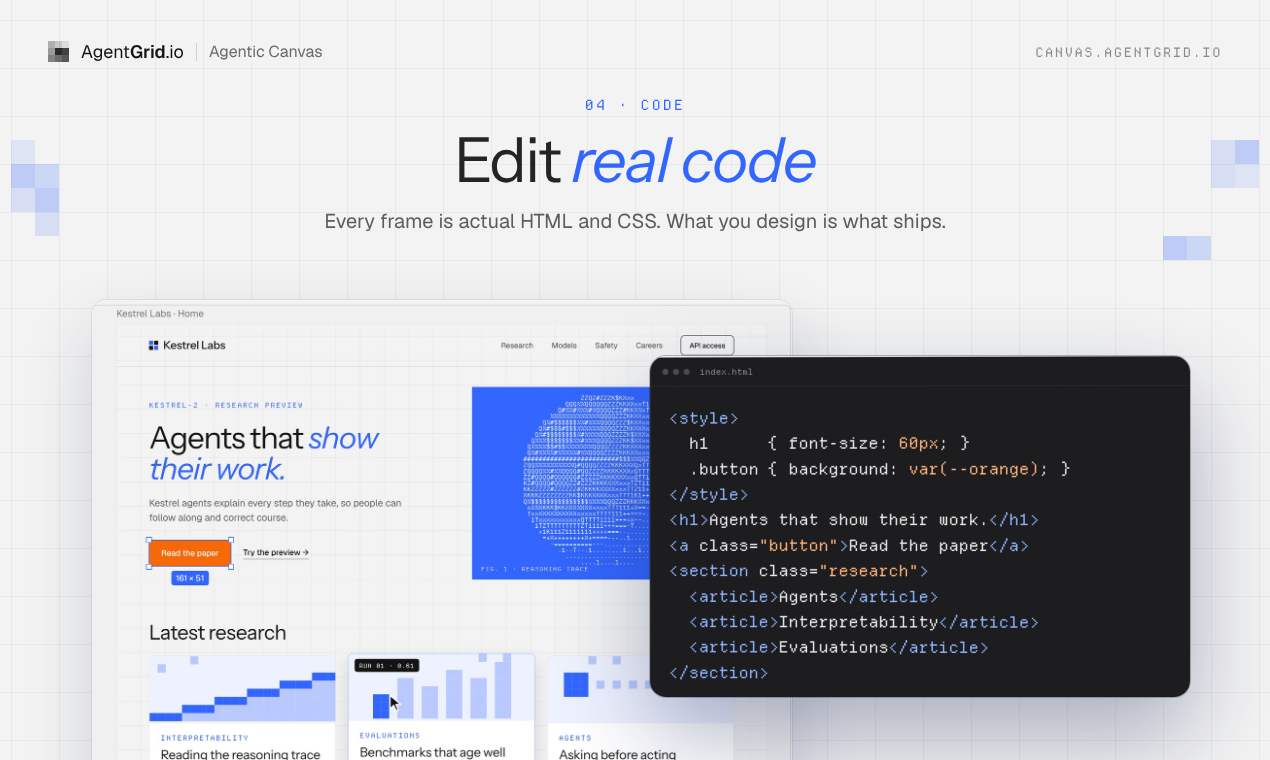
How is this different from a conventional design canvas?
A conventional design canvas is useful for composing a visual idea, but the result often needs a separate implementation step before it becomes a working web page. Agentic Canvas is an HTML design tool: a frame is a real page, so an agent can read and change the same HTML and CSS that you edit visually. That does not mean it matches every feature of a mature design suite. The point is to keep visual decisions and working code together, whether you are refining an AI-generated website or making a new one.
How to design a website with Claude or ChatGPT on Agentic Canvas
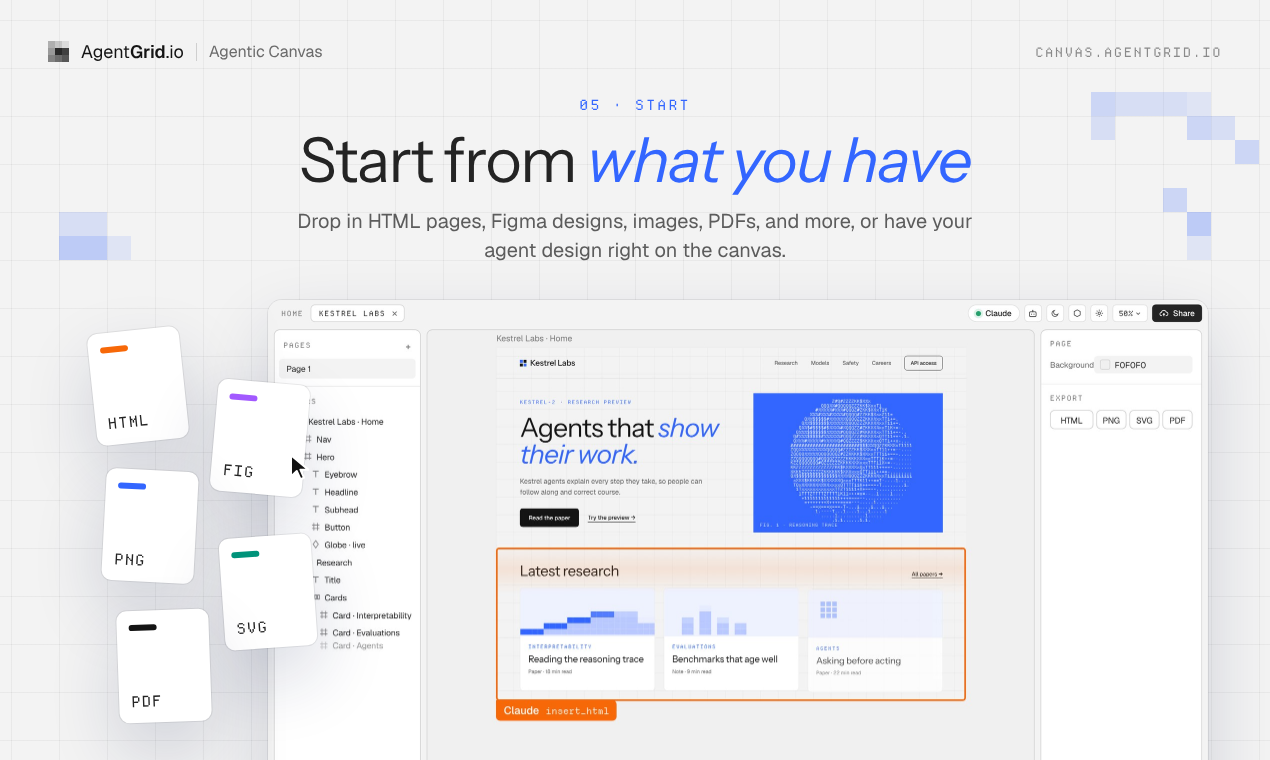
- Start with what you have. Open the canvas and paste HTML, copy and paste from Figma, bring in images or designs, or begin with an agent-generated page. The import guide lists the supported starting points.
- Connect your agent. Choose AI agents, then Add an agent in the canvas. Follow the connection guide for Claude, ChatGPT or another MCP-capable client. Keep the canvas tab open while the agent works.
- Make a first pass together. Ask for a layout or an interaction, then inspect the live result on the canvas.
- Take control visually. Move elements, change colors, resize a frame and tune the layout by hand. Ask the agent to continue from the latest version.
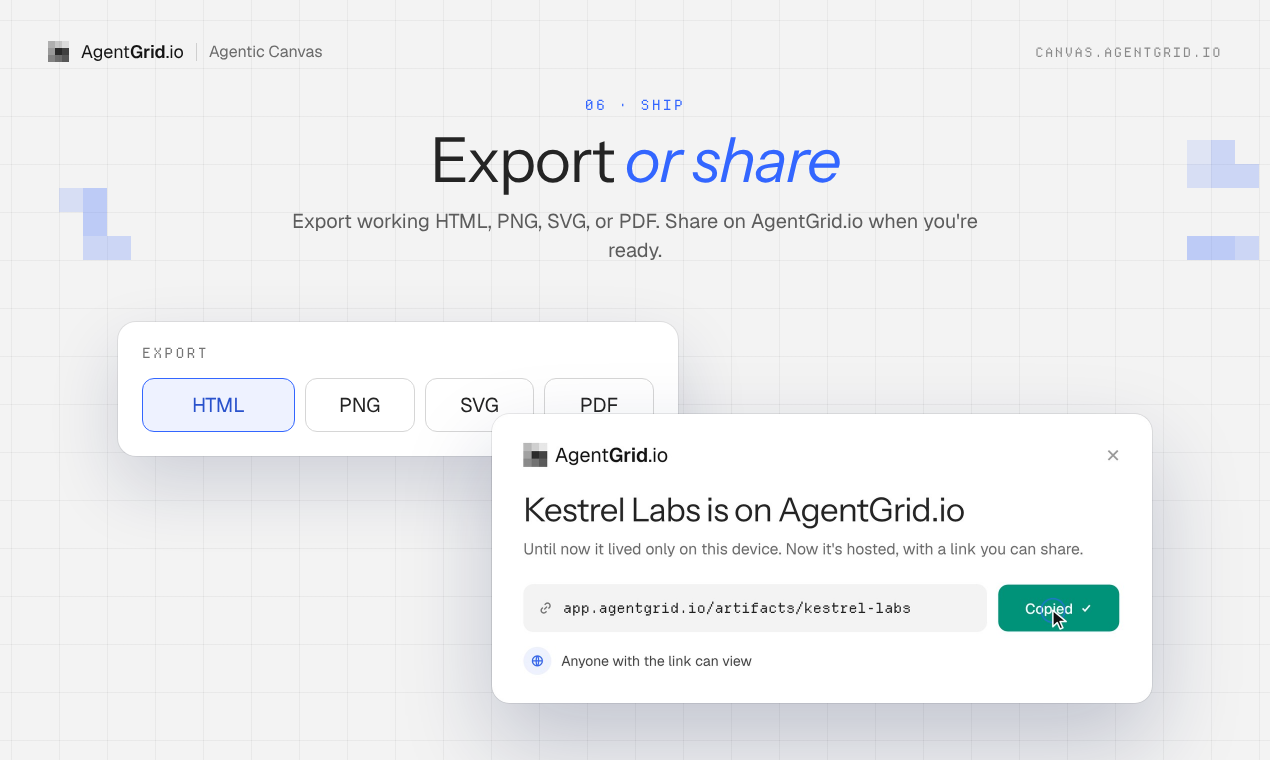
- Export or share when ready. Export HTML or another supported format without publishing. If you want a hosted link, share or publish through AgentGrid.io. That cloud step is optional and requires an account.
What stays local, and what requires an account?
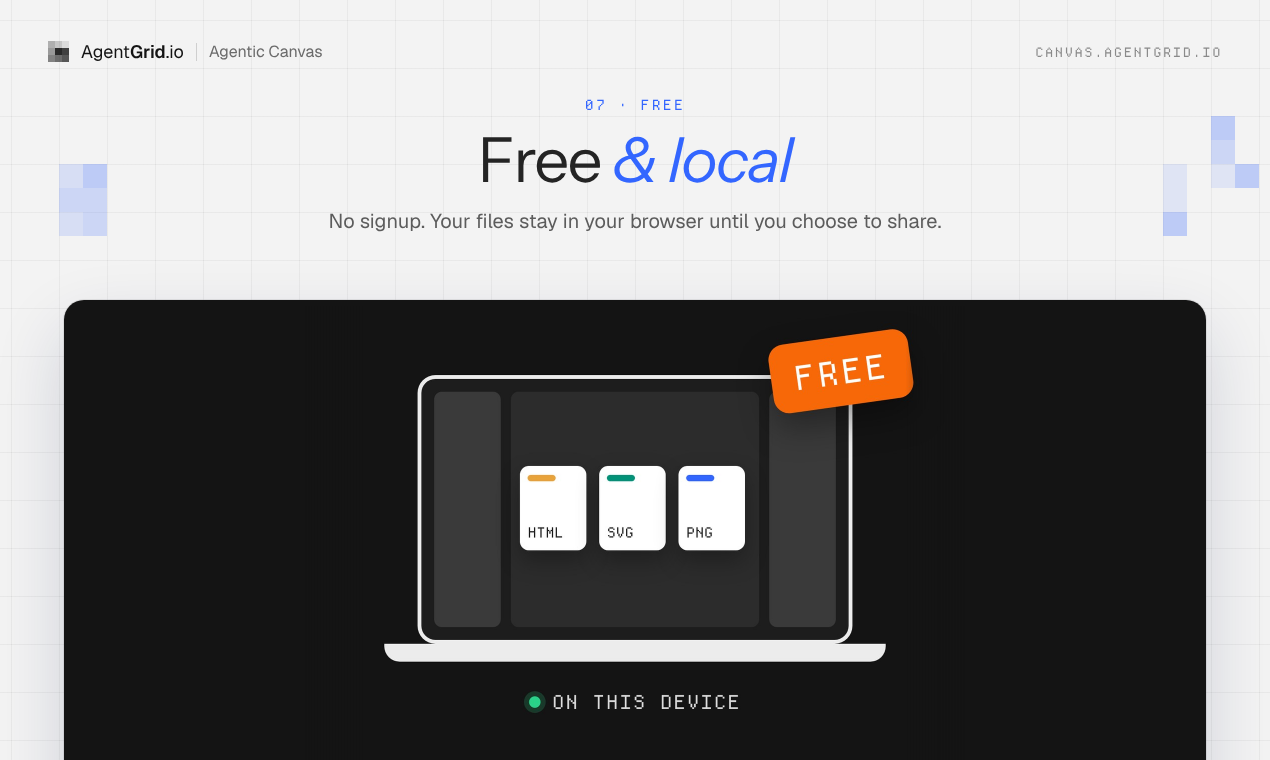
You can start designing in your browser for free, without signing up. Your files live in that browser on that device, not in an automatic cross-device backup. Export a copy of work you want to keep outside the browser. Connecting an external agent lets it read the canvas and uses a network connection, so local does not mean offline. Sharing or publishing through AgentGrid.io is optional and requires an account.
I believe the next design tool should not force us to choose between visual control and an agent that can build. The agent should speak the native language of the work, and we should still be able to grab the thing on screen and change it.
Open Agentic Canvas and try designing with your agent. For a quick look at the workflow, watch the launch demo and explore the features.
Questions about Agentic Canvas
Is Agentic Canvas free, and do I need an account?
Yes, the design canvas is free. Open it in your browser and start designing without an account. An AgentGrid.io account is only needed if you choose to share or publish through AgentGrid.io.
Which AI agents work with Agentic Canvas?
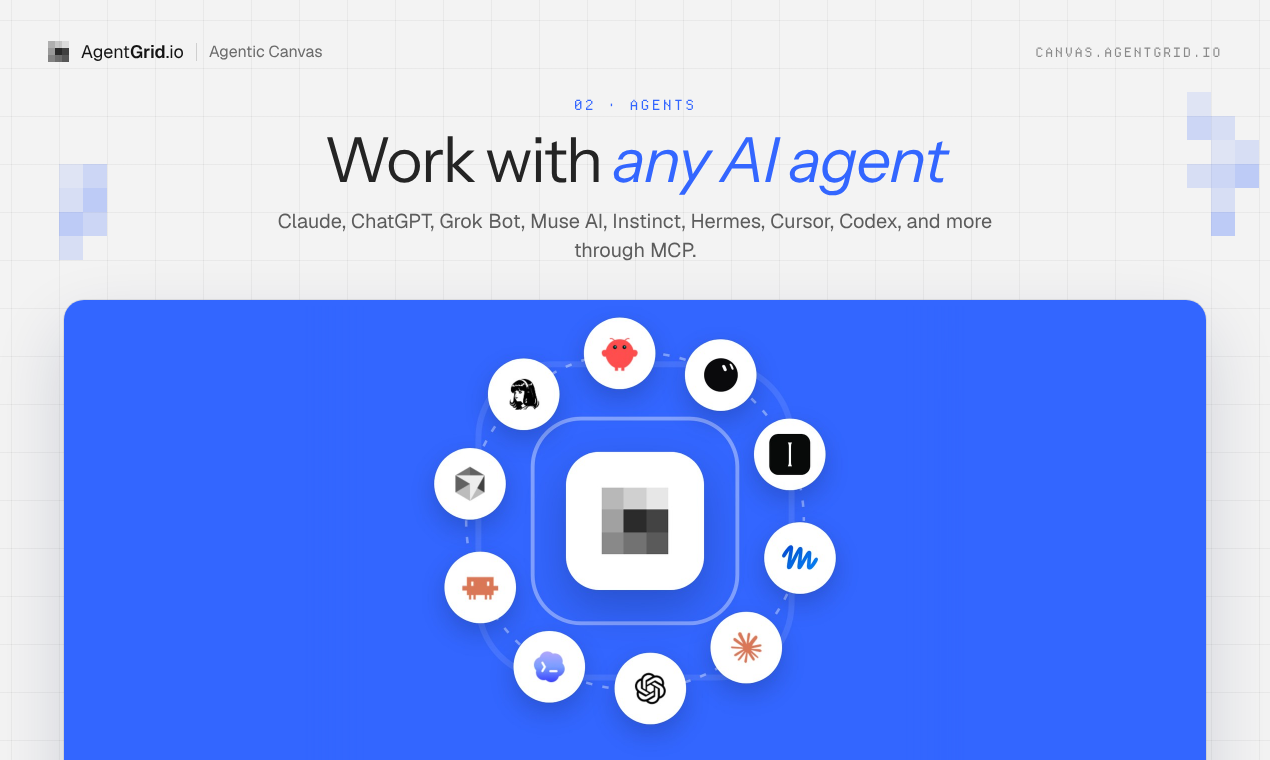
Claude, ChatGPT, Claude Code, Codex, Cursor and other MCP-capable agents can read and change the open canvas. Choose AI agents and then Add an agent to follow the connection steps. Keep the canvas tab open while your agent works.
Can I edit an AI-generated website visually?
Yes. Bring in the HTML page or a site folder, then move, resize and refine elements on the canvas. The frames are real HTML and CSS, so an agent can continue from your visual edits instead of rebuilding a static mockup.
Can I import an existing HTML page or website?
Yes. Paste HTML into the canvas, or drop a site folder or its ZIP onto Home. You can also start with a Figma selection or an image.
Where are my canvas files stored? Are they backed up?
They are stored locally in the browser and device you used, without automatic cloud backup. Another browser or device will not see them. Export a copy of important work, or choose AgentGrid.io sharing if you want cloud backup and version history.
Can my AI agent work on the canvas after I close the tab?
No. The canvas tab needs to stay open while a connected agent reads or changes the design. You can return to your locally stored files in the same browser later.
Does connecting an agent also give it access to my AgentGrid.io workspace?
No. Connecting an agent to the canvas lets it work on the open canvas files. Connecting that agent to AgentGrid.io artifacts is a separate step.
Can I export without publishing?
Yes. Export HTML, PNG, SVG or PDF without sharing or publishing. You can hand the HTML to a coding agent to keep building elsewhere.
Is sharing the same as publishing?
No. Sharing through AgentGrid.io gives access to the people and agents you choose; publishing puts the design on a public web address. Both are optional and require an AgentGrid.io account.