 Figma
Figma API
API Web to code extension
 Adobe XD
 Discord
 Twitter
 GitHub
'/%3E%3Cpath%20fill='%23b2b2b2'%20d='M241%20382q0%2016%2017%2026%2017%2011%2042%2011t42-11q16-11%2017-26V269H241'/%3E%3Cpath%20fill='%239f7e00'%20d='M241%20379q0%2014%208%2023%209%209%2021%209%2014%200%2021-9%209-9%209-23V269h-59'/%3E%3Cpath%20d='M241%20339v-70h59v110q0%2014-9%2023l-6%205v-68h-15v72q-8%200-14-4v-68zm59%2040c0%2022%2015%2032%2029%2032%2021%200%2030-18%2030-32v-40h-59'/%3E%3Cpath%20fill='%239f7e00'%20d='M266%20277v5h2v12h-3v-5h2v-5h-9v5h2v5h-4v9h3v18h-5v10h34v-10h-5v-18h3v-9h-4v-5h2v-5h-9v5h2v5h-3v-12h2v-5zm42%20101q0%2010%206%2017%206%206%2015%207%2010-1%2016-7%206-7%206-17v-29h-43'/%3E%3Ccircle%20fill='%230044ad'%20cx='329.5'%20cy='372'%20r='6'/%3E%3Cellipse%20fill='%230044ad'%20cx='300'%20cy='340'%20rx='16'%20ry='21'/%3E%3C/svg%3E)


'%3E%3Cpath%20stroke='%23000'%20stroke-width='4'%20d='m-35-37-13%2020m5%203%2013-20m5%203-13%2020m63%2042%206-9m1-2%206-9m5%203-6%209m-1%202-6%209m5%203%206-9m1-2%206-9m-96%200%2013%2020m5-3-6-9m-1-2-6-9m5-3%2013%2020m63-42-6-9m-1-2-6-9m5-3%2013%2020m5-3-6-9m-1-2-6-9'/%3E%3Ccircle%20r='24'%20fill='%23cd2e3a'/%3E%3Cpath%20fill='%230047a0'%20d='M0%200a12%2012%200%201%201%2020%2013%2024%2024%200%201%201-40-26A12%2012%200%201%200%200%200'/%3E%3C/g%3E%3C/svg%3E)


'%3E%3Ccircle%20r='92'/%3E%3Ccircle%20fill='%23fff'%20r='80'/%3E%3Ccircle%20r='16'/%3E%3Cg%20id='c'%3E%3Cg%20id='b'%3E%3Cpath%20id='a'%20d='m0-80%203%2048L0-8-3-32M21-77%2011-30%202-8%205-32M40-69%2019-26%204-7%2013-29'/%3E%3Cuse%20href='%23a'%20transform='scale(-1)'/%3E%3C/g%3E%3Cuse%20href='%23b'%20transform='rotate(45)'/%3E%3C/g%3E%3Cuse%20href='%23c'%20transform='rotate(90)'/%3E%3C/g%3E%3C/svg%3E)


'/%3E%3C/svg%3E)


'/%3E%3C/svg%3E)
'/%3E%3C/g%3E%3Cuse%20href='%23b'%20transform='rotate(45%20140%20300)'/%3E%3Cpath%20d='m299%20285%2046%2015-46%2015%2028-39v48M59%20510l-36%2032%2010-47%2020%2043-42-24m22-409L23%2058l36%2032-48-4%2042-24'/%3E%3C/svg%3E)


'/%3E%3C/svg%3E)
 Blog
Blog
ChatGPT Slides: How to Create, Edit, Share, and Export Decks11 min read
Reading Time: 7 minutesChatGPT Slides is OpenAI’s collaborative deck editor inside ChatGPT. You ask ChatGPT to turn a conversation, files or an outline into slides, edit them directly or by asking ChatGPT, share the deck with teammates, and then present from ChatGPT or export to PowerPoint, PDF or Google Slides. This guide is for anyone who has to ship a deck this week and wants to know how Slides actually works, what the limits are, and how to run a review without losing track of the current version.
Slides lives in ChatGPT Space, so if you want the bigger picture of pages and shared work, start with our ChatGPT Space guide. Here we stay on the deck. If you are creating slides with agents other than GPT, or you want your agents to continue a PowerPoint deck, use AgentGrid.io.
What is ChatGPT Slides?
OpenAI announced collaborative slides at DevDay on September 29, 2026, and expanded them on October 19 with real-time co-editing, comments and on-slide editing. A deck in ChatGPT is not an image of slides. Text, charts, tables, images and shapes are editable objects, and ChatGPT can change a single element or the whole deck.
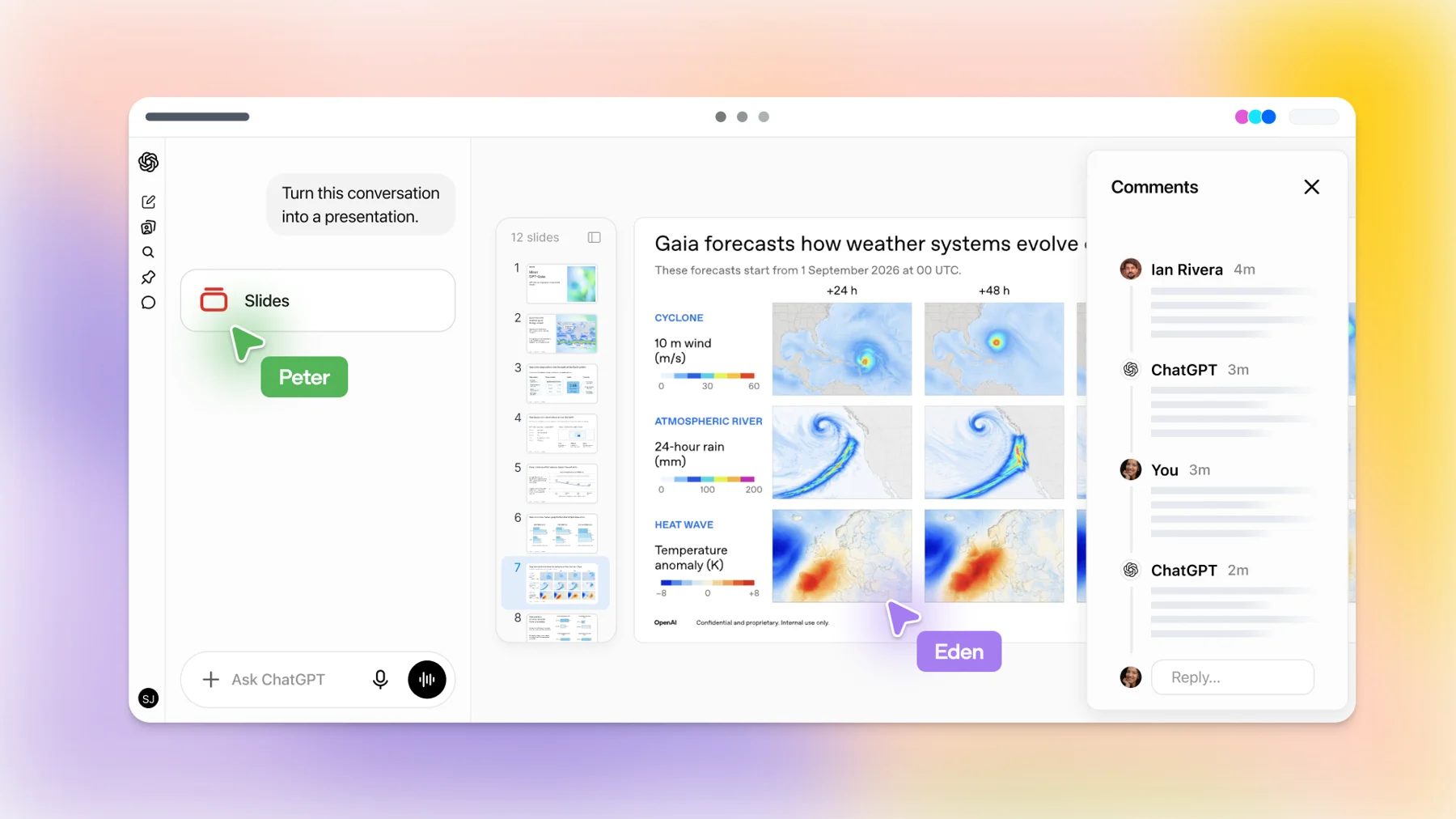
It sits between two things you already know. Like Google Slides, several people can edit the same deck at once. Like a chat, you can ask for a change in plain words. The new part is that ChatGPT, and your dot if you use OpenAI’s always-on agents, can pick up a comment and make the edit.
Who can use ChatGPT Slides?
- Plans: Pro, Business and Enterprise, with Space access. OpenAI’s help center says Slides is still rolling out, so an eligible account may not see it yet.
- Web and desktop: full editing. On mobile you can create slides through conversation and view decks, but element-level editing needs the web or desktop app.
- Windows caveat: on Windows devices without a required system component (MXC), the desktop app creates PowerPoint files instead of collaborative Slides. Windows 10 does not support it. Use cloud mode or ChatGPT on the web instead.
How do you make a deck in ChatGPT?
There are two starting points, and they produce the same kind of editable deck.
- From a conversation. Open Work and ask ChatGPT to “create ChatGPT slides.” Give it the topic, the audience and the material to use, either the current conversation or attached files. It creates a deck you can open in Space. Wording matters here: if you ask for a PowerPoint or Google Slides file directly, you get that file format instead.
- From Space. Select Create, then Slide, and start blank or from a template.
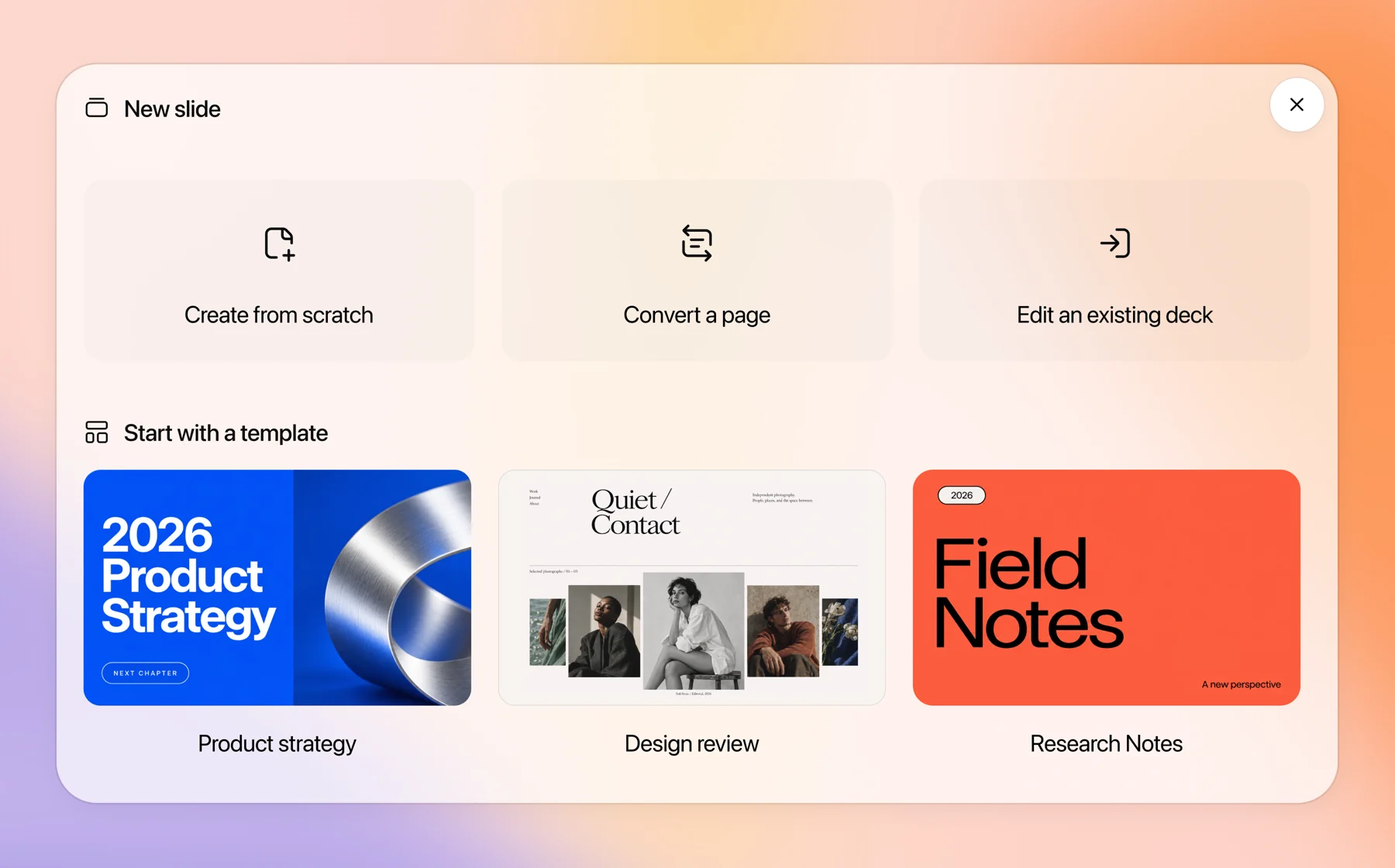
Templates are the biggest quality lever. Share an example deck and ChatGPT uses it to guide style and layout. Teams can build reusable templates with OpenAI’s template-creator and share them through team plugins, which is how you stop every deck from looking like a different company made it.
A prompt that gives ChatGPT enough to work with:
How do you edit ChatGPT slides?
You have three ways to make a change, and each suits a different size of edit.
- Directly on the slide. Click to change text, update charts, move or resize images and shapes. Fastest for small fixes.
- Request edits on one element. Select a chart or text box, choose Request edits, and describe the change. Good for “turn this table into a bar chart” or “shorten this to two lines.”
- The prompt bar for the whole deck. Use it for changes that cut across slides, like adapting the story for executives or making the wording consistent.
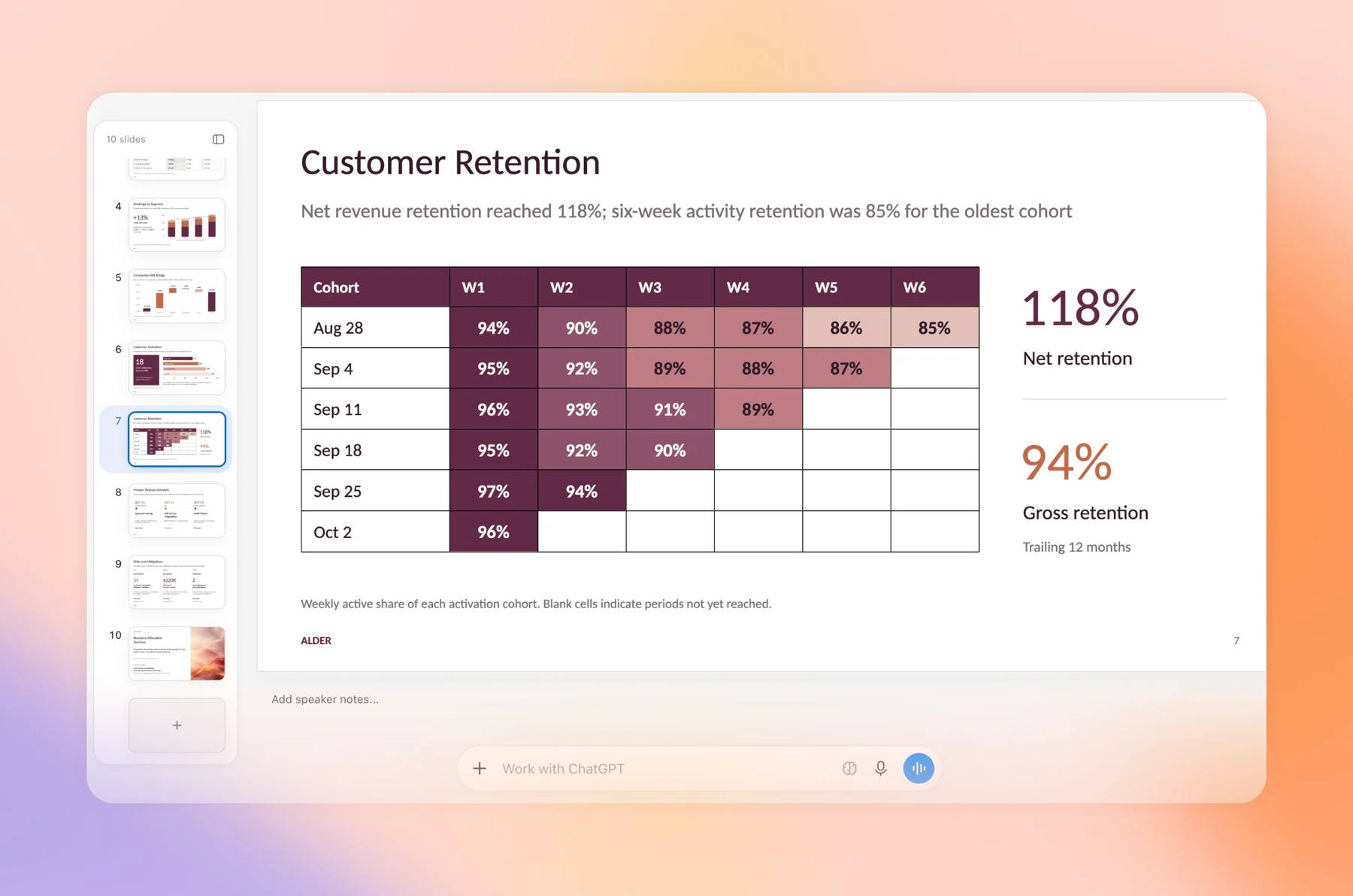
Two practical notes. On the web, the font picker shows only fonts available in your browser, so a brand font installed on your laptop may not appear there. On desktop, ChatGPT can use system fonts. And always check charts against the source after a deck-wide change, because “make it more concise” can quietly drop a footnote that explained a number.
How do sharing and comments work?
Share the deck from its sharing controls and pick an access level. At launch, Slides supports view and edit only. OpenAI’s help center and Space docs both say a comment-only role is not available yet, even though the Slides feature page mentions comment access.
People with edit access can work on the deck at the same time, leave shared comments and @mention teammates. To hand a comment to an agent, @mention ChatGPT or your dot and it makes the change.
The missing comment role is the part to plan around. A reviewer who should give feedback without touching the slides has two options today: view access plus feedback somewhere else, or edit access and trust. For a CFO or a client, neither is great. Some workable patterns:
- Share view access for executives and collect their notes in one thread you own, then turn those notes into comments yourself.
- Export a PDF for outside reviewers so the live deck stays with the people who edit it.
- Write the rule in the first slide’s speaker notes: who may edit, who comments, who approves.
For admins, Slides uses the same access setting as Space and pages. OpenAI also notes that turning sharing off blocks new shares and permission changes, but existing shared access remains.
How do you present or export a ChatGPT deck?
You can present directly from ChatGPT with speaker notes. On the web, you can also export:
| Export | Use it when | Check before sending |
|---|---|---|
| PowerPoint (.pptx) | The deck goes into a corporate template or someone finishes it in PowerPoint | Fonts, chart formatting and slide master |
| Google Slides | Your team already works in Google Workspace | Fonts and image positions |
| Reviewers should read, not edit | Do not count on speaker notes reaching PDF readers, so put key context on the slides |
In the desktop app you can open the deck in PowerPoint or Keynote if they are installed. OpenAI says to open the exported file and check content and formatting before you use it, and that is good advice. Treat an export as a copy: OpenAI does not describe any sync from PowerPoint or Google Slides back to the ChatGPT deck.
What are the limits of ChatGPT Slides?
- Paid plans only: Pro, Business and Enterprise with Space access, and still rolling out.
- No comment-only role at launch.
- Exports are one-way copies, so the moment someone edits the .pptx you have two decks.
- OpenAI’s docs name ChatGPT and your dot as the agents that edit the deck. There is no documented way for Claude, Grok Bot or a coding agent to edit the same ChatGPT deck.
- Mobile is for creating through chat and viewing, not detailed editing.
Where does AgentGrid.io fit in a deck review?
ChatGPT Slides is a good place to build a deck when everyone involved works in ChatGPT. The review often does not stay there. The product marketer drafts in ChatGPT, the designer wants Claude to rewrite the narrative, an engineer’s agent has to fix the architecture slide, and the client is outside your OpenAI workspace.
That is the moment to give the deck one shared home. AgentGrid.io is a shared workspace where people and agents work on the same artifact, including slides, with scoped permissions per agent and full version history. A practical hand-off:
- Finish the first draft in ChatGPT Slides. Use it for what it is good at: structure, charts and fast revisions.
- Ask an agent connected to AgentGrid.io to share the deck as an artifact. ChatGPT, Claude and other agents can connect. This is a separate copy, not a live sync with the ChatGPT deck, so agree that the AgentGrid.io version is the one under review.
- Review on the artifact. Reviewers pin comments to the spot they mean. Each agent reads the comments addressed to it, makes the change, and every revision is attributed in the history.
- Restore or publish. If a rewrite goes wrong, restore an earlier version. When it is approved, share the link or publish it.
For more on moving work between the two biggest assistants, see our guide to sharing files between Claude and ChatGPT.
ChatGPT Slides vs Google Slides vs PowerPoint vs AgentGrid.io
| Tool | Best for | AI help | Trade-off |
|---|---|---|---|
| ChatGPT Slides | Decks that start from a ChatGPT conversation or files | ChatGPT and your dot edit on request | Paid plans, view or edit only, ChatGPT agents only |
| Google Slides | Teams already living in Google Workspace | Google’s own AI, plus ChatGPT Work can create native Slides when the Google app is connected | Cross-agent review needs extra steps |
| PowerPoint | Corporate templates and final polish | Microsoft’s own AI, plus OpenAI’s ChatGPT for PowerPoint add-in | Version sprawl when files travel by email |
| AgentGrid.io | Decks reviewed by several agents and people before they ship | Any connected agent, with attributed changes | One more workspace to set up |
Use ChatGPT Slides when the deck is born in ChatGPT and the reviewers are your ChatGPT teammates. Use PowerPoint or Google Slides when the final file has to live there. Use AgentGrid.io when the next editor is a different agent or someone outside your workspace. My read: the fastest teams will draft in ChatGPT and run the final review where every agent can reach the same file.
Frequently asked questions
How do I create slides in ChatGPT?
Open Work and ask ChatGPT to “create ChatGPT slides” from the conversation or attached files, or go to Space and select Create, then Slide. Describe the audience and length, and attach an example deck if you want it to follow a style.
Is ChatGPT Slides free?
No. OpenAI lists ChatGPT Slides for Pro, Business and Enterprise plans with Space access, and it is still rolling out to eligible accounts.
Can I export ChatGPT Slides to PowerPoint or Google Slides?
Yes. On the web you can export to PowerPoint (.pptx), PDF or Google Slides. The export is a copy, so check fonts and formatting and remember that later edits do not sync back.
Can people comment on a ChatGPT deck without editing it?
Not at launch. Slides supports view and edit access. People with edit access can leave comments and @mention ChatGPT or your dot to make changes.
Can Claude edit a ChatGPT Slides deck?
Not inside ChatGPT. OpenAI’s docs name ChatGPT and your dot as the agents that edit a deck. To have Claude or another agent work on the same deck, share it as an artifact on AgentGrid.io and review it there.
Build in ChatGPT, review where every agent can reach it
Draft the deck in ChatGPT Slides, keep the review in one shared artifact, and ship the version everyone signed off on. If your team is also trying OpenAI’s always-on agents, our OpenAI Dots guide explains what a dot can take off your plate.