 Figma
Figma API
API Web to code extension
 Adobe XD
 Discord
 Twitter
 GitHub
'/%3E%3Cpath%20fill='%23b2b2b2'%20d='M241%20382q0%2016%2017%2026%2017%2011%2042%2011t42-11q16-11%2017-26V269H241'/%3E%3Cpath%20fill='%239f7e00'%20d='M241%20379q0%2014%208%2023%209%209%2021%209%2014%200%2021-9%209-9%209-23V269h-59'/%3E%3Cpath%20d='M241%20339v-70h59v110q0%2014-9%2023l-6%205v-68h-15v72q-8%200-14-4v-68zm59%2040c0%2022%2015%2032%2029%2032%2021%200%2030-18%2030-32v-40h-59'/%3E%3Cpath%20fill='%239f7e00'%20d='M266%20277v5h2v12h-3v-5h2v-5h-9v5h2v5h-4v9h3v18h-5v10h34v-10h-5v-18h3v-9h-4v-5h2v-5h-9v5h2v5h-3v-12h2v-5zm42%20101q0%2010%206%2017%206%206%2015%207%2010-1%2016-7%206-7%206-17v-29h-43'/%3E%3Ccircle%20fill='%230044ad'%20cx='329.5'%20cy='372'%20r='6'/%3E%3Cellipse%20fill='%230044ad'%20cx='300'%20cy='340'%20rx='16'%20ry='21'/%3E%3C/svg%3E)


'%3E%3Cpath%20stroke='%23000'%20stroke-width='4'%20d='m-35-37-13%2020m5%203%2013-20m5%203-13%2020m63%2042%206-9m1-2%206-9m5%203-6%209m-1%202-6%209m5%203%206-9m1-2%206-9m-96%200%2013%2020m5-3-6-9m-1-2-6-9m5-3%2013%2020m63-42-6-9m-1-2-6-9m5-3%2013%2020m5-3-6-9m-1-2-6-9'/%3E%3Ccircle%20r='24'%20fill='%23cd2e3a'/%3E%3Cpath%20fill='%230047a0'%20d='M0%200a12%2012%200%201%201%2020%2013%2024%2024%200%201%201-40-26A12%2012%200%201%200%200%200'/%3E%3C/g%3E%3C/svg%3E)


'%3E%3Ccircle%20r='92'/%3E%3Ccircle%20fill='%23fff'%20r='80'/%3E%3Ccircle%20r='16'/%3E%3Cg%20id='c'%3E%3Cg%20id='b'%3E%3Cpath%20id='a'%20d='m0-80%203%2048L0-8-3-32M21-77%2011-30%202-8%205-32M40-69%2019-26%204-7%2013-29'/%3E%3Cuse%20href='%23a'%20transform='scale(-1)'/%3E%3C/g%3E%3Cuse%20href='%23b'%20transform='rotate(45)'/%3E%3C/g%3E%3Cuse%20href='%23c'%20transform='rotate(90)'/%3E%3C/g%3E%3C/svg%3E)


'/%3E%3C/svg%3E)


'/%3E%3C/svg%3E)
'/%3E%3C/g%3E%3Cuse%20href='%23b'%20transform='rotate(45%20140%20300)'/%3E%3Cpath%20d='m299%20285%2046%2015-46%2015%2028-39v48M59%20510l-36%2032%2010-47%2020%2043-42-24m22-409L23%2058l36%2032-48-4%2042-24'/%3E%3C/svg%3E)


'/%3E%3C/svg%3E)
 Blog
Blog
Canva Craft: What It Is, How It Works, Pros, Cons, and Alternatives14 min read
Reading Time: 10 minutesYou need a launch poster, a hero image or a social card, and the words inside the image have to be spelled right and sit where the layout needs them. That is the job Canva built Craft for. Canva Craft is Canva’s first in-house image model, launched on October 22, 2026. Every Canva user can use it today in Dream Lab, and developers can call it through Canva’s image generation API. Canva also says Craft is coming to the Canva MCP server, the connection Claude and ChatGPT use to work with Canva, but that part has not shipped yet.
This guide is for marketers, designers and builders who want to know what Craft actually does, how to use it in Canva and from an AI assistant, and where it falls short. When your Craft images are ready, take them further with Anima Playground and design full websites around them with AI.
What is Canva Craft?
Canva Craft is a text-to-image model built and trained from scratch by Canva Research, Canva’s AI lab. It renders images at up to 2K resolution, in more than 30 aspect ratios inside Canva, and it can write text inside the image in 55 languages. You can prompt it in any language.
Canva calls it a model built for design, and the training data backs that up. Alongside photos, Craft learned from millions of Canva templates: posters, social posts, presentations, infographics and menus. Templates show how a headline, a subject and white space fit together, which is why the launch examples lean on layouts with real typography and not only pretty landscapes.
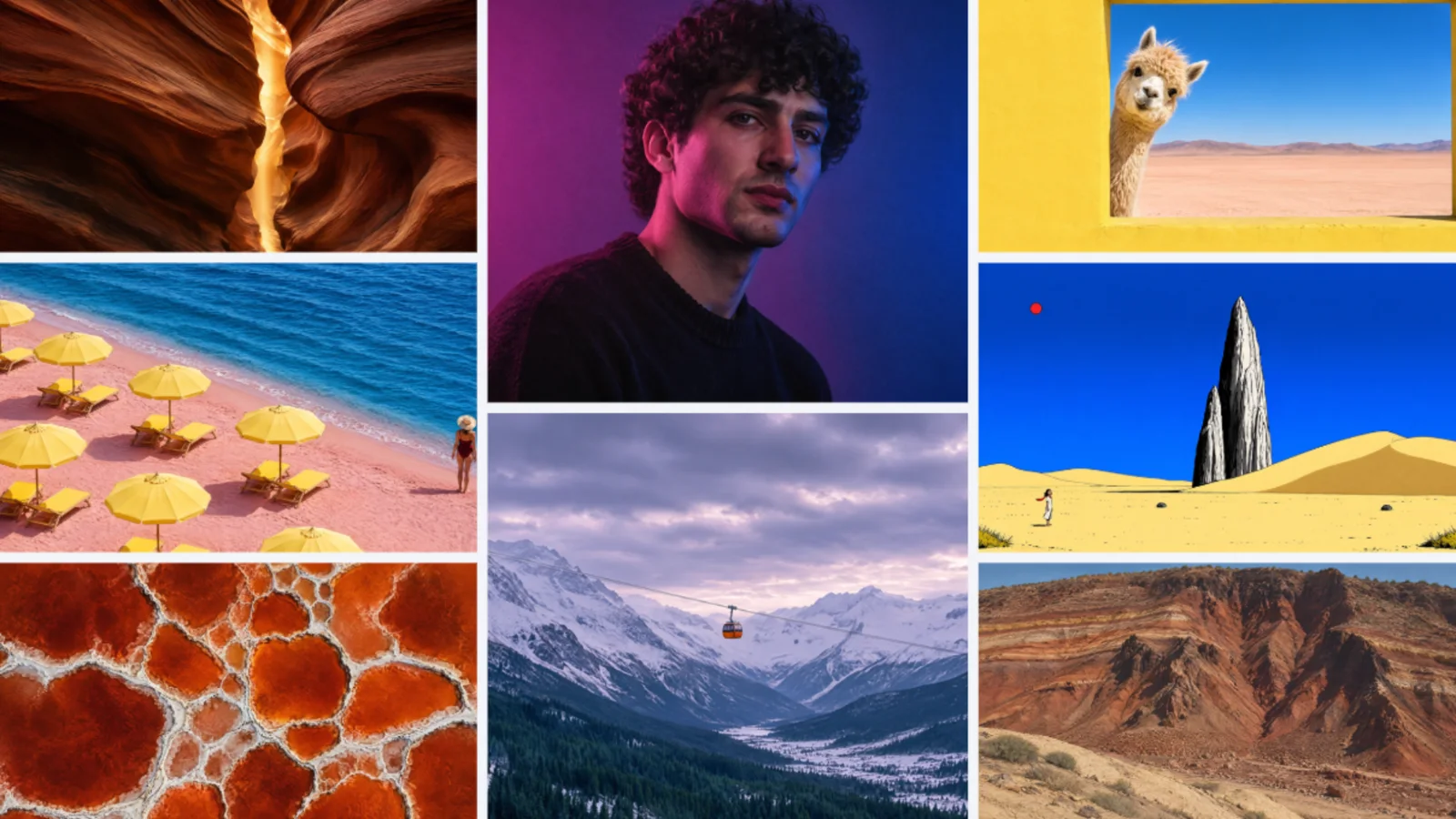
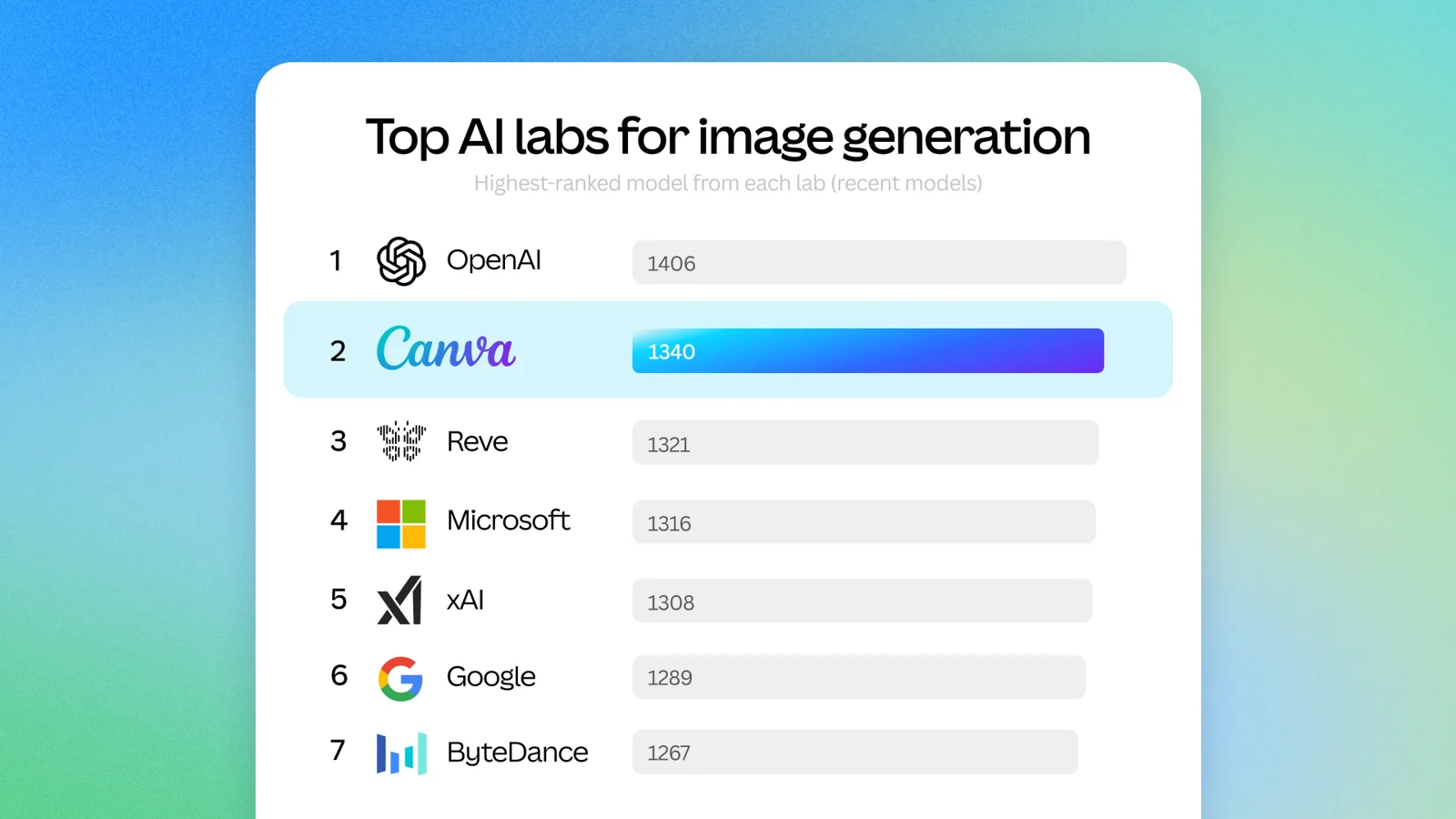
At launch, Canva reported that Craft debuted as the fourth strongest image model on DesignArena, a crowdsourced design benchmark, and that it ranked first in the People & Portraits and Landscapes & Nature categories. Those are launch-week numbers published by Canva. Leaderboards move every week, so read them as a signal, not as a promise about your prompts.
How does Canva Craft work?
Most image models go straight from a prompt to pixels. Craft splits the job in two. A planning model first reads your prompt and writes a plan of the composition: which elements appear, where they sit, how big they are relative to each other, what the eye should hit first, and what text needs to appear. A second model then renders that plan into the final image.
That design choice explains the results you should expect. Text lands closer to where you asked for it, objects keep their positions, and you can ask for targeted changes without the whole image shifting. Canva also says the same structure makes Craft images a good fit for Magic Layers, which splits a generated image into separate elements you can move and edit in the Canva editor.
It also changes how you should prompt. A vague mood prompt wastes the planning step. Write the prompt like a short layout brief instead. This is the structure I would start with:
The last line matters most when the image is going on a website. If you do want words in the image, for a poster or a social card, write them exactly as they should appear and say where they go. Then read every word in the result before you use it.
How to use Canva Craft in Dream Lab
Craft runs inside Dream Lab, Canva’s AI image generator. Dream Lab lives on the Canva homepage, not inside the editor, so leave any open design first.
- Open Dream Lab. On the Canva homepage, select Dream Lab in the left panel. If you don’t see it, select More, then Dream Lab.
- Write the prompt. Use the layout brief above, or a shorter description with subject, composition, light and palette.
- Check the controls under the prompt box. Pick a style if you want one, set the aspect ratio, and make sure the model menu shows Canva Craft.
- Generate. Dream Lab returns up to four options for each prompt.
- Refine one thing at a time. Select the best option and describe a single change, such as make the car blue, or use Edit image for a targeted fix.
- Boost resolution if you need it. Boost resolution sharpens a generated image for larger or print use. It uses AI allowance.
- Use the image. Open the result in a design, then download it from the editor as you would any Canva design. Your past results stay under History in Dream Lab.
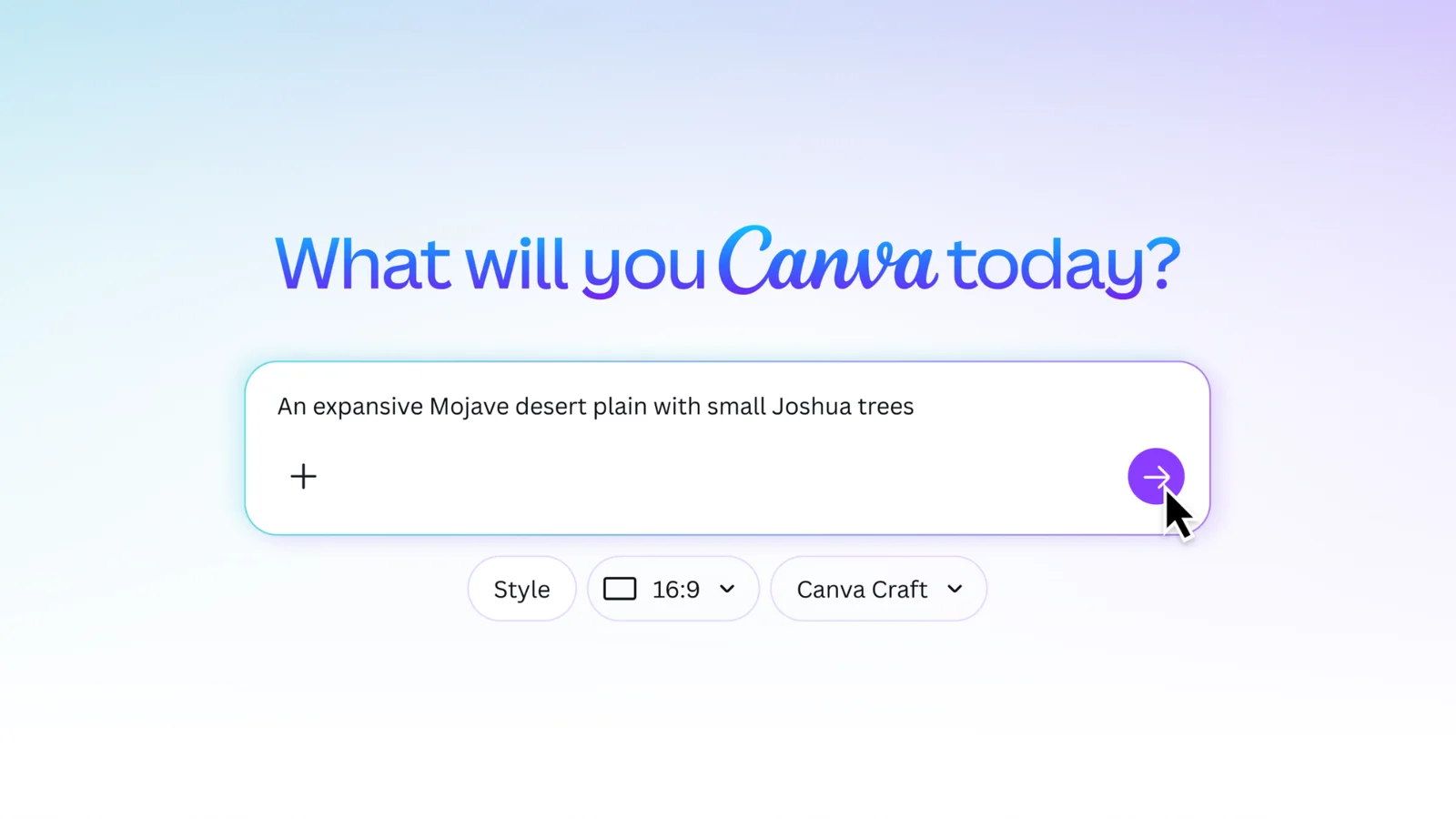
Some Dream Lab features use your Canva AI allowance, including reference images and Boost resolution. If you are producing a full set of images for a page, plan the prompts before you start generating.
Can you use Canva Craft from Claude or ChatGPT?
Not yet with Craft specifically. This is the part of the launch that is easy to misread, so here is the state of each route as of October 26, 2026.
| Route | Craft status | What you get back |
|---|---|---|
| Dream Lab in Canva | Available to all Canva users | Up to four images per prompt, ready to open in a design |
| Canva Connect API | Available as model craft_v1_2k, in preview |
A download URL valid for 24 hours, or an image saved to the user’s Canva uploads |
| Canva MCP and the Canva AI Connector (Claude, ChatGPT and others) | Announced as coming soon | Image generation works today, but you can’t choose Craft as the model |
What the Canva connector in Claude and ChatGPT does today
Canva’s AI Connector already links Canva to Claude, ChatGPT, Gemini, Microsoft Copilot and other assistants that support MCP. In ChatGPT, go to Settings, then Apps & Connectors, find Canva and connect your account. In Claude, go to Settings, then Connectors, select Canva and sign in, then turn Canva on for the chat. Team admins can switch the connector off for the whole team, so if Canva doesn’t appear, check with your admin first.
The Canva MCP server has a generate-image tool that works on every plan, at up to 10 requests a minute. Its documented inputs are a prompt and optional reference images. There is no model setting, so until Canva ships Craft on MCP, your assistant gets whichever model Canva picks. The result also comes back as a media reference inside your Canva account, not as a file in the chat. That is useful when the next step happens in Canva, and less useful when the image needs to end up on a website.
My read: when Craft lands on MCP, the interesting part won’t be a nicer image in a chat. It will be an agent that makes the launch graphic as one step of a bigger task, which is exactly how Canva describes it.
Use Craft through the API today
If you build tools, the Connect API is the working route to Craft right now. Pin the model on the image generation endpoint:
POST https://api.canva.com/rest/v1/image-generations
{
  "prompt": "A clean infographic poster titled 'Ocean Plastics 2026' with three stat callouts and a wave illustration",
  "model": "craft_v1_2k",
  "aspect_ratio": "portrait_2_3",
  "idempotency_key": "9c1f2d3e-5b6a-4c7d-8e9f-0a1b2c3d4e5f"
}
Then poll GET /v1/image-generations/{jobId} until the status is success. A few details that matter in production:
- You need a user access token with the
asset:writescope, and each job uses that user’s AI credits. - Craft plans before it renders, so Canva says to expect roughly 50 to 60 seconds per job. Poll with backoff. There are no webhooks for image jobs yet.
- If you pin Craft and it is unavailable, the job fails with
model_not_available. Canva does not quietly swap models when you pin one. Drop the pin to let Canva choose. - The API accepts six aspect ratios: square, landscape (16:9), portrait (9:16), 3:2, 2:3 and 4:5. The 30-plus ratios in Dream Lab are a product feature, not an API option.
- The same endpoint also offers Lucid Origin and Z Image Turbo, so you can compare models on your own prompts.
- It is a preview API. Breaking changes can happen, and public Canva apps that use preview APIs can’t pass Canva’s app review.
Canva Craft pros and cons
Craft is a strong first model, and it is honest about being a first version. Here is how I would weigh it.
Where Craft is strong
- Images that are meant to be designs. Posters, social posts, flyers and presentation visuals, where hierarchy and text placement matter as much as the subject.
- Text inside the image, in 55 languages, placed where the plan says it should go.
- Size flexibility in Canva. More than 30 aspect ratios, or a custom size, at up to 2K.
- Editable results. Craft images pair with Magic Layers, so you can adjust elements in the editor instead of starting over.
- It sits where many teams already work. No new account if your team designs in Canva.
Where Craft falls short
- Fine print and technical drawings. Canva itself lists these as areas to improve in future versions.
- Speed. The planning step costs time. Faster versions, Craft-fast and Craft-ultrafast, are announced but not out yet.
- No Craft in AI assistants yet. MCP support is coming soon, so agent workflows can’t pin Craft today.
- Credits. In Dream Lab, features such as reference images and Boost resolution use your AI allowance. In the API, every job uses the user’s AI credits.
- Reference and editing features are still growing. Canva says more advanced editing and reference image capabilities for Craft are coming in future releases.
Canva Craft vs other AI image generators
Craft doesn’t replace the image tools you already use. It is a better fit for some jobs.
- Use Canva Craft when the image is a design asset in its own right, such as a poster, a social card or a slide visual with words in it, or when your brand work already lives in Canva.
- Use ChatGPT image generation when the image depends on context from a conversation or a shared project. We walk through that route in how to generate images for Claude Design with ChatGPT.
- Use Claude Design for the layout, interface and copy around the images. It builds the page, but it doesn’t generate raster photos or illustrations itself.
- Use the Connect API when you want to test Craft against other models inside your own product. The same endpoint serves several models.
From Craft images to a published page with AgentGrid.io
Craft gives you images. A website needs more than that: the images placed in a real layout, copy that matches them, a teammate’s review and a public URL. This is the point where Craft images usually end up as loose files in someone’s Downloads folder, with a different version in every chat. AgentGrid.io is a shared workspace where people and AI agents work on the same artifact, with one link and full version history, so the page and its images stay in one place.
1. Generate the image set in Dream Lab
Start with the hero, because every other image should match it. Use the layout brief, leave clear space for the headline, and pick 16:9 for a wide hero. Once you approve it, add it as a reference image in Dream Lab when you generate the section images, so the light and palette stay consistent. Reference images use AI allowance.
2. Upload the images to AgentGrid.io
Download the approved images, then in AgentGrid.io select New, then Upload File for each one. Each image becomes an asset in your team that connected agents can read. Images don’t get a visual preview as standalone assets, which is expected.
3. Ask your agent to build the page around them
Connect Claude, ChatGPT or another agent to the same AgentGrid.io team, then ask it to build or update the page with the images you uploaded.
4. Review it with your team
Share the artifact link with teammates who already have access to the workspace. They open Review, select the hero or any section, and leave a comment anchored to that exact spot. Mention the agent when a comment needs a change. The feedback stays attached to the work, not buried in a chat thread.
5. Swap images without starting over
If the hero needs a new crop, generate it again in Dream Lab, upload it, and ask the agent to update the same artifact. Each change lands as a new version in History, so you can restore an earlier one if the new image doesn’t work.
6. Publish when it is approved
Use the artifact’s publish control to put the page on a public URL. Later edits show as Unpublished changes until you publish again, so the live page only changes when you decide. Unpublish takes it offline without deleting anything. Our guide to publishing a website with Muse AI shows the same review and publish flow with a different agent.
Frequently asked questions
What is Canva Craft?
Canva Craft is Canva’s first in-house image generation model, built by Canva Research and launched on October 22, 2026. It plans the composition of an image before rendering it, which helps with text placement and layout, and it produces images at up to 2K resolution.
How do I use Canva Craft?
Open Dream Lab from the Canva homepage, enter a prompt, check that the model menu under the prompt box shows Canva Craft, and select Generate. Dream Lab is not available inside the editor.
Is Canva Craft free?
Canva made Craft available to all Canva users. Some Dream Lab features, such as reference images and Boost resolution, use your Canva AI allowance, and API jobs use the user’s AI credits. Check your plan’s AI allowance before you generate a large set.
Can I use Canva Craft in ChatGPT or Claude?
Not yet. Canva connects to ChatGPT and Claude through its AI Connector and can generate images there, but Craft support on the Canva MCP server is announced as coming soon, and today you can’t choose the model.
Does Canva Craft have an API?
Yes. Developers can use Craft through the Canva Connect API by setting model to craft_v1_2k on the image generation endpoint. The API is in preview and uses the user’s AI credits.
Can Canva Craft put text in images?
Yes. Canva says Craft can render text in 55 languages, and its planning step decides where the text sits before rendering. Check every word before you publish, especially small text.
Generate with Craft, publish with AgentGrid.io
Canva Craft is a real step forward for images that need to behave like designs, with text and layout that hold together. Use it in Dream Lab today, use the API if you build tools, and wait for MCP before planning agent workflows that depend on it. When those images need to become a page your team signs off on, put the page and its images in one AgentGrid.io artifact, review it in place, and publish it when it is ready.
Frequently asked questions
Canva Craft is Canva's first in-house image generation model, built by Canva Research and launched on October 22, 2026. It plans the composition of an image before rendering it, which helps with text placement and layout, and it produces images at up to 2K resolution.
Open Dream Lab from the Canva homepage, enter a prompt, check that the model menu under the prompt box shows Canva Craft, and select Generate. Dream Lab is not available inside the editor.
Canva made Craft available to all Canva users. Some Dream Lab features, such as reference images and Boost resolution, use your Canva AI allowance, and API jobs use the user's AI credits. Check your plan's AI allowance before you generate a large set.
Not yet. Canva connects to ChatGPT and Claude through its AI Connector and can generate images there, but Craft support on the Canva MCP server is announced as coming soon, and today you can't choose the model.
Yes. Developers can use Craft through the Canva Connect API by setting model to craft_v1_2k on the image generation endpoint. The API is in preview and uses the user's AI credits.
Yes. Canva says Craft can render text in 55 languages, and its planning step decides where the text sits before rendering. Check every word before you publish, especially small text.