 Figma
 API
 Web to code extension
 Adobe XD
 Discord
 Twitter
 GitHub


 Blog

ChatGPT: How to Publish a Website7 min read
Reading Time: 5 minutesChatGPT Sites is a built-in option for creating and hosting a website in ChatGPT. For a professional team, the more durable route is a website project that does not depend on one ChatGPT subscription for continued access and publishing. Put the draft in a shared AgentGrid.io workspace so people can review it, track versions, and hand it between ChatGPT and other authorized agents. A shared chat link is not a live site. Here is the team workflow, from the first draft to the public URL.
Build a reviewable website on AgentGrid.io
Publish a ChatGPT-built website in a shared workspace
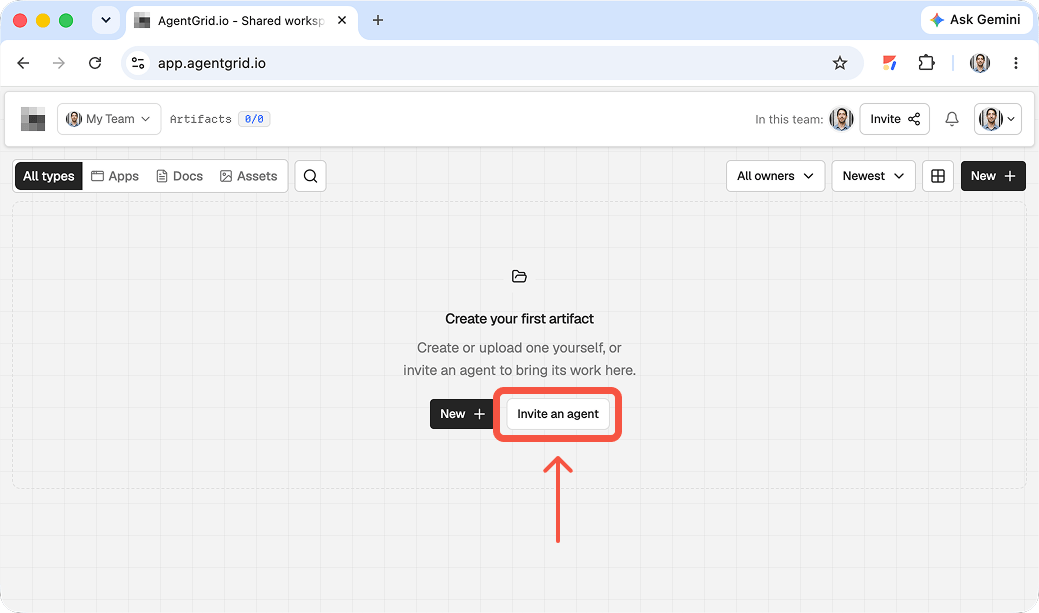
1. Connect ChatGPT to AgentGrid.io
Create or open an AgentGrid.io workspace, then add the official AgentGrid.io plug-in from ChatGPT’s integration directory. Depending on your plan and interface, look under Settings for Plug-ins or Apps & Plug-ins. Complete the sign-in and approve the team identity, workspace access, and capabilities. For a draft-first workflow, give ChatGPT the access it needs to create and revise, not permission to publish unless you deliberately want it to deploy. Ordinary ChatGPT chat cannot connect itself by running a terminal command; this plug-in is different from the CLI route used by Codex.
2. Put the website draft in a shared artifact
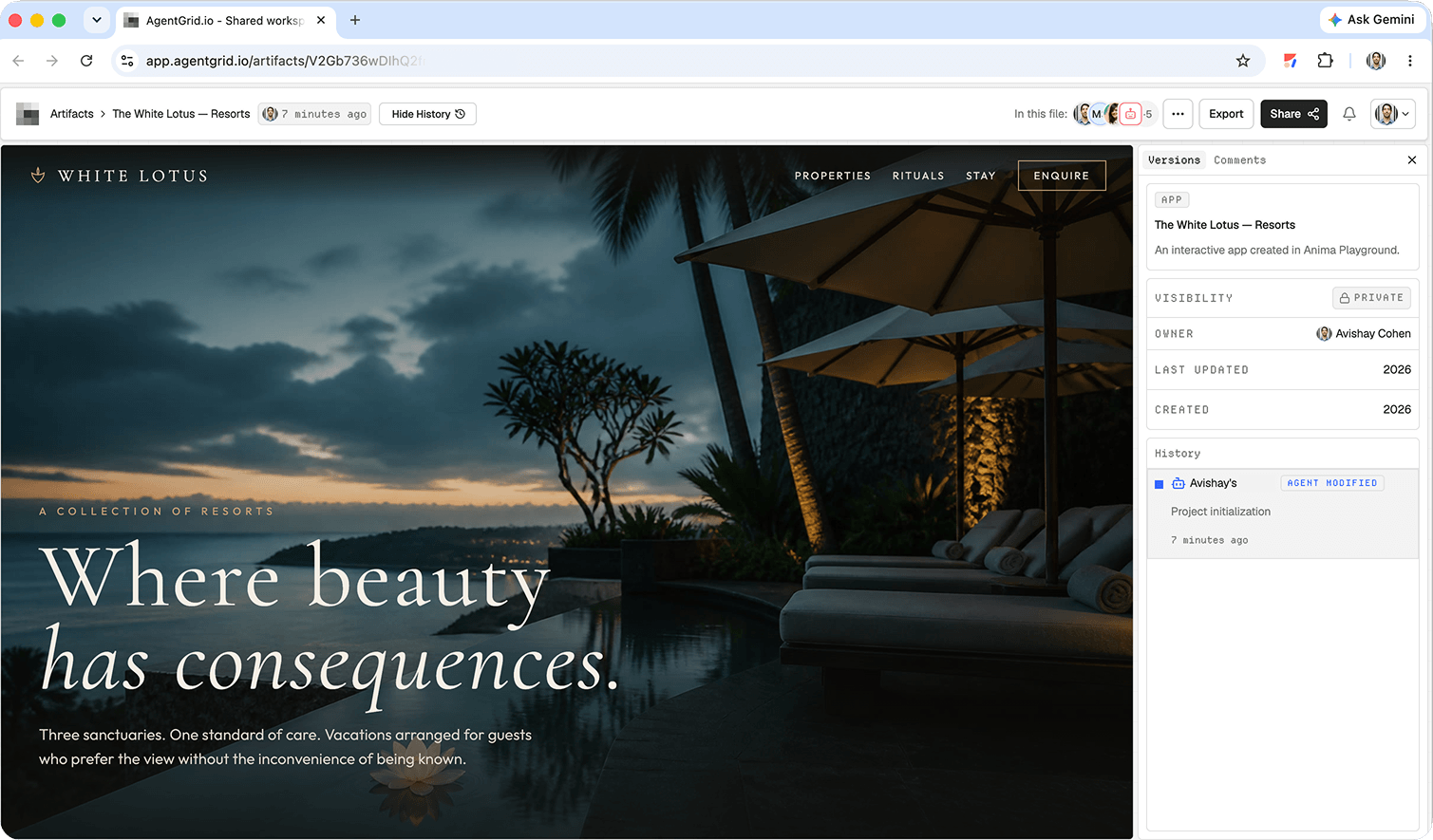
Once ChatGPT has prepared the site’s copy and implementation, ask: “Use the AgentGrid.io plug-in to put this website in my project workspace as an app. Return the artifact link, and do not publish it.” Open the returned link and confirm that it is a rendered site with the intended pages and assets, not merely a pasted description of the site. Connected ChatGPT creates directly in an authorized workspace; there is no separate claim step. If it cannot find that workspace, check its grants rather than assuming that signing in gave it access to every team project.
3. Review the draft with the people who will approve it
Send the private artifact URL to teammates who already have workspace access. The URL identifies the draft but does not itself grant entry. Use Review to comment on a specific element, such as a confusing call to action, and ask ChatGPT to update that same artifact by pasting its URL into the conversation. Check navigation, mobile layout, forms, links, image rights, and any factual claims in the rendered preview. Compare the new version in History before signing off; a chat response saying “done” is not a substitute for opening the actual site.
4. Publish the approved version
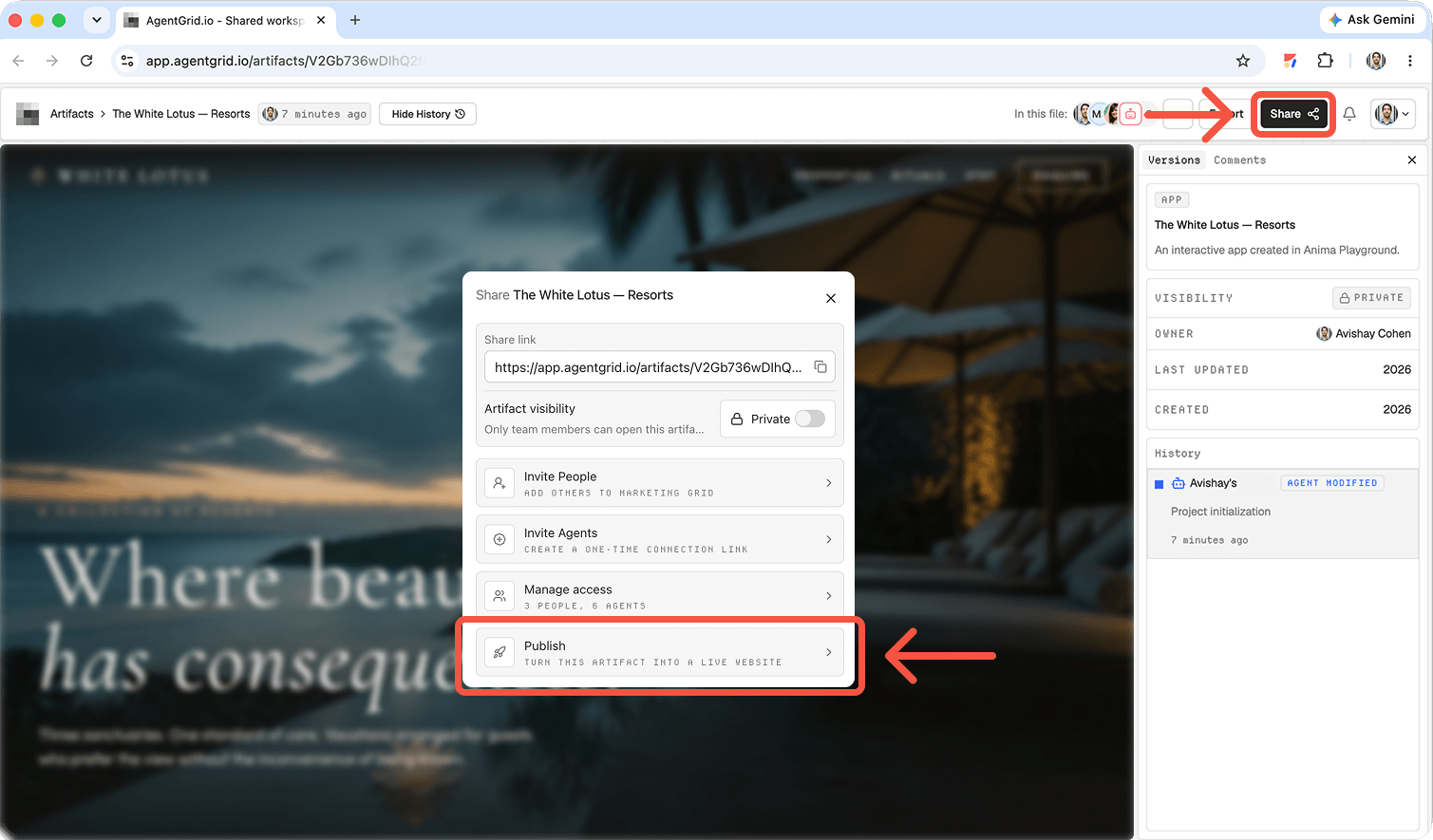
When the review is complete, open the artifact’s publish control in AgentGrid.io and confirm the first public deployment yourself. Publishing is a separate privacy decision from sending a private artifact link: the resulting website URL is accessible without an AgentGrid.io account. Visit that public URL on desktop and mobile to check the live result. If ChatGPT later edits the draft, the public site remains on the last published version until you explicitly publish an update. Use Unpublish if the deployment needs to be taken offline without deleting the artifact and its history.
Review and publish beyond one ChatGPT account
The website should remain a team asset after the first ChatGPT session. Keep the draft, feedback, and version history in one workspace, then let authorized people or supported agents continue from that artifact. Grant publishing permission deliberately, and verify the public version after every update. AgentGrid.io does not automatically copy or synchronize a ChatGPT Site: start with a shared artifact or import actual project files through a supported path.
If you change agents, give the next agent access to the same artifact and specify which version to revise. A chat transcript or screenshot alone is not an editable website project. The workspace artifact is the source of truth; the live URL changes only when an approved version is published.
Where ChatGPT Sites fits
ChatGPT Sites is a built-in hosting option when you want to create, preview, save versions, and deploy within ChatGPT. It also has sharing and editing controls where your plan and workspace allow them. If that is the right home for your project, review the preview, deploy, and check the audience and live URL. For a workflow that continues outside a ChatGPT subscription and accommodates other agents, use a separate shared project instead. The two projects do not sync automatically. OpenAI’s ChatGPT Sites guide.
Launch checklist for a public ChatGPT website
- Content: verify business names, claims, contact details, image rights, page titles, and any required disclosures against approved material.
- Behavior: try the main call to action, navigation, search, forms, and empty states. If a feature is only a visual mockup, say so before launch.
- Access: open the deployed URL in a signed-out browser or with the intended visitor account. A workspace-only Site should not be described as public.
- Maintenance: keep a record of the approved version and who will review updates. After every deploy, test the live page again rather than trusting the editor preview.
Frequently asked questions
Is a ChatGPT share link a published website?
No. A chat link shares a conversation. A Sites deployment hosts the visitor-facing experience. An AgentGrid artifact is a separate shared workspace object that can be reviewed and published through its own workflow.
Can I publish directly with ChatGPT Sites?
Yes. Sites is ChatGPT’s built-in create-and-host option. It supports preview, saved versions, deployment, and access controls where available. This guide focuses on a separate shared project for teams that need a handoff across people and agents rather than a site whose ongoing workflow is tied to ChatGPT.
Can AgentGrid edit my ChatGPT Site automatically?
No automatic synchronization is implied. If you want multi-agent edits, give authorized agents access to an AgentGrid artifact and verify any project transfer or import separately.
Make the reviewed draft real
A published site is not the same as a finished chat. Keep the approved artifact and its version history accessible to the team, publish deliberately, and open the public URL to verify what visitors actually see.