 Figma
Figma API
API Web to code extension
 Adobe XD
 Discord
 Twitter
 GitHub


 Blog
Blog
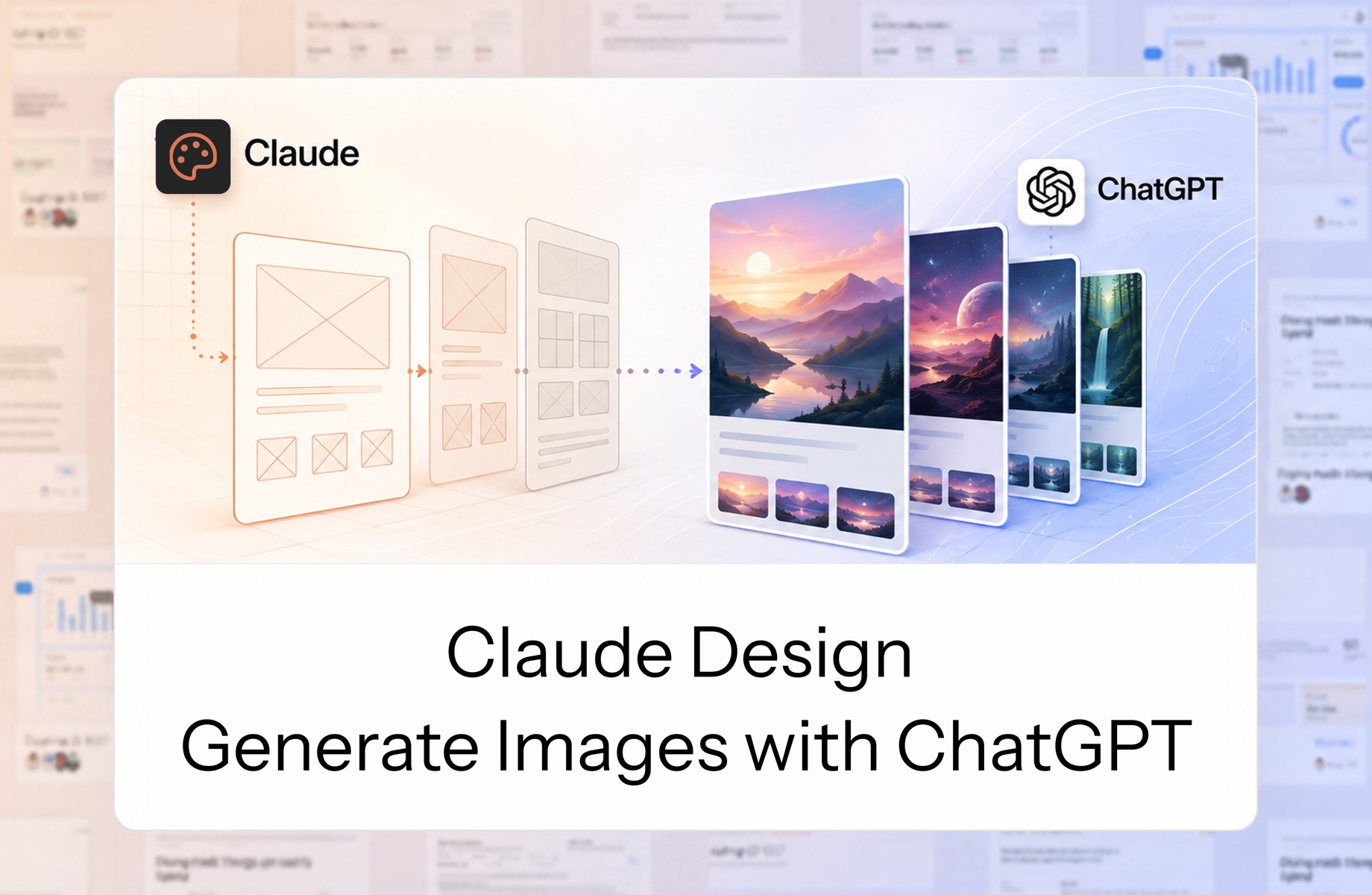
How to Generate Images for Claude Design with ChatGPT12 min read
Reading Time: 9 minutesClaude Design cannot generate the photos and illustrations its designs often need. It can create the layout, interface, presentation, or prototype, but native raster image generation is missing. That is the main problem.
The second problem appears when you try to fix the first one. ChatGPT and other AI models can generate images, but they live outside the Claude ecosystem. They do not automatically see the Claude Design project, understand its visual context, or know which version is current.
AgentGrid.io solves that ecosystem gap. Import the Claude Design project into AgentGrid.io as one shared artifact, connect ChatGPT, and let ChatGPT generate images while reading the actual design. Once both agents can work on the same artifact, the original image-generation problem becomes solvable too.
Problem 1: Claude Design cannot generate images
Claude Design creates designs, interactive prototypes, presentations, and other visual work through a chat-and-canvas interface. It can work with uploaded images, screenshots, brand assets, HTML, and SVG visuals.
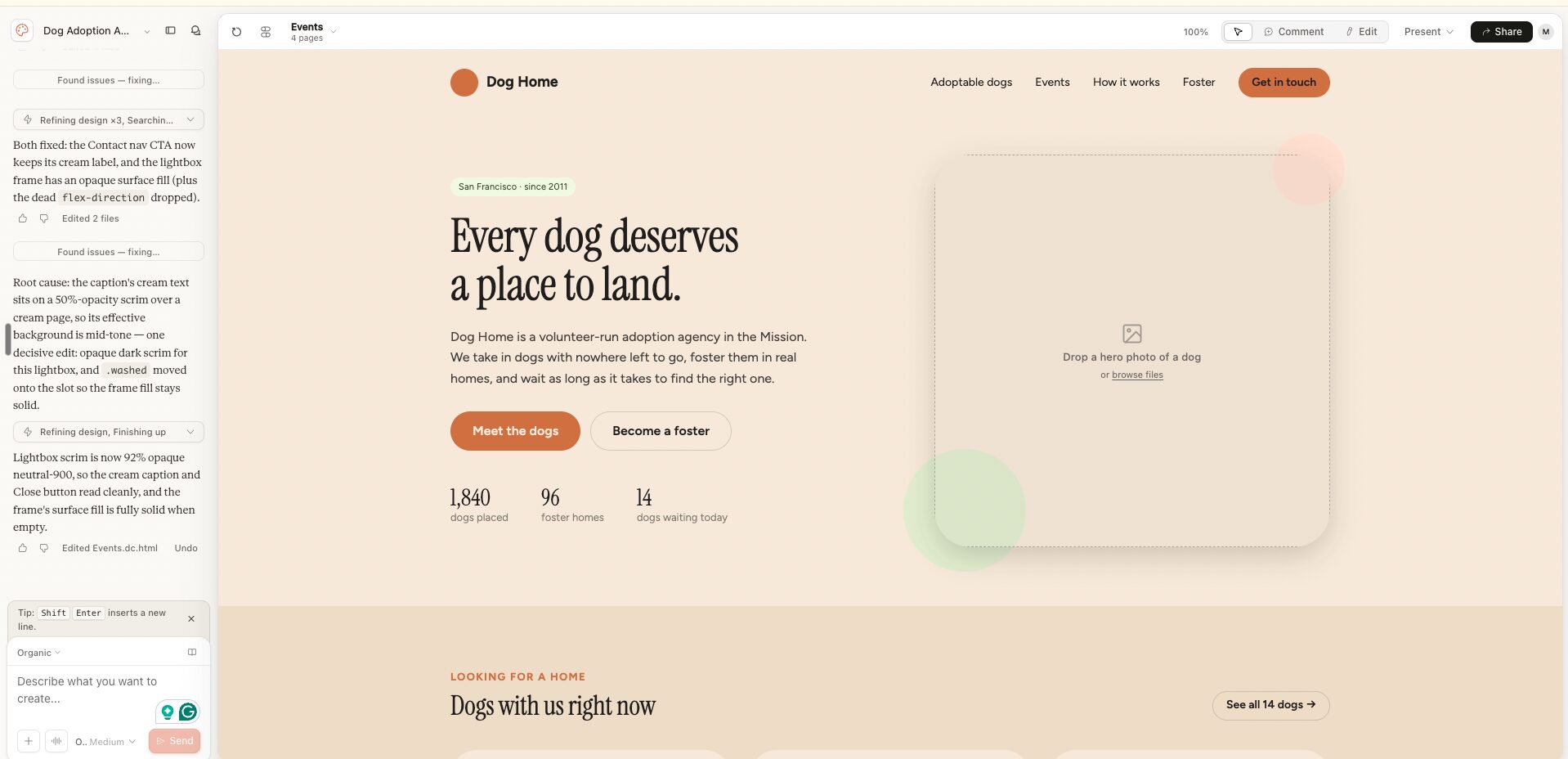
What it cannot do natively is generate the polished photos, illustrations, environments, textures, and campaign visuals that a dedicated image model can produce. The layout may already contain the areas where those images belong, but Claude Design cannot create the final raster assets itself.
You do not need to ask Claude Design to create special labeled placeholders. It already represents the image areas required by the composition. The practical question is how to fill those areas without losing the design context.
Problem 2: image-generating agents live outside Claude
ChatGPT can generate the missing images. So can other models and agents. But they usually work in a different chat, account, tool, or provider ecosystem.
Without a shared workspace for AI agents, the handoff becomes manual:
- describe the Claude Design project again in ChatGPT;
- send screenshots or partial prompts;
- download generated files;
- upload them back into the design;
- repeat the process after every design change;
- guess which file and which design version are current.
The image generator can produce a good-looking picture and still miss the actual job. It may use the wrong crop, palette, focal point, text-safe area, dimensions, or level of realism because it cannot see the design it is supposed to support.
The solution: connect both ecosystems with AgentGrid.io
AgentGrid.io gives the Claude Design project a durable home that is not tied to one AI provider. The design becomes one shared artifact across Claude and ChatGPT that other connected agents and teammates can continue together.
That shared artifact provides:
- One stable address: every connected agent can refer to the same work.
- One current version: the design and generated image assets stay together.
- One History: changes by people and agents are attributed and restorable.
- Scoped agent access: each agent has its own identity and only the capabilities granted by a human.
- Provider-neutral collaboration: the work can continue across Claude, ChatGPT, and other agents without becoming separate copies.
AgentGrid.io does not generate the image for ChatGPT or add native image generation to Claude Design. It connects the tools. ChatGPT can inspect the imported design, generate the required image in context, and add it to the same artifact. Solving the ecosystem problem gives you a practical solution to the image problem.
How the Claude Design, AgentGrid.io, and ChatGPT workflow works
| Layer | Role | What stays there |
|---|---|---|
| Claude Design | Creates the visual structure and experience | Layout, copy, components, hierarchy, interactions, and design direction |
| AgentGrid.io | Creates the shared source of truth | The live artifact, source files, image assets, agent access, and version History |
| ChatGPT | Generates and edits raster images | Hero images, illustrations, scenes, textures, product concepts, and image variations |
Claude Design starts the work. AgentGrid.io holds the work. ChatGPT extends the work with images while reading the same context.
How to generate ChatGPT images for Claude Design with AgentGrid.io
1. Create the design in Claude Design
Start normally in Claude Design. Describe the product, audience, visual direction, content, and brand requirements. Let Claude create the design and iterate until the overall structure is right.
You do not need to ask Claude to stop and create labeled image placeholders. Claude Design already represents the image areas required by the design. Focus on getting the composition, hierarchy, and experience right.
At this stage, the images may be missing, generic, procedural, or represented by temporary visual areas. That is enough to continue.
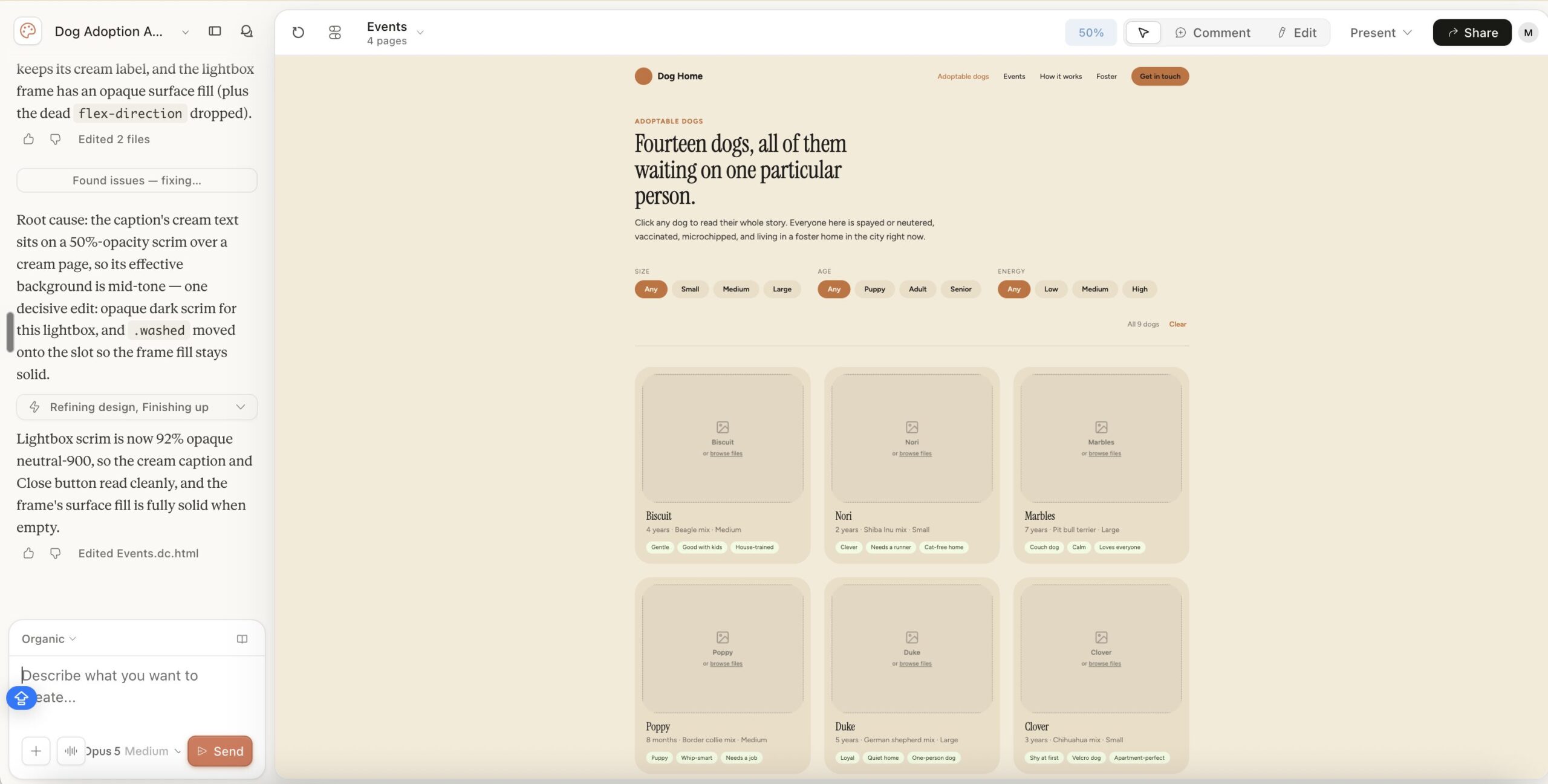
2. Connect Claude Design to AgentGrid.io and push the design
Connect Claude to AgentGrid.io before handing the work to another model. Install the official AgentGrid.io connector for Claude, or open the step-by-step AgentGrid.io guide for connecting Claude.
- In Claude, open Settings → Connectors.
- Add the official AgentGrid.io connector from Claude’s connector directory.
- Sign in to AgentGrid.io, select the team that should own the work, and approve the connection.
- Return to the Claude conversation that contains the design.
- Ask Claude: “Push this design to AgentGrid.io and give me the artifact link.”
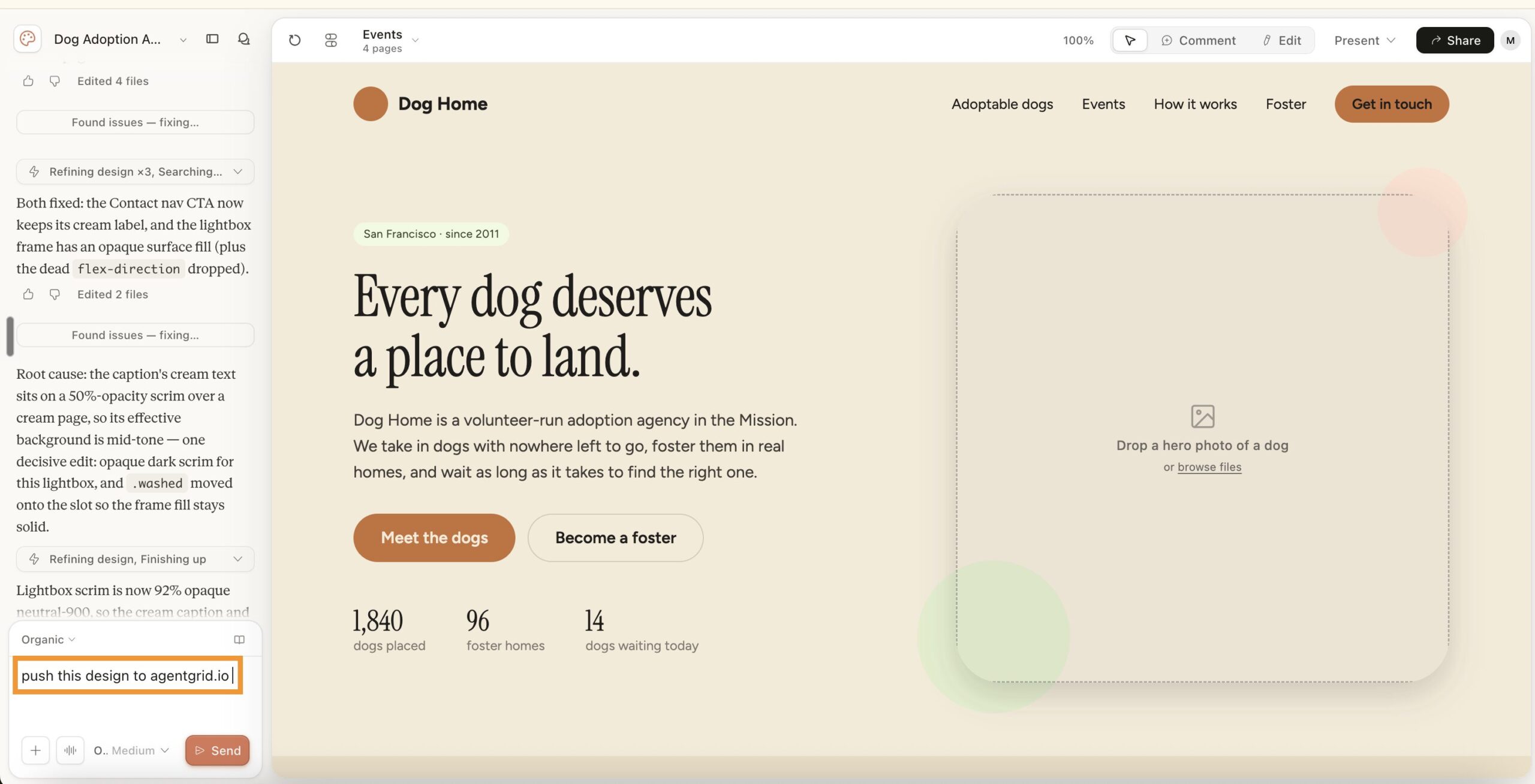
Claude creates the artifact directly in the approved AgentGrid.io team and returns its address. The connector is pinned to the team selected during approval, so make sure Claude and ChatGPT are connected to the same team.
If you prefer to start from AgentGrid.io itself, switch to the correct team and use New → Import from Claude Design. Both routes create the shared artifact that the image-generating agent will use.
Importing or pushing the design creates the shared continuation point. Do not assume automatic two-way synchronization with the original Claude Design conversation. Continue the multi-agent workflow around the AgentGrid.io artifact so every agent uses the same current version.
3. Connect ChatGPT to the same AgentGrid.io team
Next, install the official AgentGrid.io plug-in for ChatGPT, or follow the step-by-step AgentGrid.io guide for connecting ChatGPT.
- In ChatGPT, open Settings → Plug-ins or Apps & Plug-ins.
- Add the official AgentGrid.io plug-in.
- Sign in to AgentGrid.io and select the same team used for the Claude connector.
- Approve the connection with the capabilities needed for the workflow. Read and Write are the conservative default for inspecting the design and adding generated images.
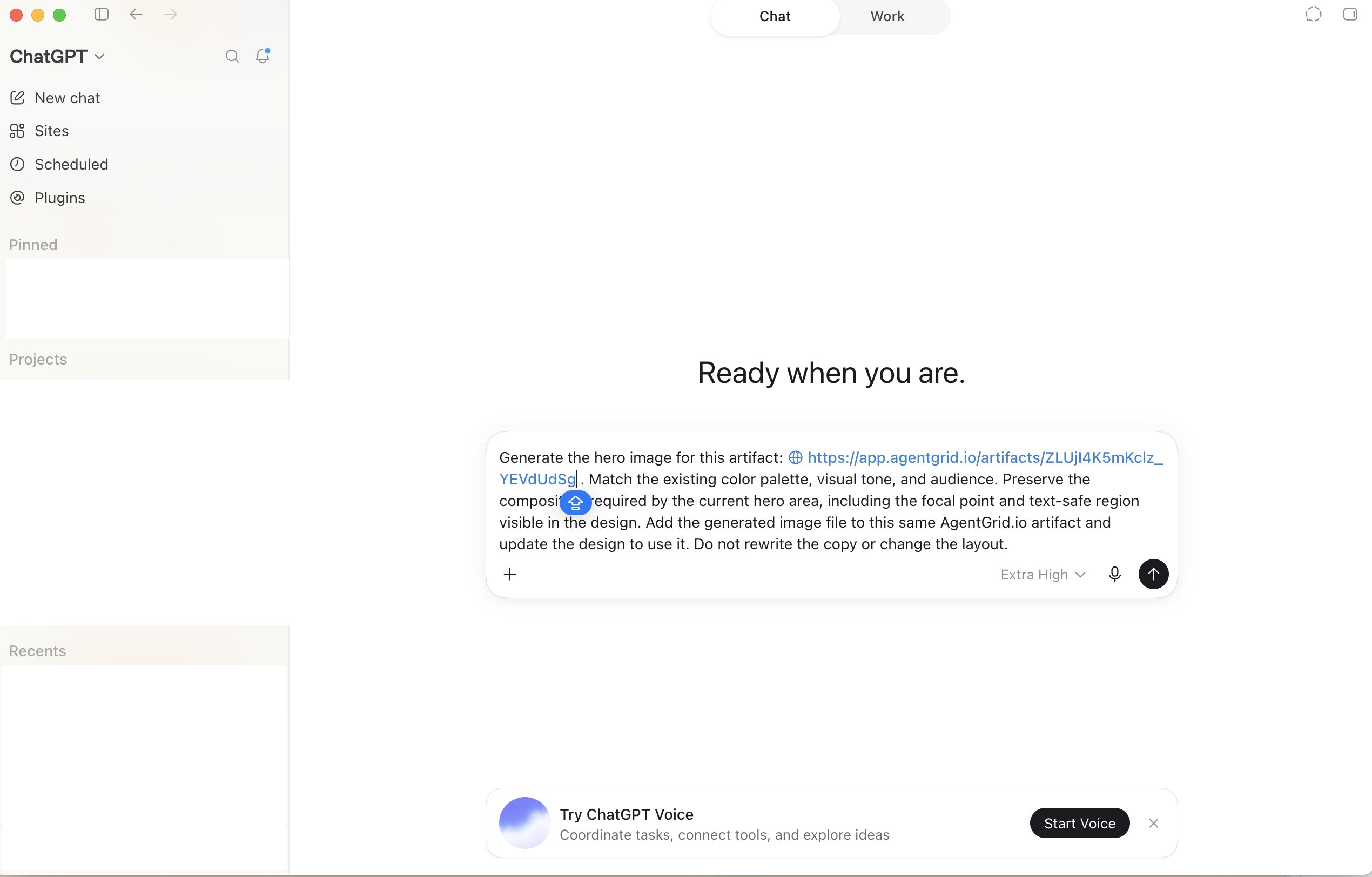
ChatGPT can now open artifacts in that approved team. You do not need to explain the entire Claude Design project again or send a screenshot-only handoff. Paste the artifact URL into ChatGPT and ask it to work from the shared design.
The Claude connector and ChatGPT plug-in are the bridge between the two ecosystems: Claude pushes the design to AgentGrid.io, and ChatGPT opens that same artifact to generate and add the missing images.
4. Give ChatGPT the AgentGrid.io artifact URL
Paste the artifact address into the connected ChatGPT conversation and ask it to inspect the design before generating anything.
This is where AgentGrid.io changes the process. ChatGPT is not working from a separate verbal description. It can inspect the shared artifact and derive the image requirements from the design that already exists.
5. Generate the first image in context
Choose the most important visual first, usually the hero image or the main presentation visual. Ask ChatGPT to generate it from the artifact context and add it to the same project.
Review the image inside the artifact, not as an isolated file. A successful image must work with the headline, crop, CTA, responsive layout, and rest of the visual system.
6. Refine the image while preserving the design
Ask ChatGPT for targeted changes while keeping the approved structure fixed.
- “Keep the crop and focal point. Reduce the saturation and match the interface’s neutral background.”
- “Preserve the subject placement. Create more negative space behind the headline area.”
- “Keep the same scene and lighting. Replace only the foreground object.”
- “Match the material texture and color treatment used in the approved hero image.”
Each saved change enters AgentGrid.io History under the agent’s identity. If a revision makes the design worse, restore an earlier version instead of rebuilding the project from scratch.
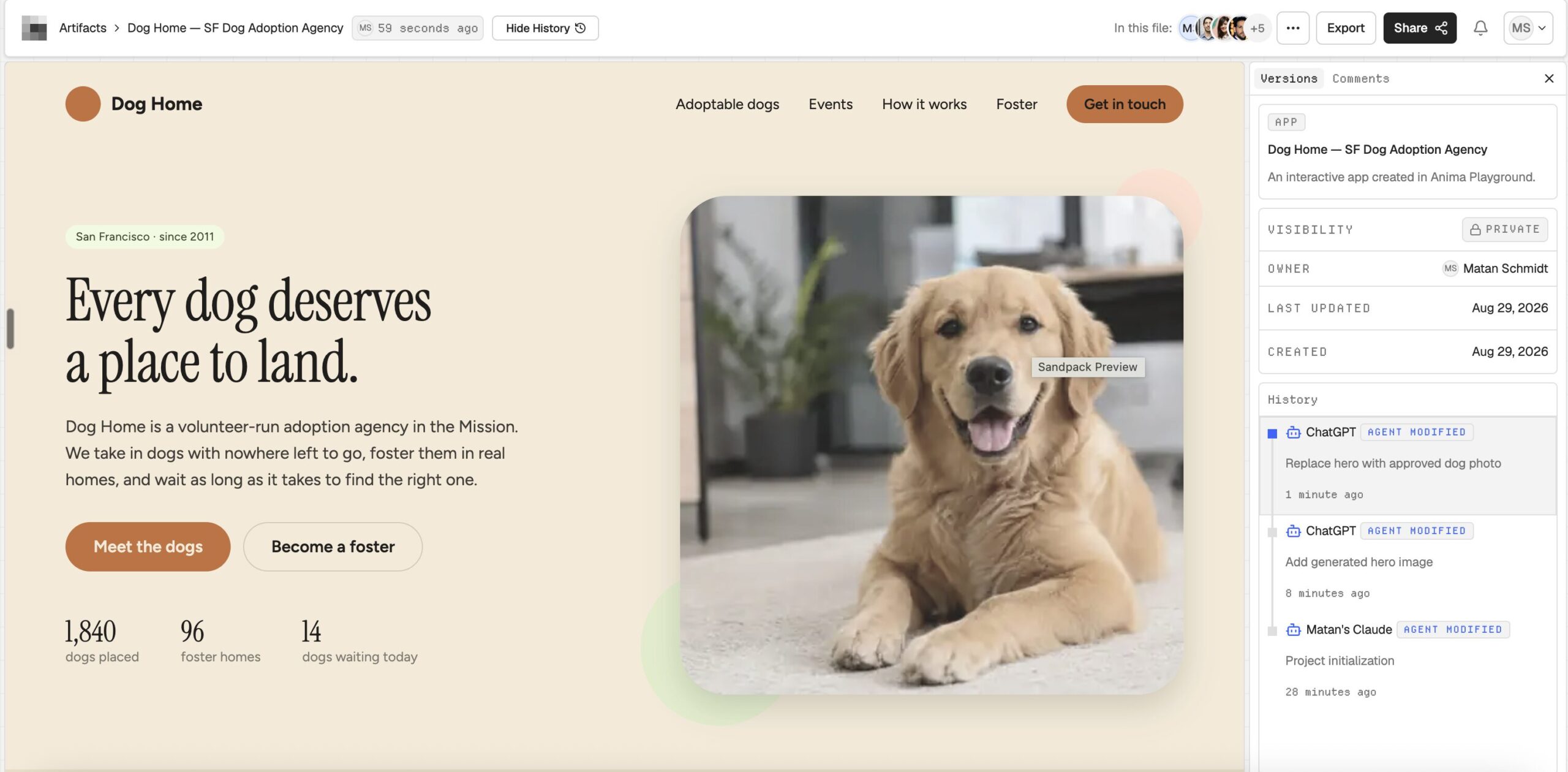
7. Generate the remaining images as one visual system
Once the first image is approved, tell ChatGPT to use it as the anchor for the remaining assets.
This prevents the common result where every image looks polished on its own but the final page or deck looks like several unrelated brands.
8. Let Claude and other agents continue from the same artifact
The artifact is no longer tied to one model. Connect Claude, ChatGPT, Claude Code, Codex, Hermes, or another supported agent to the same team and continue from the same current version.
For example:
- ChatGPT generates and edits the visual assets.
- Claude reviews hierarchy, copy, and interaction quality.
- A coding agent makes the interface responsive or production-ready.
- A teammate reviews the current result and restores an earlier version if needed.
Each agent has a separate identity in AgentGrid.io, so History shows who changed what. The work remains one artifact instead of splitting into provider-specific copies.
Why AgentGrid.io is better than manual Claude-to-ChatGPT handoff
| Manual handoff | AgentGrid.io workflow |
|---|---|
| Explain the design again in ChatGPT | ChatGPT reads the actual shared artifact |
| Download and re-upload every image | The connected agent adds images to the same artifact |
| Lose track of which file is current | One artifact has one current version |
| Agent changes are hard to audit | History attributes each saved change |
| A bad change requires manual reconstruction | Restore an earlier version in place |
| The workflow is locked to separate chats | Multiple providers can continue the same artifact |
Manual copy-paste can still work for one image. It becomes fragile when the design has many assets, several collaborators, repeated revisions, or multiple AI agents.
What images should ChatGPT generate?
Use ChatGPT for visual assets that benefit from raster image generation:
- hero photography
- editorial illustrations
- product scenes and environments
- campaign artwork
- textures and backgrounds
- concept imagery
- coherent visual variations
Keep real UI copy, buttons, labels, and logos as editable interface elements. A generated image may look convincing while containing broken text, incorrect geometry, or details that fail when cropped.
Claude remains useful for HTML, SVG, diagrams, charts, layout, and interactive visuals. ChatGPT supplies the pixel-based imagery. AgentGrid.io keeps both kinds of work in the same durable artifact.
Common mistakes in a multi-agent image workflow
Importing into the wrong team
AgentGrid.io creates new artifacts in the currently active team. Switch to the correct team before using Import from Claude Design.
Pasting a private artifact URL into an unconnected ChatGPT chat
The URL alone does not grant access. Add the AgentGrid.io plug-in or invite ChatGPT as an agent with the required capabilities.
Granting more capabilities than necessary
Image generation and design updates normally need Read and Write. Share and Publish should only be granted when the workflow requires them.
Creating a new artifact for every revision
Update the existing artifact in place. Duplicating it for each version breaks continuity and creates competing sources of truth.
Generating every image before approving the visual direction
Approve the first anchor image in the actual design. Then generate the rest as a coherent family.
Publishing when you only meant to share
Team sharing and public publishing are separate actions. Publishing creates an internet-accessible URL and should always be deliberate.
Frequently asked questions
One design, multiple agents, one current version
Claude Design and ChatGPT solve different parts of the creative workflow. The problem starts when their output is trapped in separate ecosystems.
AgentGrid.io gives the design a stable home. Import the Claude Design project, connect ChatGPT, generate the images from the real design context, and keep every asset and revision in the same artifact. Claude, ChatGPT, other agents, and teammates can then continue the work without recreating the context in every new chat.