 Figma
 API
 Web to code extension
 Adobe XD
 Discord
 Twitter
 GitHub


 Blog

How to Publish a Website with Cursor: Cloud Agent or Your Own Host10 min read
Reading Time: 7 minutesTo publish a website with Cursor, first make the project run, then choose the deployment path. Cursor’s Cloud Agent has a documented Publish flow for a repository connected to Vercel. If you built in the desktop editor or use a different host, deploy the reviewed repository with that host’s normal pipeline. Cursor’s preview and forwarded port let you inspect the app, but neither is the public address you give customers.
This walkthrough is for a builder who wants a working launch rather than a generated landing-page screenshot. It covers repository choice, prompts, local and cloud previews, build checks, publication, and the optional shared-artifact path for stakeholders. If several people need to review the same draft before launch, consider a shared AgentGrid.io workspace instead of exchanging screenshots.
How to build a website in Cursor and publish it with AgentGrid.io
Set up AgentGrid.io before writing code in Cursor so the app lands in the right workspace.
Step 1: Create the site workspace in AgentGrid.io
Sign in at app.agentgrid.io, select the correct team, and choose a workspace for the website. Use a separate workspace for a narrower audience. Choose an app artifact for the website, not a Markdown brief. Sharing a private artifact link does not turn it into a public site.
Step 2: Connect Cursor Agent, not merely the editor
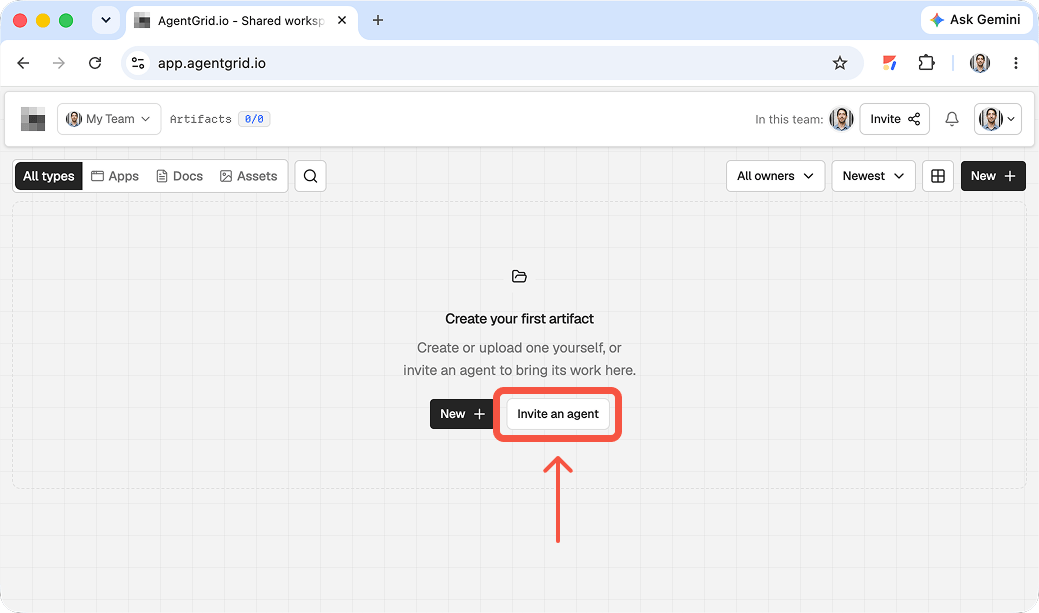
Open the site project in Cursor and use Agent mode, which can edit files and run terminal commands. Give it this instruction: Connect this Cursor Agent to agentgrid.io. Run npx @animaapp/cli@latest login, show me the verification URL and code, and wait for my approval. Do not publish yet. Approve its name, workspace, and Read and Write in your browser. Leave Publish off unless you want the agent to deploy. Then ask Cursor to run npx @animaapp/cli@latest workspaces and verify that it can see the intended workspace. If terminal access is disabled, use manual folder import instead.
Step 3: Build, test, and import the project once
Prompt Cursor: Build a responsive booking landing page for a bicycle workshop. Use this repository, add a clear service list and booking call to action, run the available checks, and tell me which files are the site entry point. Do not change unrelated code. Review its diff and open the local preview. Have the connected agent run npx @animaapp/cli@latest create -t import --from ./project --artifact-type app --workspace <workspace-id>, substituting the actual folder and the workspace ID it listed. Open the returned artifact URL. For a static site, ensure index.html and its referenced assets are present. Exclude node_modules, build output, and credentials. If connection was not possible, choose New → Upload Folder or New → Import from ZIP in AgentGrid.io. Import is a snapshot, not automatic synchronization with the repository. Verify its files, preview, and workspace.
Step 4: Update the same artifact, then publish intentionally
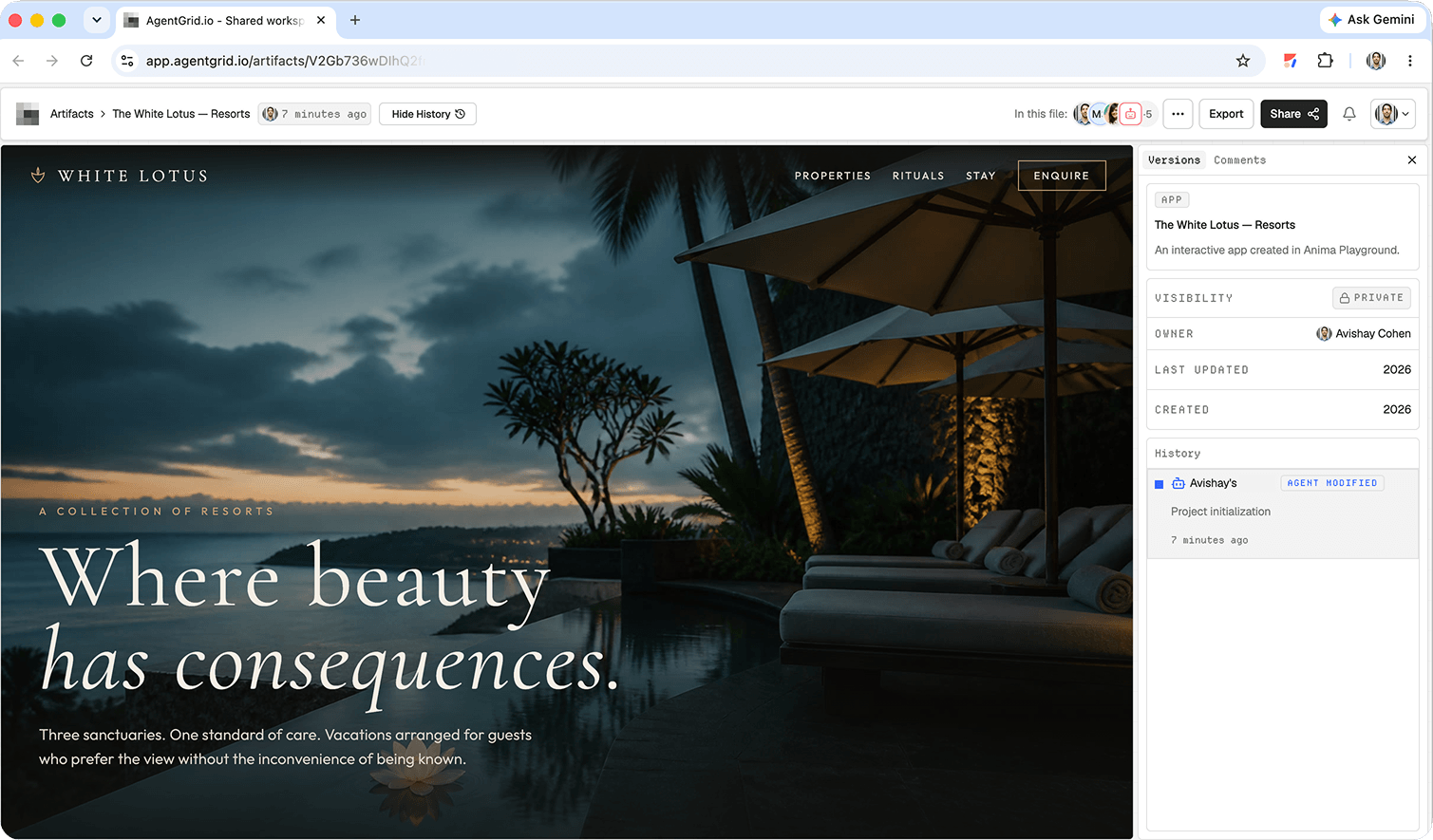
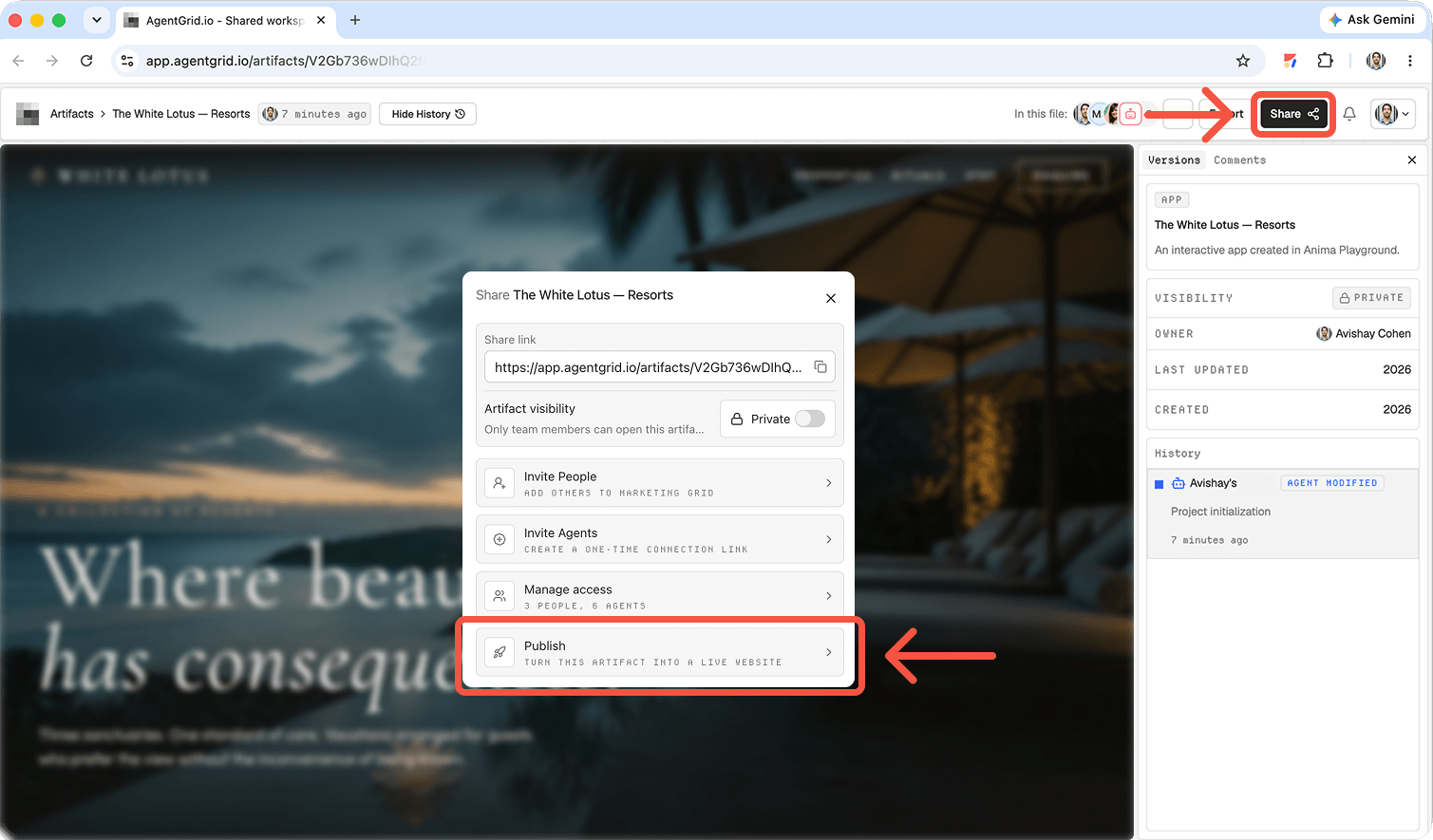
Paste the artifact URL into Cursor Agent and ask for a precise improvement, such as fixing the mobile menu on that artifact. Confirm the change in History. When the site is approved, use Publish in AgentGrid.io or expressly ask a connected agent with Publish capability to deploy it. Open the resulting public URL and test the navigation and booking link. Publishing is separate from sharing the private artifact. Later code changes do not automatically replace the public deployment: publish an update when you want them live.
What Cursor can publish directly
Cursor’s Cloud Environment Setup documentation describes a specific sequence: save work to a repository, connect a Vercel account, select Publish in the Agents Window, and receive a deployment URL. Cursor links the repo to a Vercel project and deploys its default branch. Later default-branch commits deploy automatically. A Cursor team deploying to a Vercel team needs a plan above Hobby. These requirements are not a universal publish button for every local editor project.
Step 1: Start in the right repository
For an existing site, open its repository in Cursor and ask Agent to follow the existing framework, components, tests, and design conventions. Have it identify what is already deployed and which branch is production before changing code. For a new Cloud Agent project, Cursor documents a start-from-scratch route and an Origin repository creation step; check availability in your account before relying on it. A draft environment without a saved repo is not ready for the documented Vercel Publish path.
Example prompt: “In this repository, build a responsive Home, Workshops, and Visit site for Cedar House plant shop. Use the supplied logo and workshop schedule, not invented availability. Keep the existing framework and styling conventions. Add page titles and descriptions, working signup links from project-notes.md, and a keyboard-friendly mobile menu. Show a plan, implement it, list changed files and tests, and stop before deployment.”
If the project has API routes, authentication, or server-rendered pages, identify those now. A static-only host may not support the runtime. Ask which environment variables the app expects and whether any would be exposed to the browser. Never paste production secrets into an agent prompt or commit them to source control.
Step 2: Preview the running app
Install dependencies and run the development command defined by the project. For a local Cursor editor session, open the local development URL in a browser. For a Cloud Agent, Cursor documents detected and manually configured forwarded ports in the Agents Window. Open the forwarded app in the internal browser and inspect real pages. A build log that says “complete” cannot validate responsive navigation or working calls to action.
Check the site at narrow and wide widths. Follow links to the intended destinations and test forms. Try keyboard navigation and visible focus. Inspect image alternatives, metadata, heading order, missing assets, and loading states. Validate store hours, contact details, legal copy, and image rights against the approved source. If the site depends on an API, check a failed request and confirm no credentials appear in browser bundles.
Test prompt: “Run this repository’s lint, test, and production-build scripts. Open the three pages in a browser at mobile and desktop widths. Report broken assets, dead links, and inaccessible controls, then fix code defects. Do not alter deployment configuration or publish. Summarize failures that require a human decision.” Actually open the browser yourself after the agent reports success.
Step 3: Pick the launch path
| Path | Best when | What becomes public |
|---|---|---|
| Cloud Agent Publish to Vercel | Repository and Vercel connection are ready | Vercel deployment URL and configured domain |
| Your host’s deployment workflow | You already use a CI/CD pipeline or another platform | The host’s deployment URL |
| AgentGrid.io artifact | A team needs a reviewable working version first | Nothing until the artifact is separately published |
The first two paths are deployment routes. The third is a collaboration and publishing workflow with its own copy of the app. Pick one source of truth and record which version reviewers saw.
Step 4: Publish with Cursor Cloud Agent and Vercel
Once the work is in a repository, connect the Vercel account in Cursor. In the Agents Window, select Publish above the agent input. If Cursor offers Add Vercel, complete that connection first. Review the repository, destination Vercel team, default branch, environment variables, and build settings before approving. Cursor’s documented flow then links the repo, deploys the default branch, and returns the URL.
Do not use a preview branch as proof of what will land on the default branch. Check the diff and any required human code review before merging. A later commit to that branch can redeploy the live site automatically, so define approval and rollback procedures now. If a generated site is static, confirm the output directory; if server routes are involved, confirm the host supports the app’s runtime. Treat domain DNS and billing as separate ownership decisions.
Step 5: Deploy through another host, or share for review
With another host, commit the reviewed code and follow that provider’s framework-specific repository or upload workflow. Configure build command, output location, environment variables, redirects, and custom domain on that host. Use its preview deployment for stakeholder approval when available. Cursor assists with code and commands; the host owns the public URL and production settings.
For a team review, AgentGrid.io documents a Cursor connection. Confirm the agent environment can run the connection flow, grant only access to the intended workspace, and ask it to return the artifact link. If connecting is unsuitable, import the reviewed project folder or ZIP yourself. Inspect the artifact preview and source after transfer; a private link is not a production website, and edits in the original repo do not automatically synchronize to an imported copy.
Scoped handoff prompt: “After I authorize the connection, put the reviewed Cedar House project in the named workspace as an unpublished app artifact. Return its private URL and list any dependencies or backend features that failed to transfer. Do not publish, share externally, or choose another workspace.” When the team signs off, use the artifact’s separate Publish flow if AgentGrid.io is the chosen host.
Step 6: Verify the actual deployment
Open the public URL while signed out and from a phone. Compare its pages with the approved preview. Test navigation, forms, signup destination, HTTPS, metadata, image loading, and any custom domain. Record the deployed commit or artifact revision. If the public page is older, check branch selection, build output, environment variables, deployment logs, and caching before announcing it. Re-run the tests after every production update.
Make the next update deliberate
Record the approved version and public URL. New edits are drafts until reviewed and published again.
Frequently asked questions
Can Cursor publish a website without Vercel?
Yes, by producing code for another hosting provider’s workflow. The documented Cloud Agent Publish control discussed here uses Vercel. Desktop editor preview and forwarded ports are not independent hosting services.
Why is Publish not available in my Cloud Agent session?
Check that the project is saved to a repository and that Vercel is connected. Eligibility, plan, organization settings, and repository permissions can also matter. Follow Cursor’s current setup guide rather than assuming the same controls appear in every account.
Will a Cursor preview update my live website?
No. A local or forwarded preview exposes a development process for inspection. A deployment is a separate event. In Cursor’s Vercel path, future commits to the default branch can update production after the integration is set up.
Can I use AgentGrid.io only for approval?
Yes. Keep an unpublished artifact for shared review, then either publish that approved artifact or deploy the corresponding reviewed repository through your existing host. Keep both copies aligned if you use both.
For a comparison of the handoff, see our guide to share an agent output as a link. The publish a Claude Design website covers another starting point, while the Muse website publishing walkthrough shows a reviewed artifact moving to publication. These are different workflows, not interchangeable product features.