 Figma
Figma API
API Web to code extension
 Adobe XD
 Discord
 Twitter
 GitHub


 Blog
Blog
How to go from Claude Design to Figma4 min read
Reading Time: 3 minutes
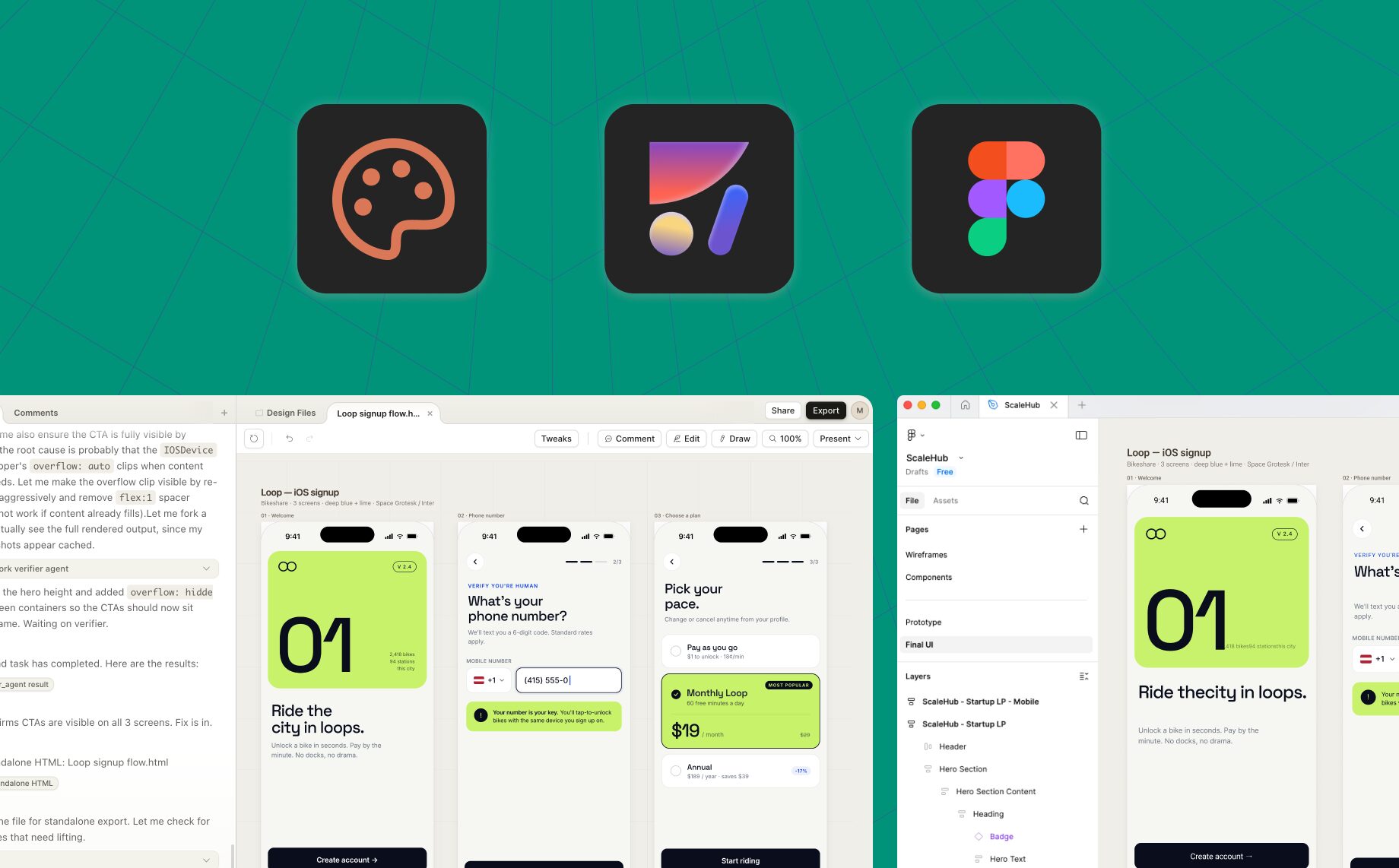
Claude Design is a new way to design with AI, by Anthropic. Anima Figma agent allows professional designers to go from Claude Design to Figma, and keep working on a canvas.
How to go from Claude Design to Figma:
- In Claude Design: Present → “New tab”
- Copy the link
- Paste in Anima Figma design agent
- The agent will render the design as Figma layers
What is Claude Design?
Claude Design is Anthropic’s new AI-powered design product, launched in April 2026 alongside Claude Opus 4.7 as a research preview for Pro, Max, Team, and Enterprise subscribers. It turns a natural-language prompt into a polished artifact like a prototype, a slide deck, a one-pager, or a marketing mockup, and then lets you refine it through conversation, direct edits, comments, or custom sliders that Claude generates on the fly to expose the specific variables you want to tweak.
During onboarding, it can read your codebase and design files to build a design system, so every subsequent project reaches for your real colors, typography, and components instead of generic placeholders. It’s aimed squarely at the people who historically got stuck at the “I have an idea, now I need a designer” step: founders, PMs, marketers, and engineers who want to move from concept to something visual in a single sitting.
What it doesn’t do, at least not today, is hand that work off to Figma, nor does it offer an interactive canvas. Exports go to PDF, PPTX, HTML, or Canva, and the “ready to build” handoff goes to Claude Code. That gap is exactly where Anima fits in on this case.
Why do you need to go from Claude Design to Figma?
Claude Design is excellent at generation, but professional design work doesn’t end at the first polished mockup. It begins there. The moment a design needs to be refined against a real design system, handed to a teammate for critique, version-controlled across variants, branched into responsive breakpoints, or threaded into an existing product file, you want a canvas.
Figma is where design systems actually live, where stakeholders leave comments, where components and variables are maintained, and where the rest of your team is already working. Staying trapped in an export-only loop (PDF, HTML, Canva) means every iteration is a fresh generation rather than a controlled edit, and any design-system drift compounds quickly.
Moving Claude Design output into Figma as native, editable layers, not a flattened image, turns a one-shot AI artifact into a living design file that a team can iterate on with the same discipline they apply to everything else they ship.
What is Anima Figma design agent?
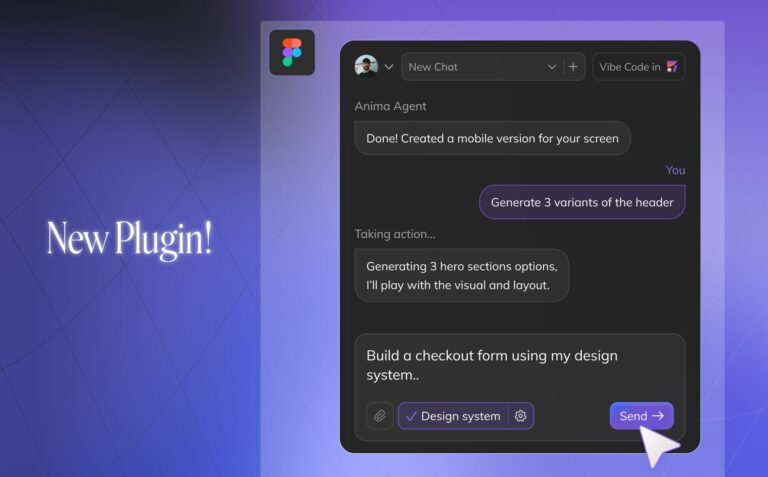
Anima Figma design agent is an agentic AI plugin that lives inside Figma and has full canvas capabilities. It can create frames, apply Auto Layout, use your components, bind your variables and tokens, build variants, and reorganize pages, all from a chat panel. Anima has spent eight years as the bridge between design and code, with 1.7 million installs on its Figma-to-code plugin and a deep structural understanding of how real Figma files are put together: component relationships, design-system logic, naming conventions, spacing scales.
The agent brings that structural expertise to the other direction of the workflow, taking external inputs like a Claude Design link, a screenshot, or a prompt and rendering them as properly nested, Auto Layout–ready Figma layers that use your system’s primitives rather than generic rectangles. You can switch the underlying model between Claude, GPT, and Gemini depending on the task, and because everything happens on your canvas, the output is immediately editable by you and the rest of your team.
How to turn Claude Design imported design into Figma components?
Once the Anima agent has rendered your Claude Design output onto the canvas, you don’t need to manually hunt down repeating patterns and wrap them in components yourself. The agent can do it for you. Because Anima has a deep structural understanding of how Figma files work, it can analyze the imported design, detect repeating UI patterns (buttons, cards, input fields, nav items, list rows), and componentize them in place with proper Auto Layout, variants, and naming.
You have multiple paths, and the agent handles them through chat:
Reuse your existing components. If your Figma file already has a design system, just ask: “replace the buttons in the imported design with instances of our Button component” or “map these cards to our ProductCard variant.” The agent reads your library, matches the imported elements to the closest existing components, and swaps them in as instances. Your tokens, variants, and naming conventions stay intact, so the imported Claude Design work immediately looks and behaves like the rest of your product.
Define new components from scratch. If the imported design introduces patterns you don’t yet have, simply select layers and ask the agent to create components from them: “turn this card into a reusable component with variants for default, hover, and selected” or “componentize the nav bar and expose the logo and links as properties.” The agent builds the component, sets up the variant structure, wires properties, and places instances back where the original elements were, all without you leaving the canvas.
The net effect is that what started as a one-shot AI mockup in Claude Design lands in Figma as a properly structured, system-compliant set of components, ready for your team to iterate on.