Figma
Figma Adobe XD
 Sketch
 Discord
 Twitter
 GitHub


 Blog
Blog

Comment exporter Tailwind CSS depuis Figma4 min read
Reading Time: 4 minutesExporter Tailwind CSS depuis Figma et continuer à construire
Vous voulez transformer un design Figma en code React propre avec Tailwind CSS ? Le chemin le plus rapide est d’utiliser le plugin Anima pour Figma : sélectionnez une frame, choisissez React et Tailwind, puis copiez, téléchargez ou ouvrez le projet généré dans Anima Playground pour continuer à éditer, prévisualiser et publier.
Tailwind est populaire parce qu’il transforme les décisions de design — espacement, couleurs, typographie, layout et breakpoints — en classes utilitaires composables. Anima aide à traduire ces décisions de Figma vers du code frontend, afin de passer du design à une UI fonctionnelle sans reconstruire chaque calque à la main.
Réponse rapide : de Figma à Tailwind CSS avec Anima
- Anima plugin for Figma
- Select the Figma frame, component, section, or layer you want to convert.
- Choose React with JavaScript or TypeScript, then select Tailwind CSS as the styling option.
- Generate the code, then copy snippets, download the package, or continue in Anima Playground.
- Use Playground to edit by prompt, preview, connect data/auth, publish, or hand off to a coding agent.
Pourquoi exporter Figma vers Tailwind CSS ?
Figma est l’endroit où les équipes définissent l’expérience produit. Tailwind est l’endroit où beaucoup d’équipes frontend veulent l’implémenter. Le défi est de traduire le design en code sans perdre la structure, l’espacement, les styles, les couleurs et le responsive.
With Anima, you can turn Figma designs into React, HTML, or Vue; JavaScript or TypeScript; CSS or Tailwind CSS; and editable code that can continue into Anima Playground.
Avant de générer du code Tailwind depuis Figma
- Use Auto Layout. It helps preserve responsive structure and spacing relationships.
- Name important layers clearly. Buttons, cards, nav bars, forms, and sections are easier to understand with clear names.
- Use styles, variables, and components. Repeated colors, typography, spacing, and states are easier to map into reusable code.
- Select the right scope. Start with a focused component or screen, then expand.
Comment convertir des designs Figma en Tailwind
Étape 1 : lancez le plugin Anima dans votre fichier Figma
Open Anima in Figma. If you are a first-time user, search for Anima in the Figma plugin menu and sign in or create an Anima account.
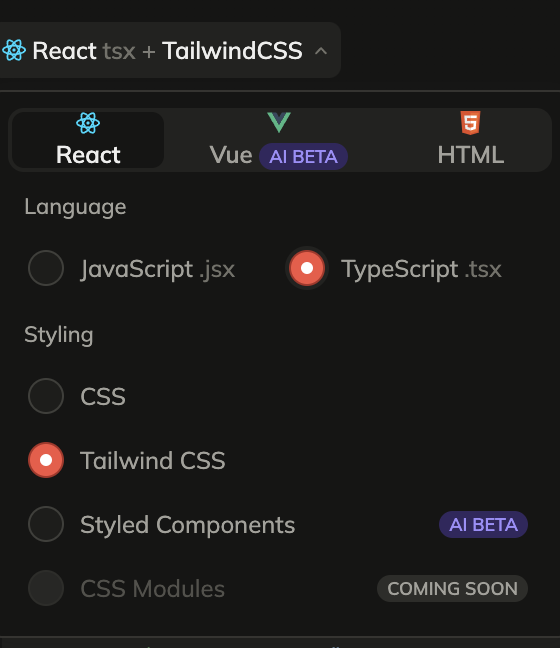
Étape 2 : sélectionnez React, JavaScript ou TypeScript, et Tailwind CSS
Choose React in the framework dropdown, JavaScript or TypeScript as the language, and Tailwind CSS under styling.
Étape 3 : sélectionnez un composant, un calque ou une frame Figma
Select the frame, component, section, or layer you want to export. For the first pass, choose a focused screen or component so you can inspect the generated Tailwind output quickly.
Étape 4 : générez et récupérez votre code
Once the code is generated, copy snippets, download the generated files as a package, or preview the UI and continue in Anima Playground.


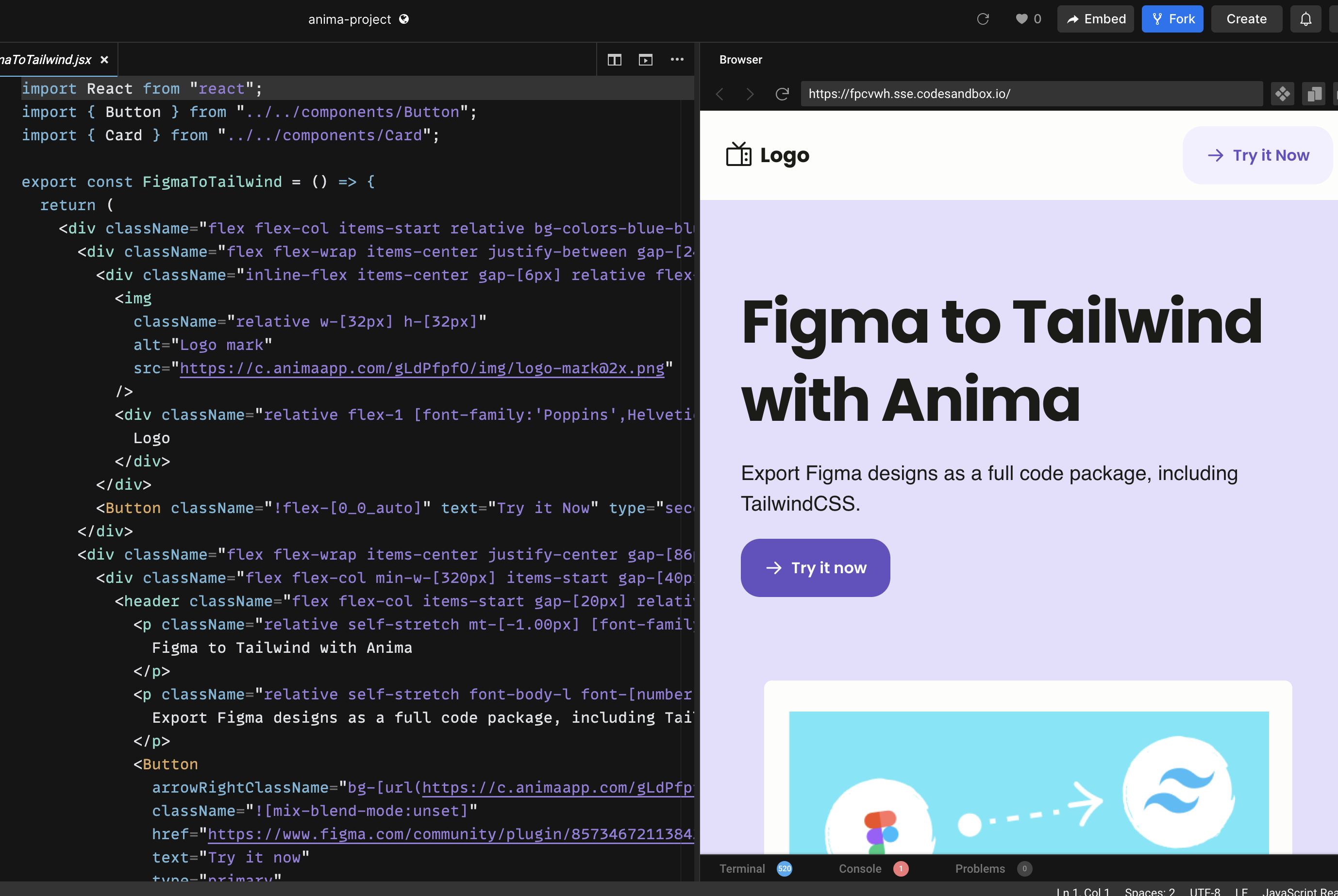
Continuez dans Anima Playground
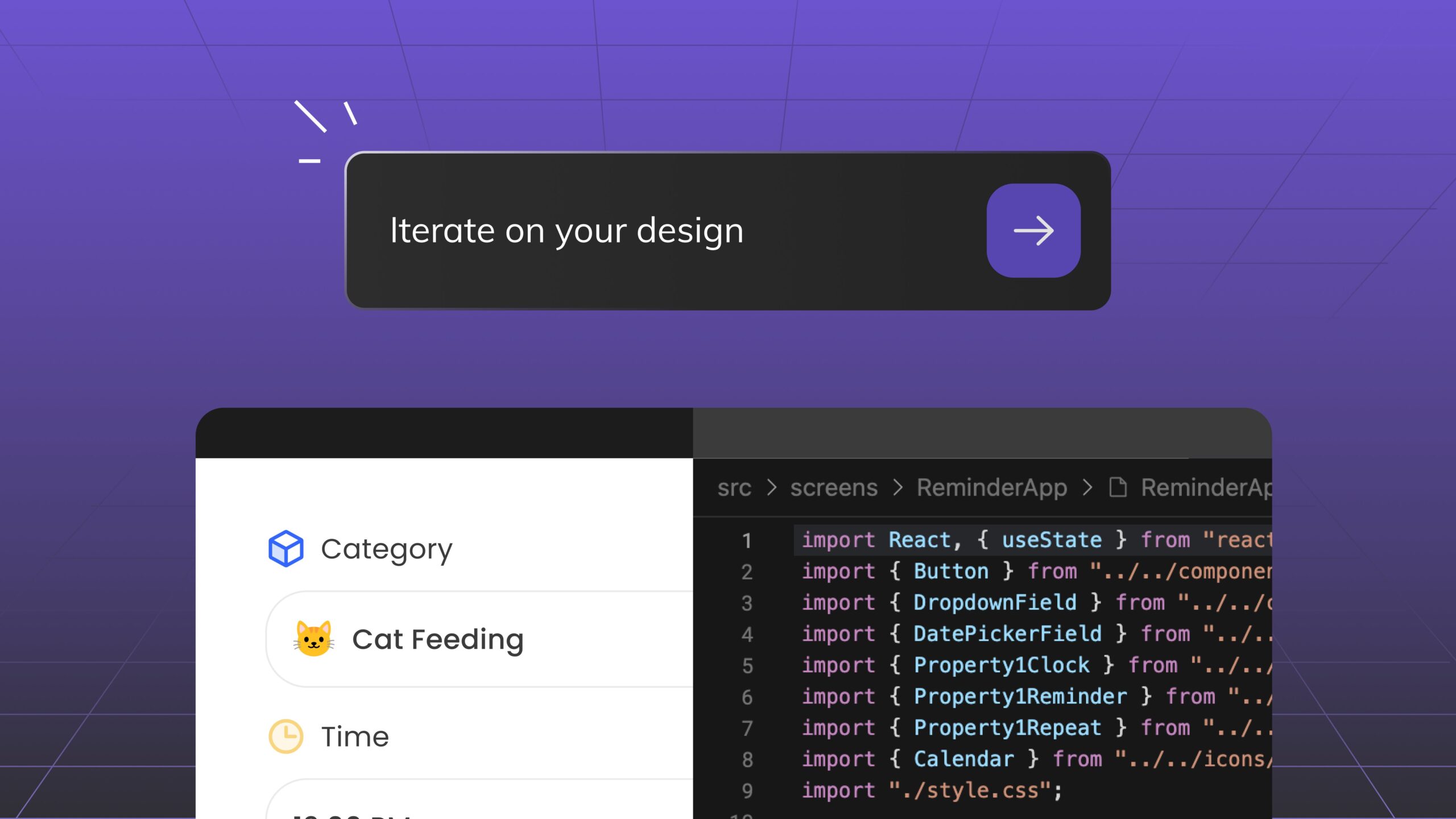
Exporter du code Tailwind est utile, mais le meilleur workflow ne s’arrête pas à “copier le code”. Une fois le design converti, vous pouvez continuer dans Anima Playground avec une prévisualisation live et du code modifiable côte à côte.
In Playground, you can refine layout, add states, create responsive menus, connect forms to data, add authentication, publish, or export the project.
Plugin ou Playground ?
Utilisez le plugin Anima lorsque vous partez d’un fichier Figma et voulez capturer au mieux la structure du design. Utilisez Playground pour éditer par chat, prévisualiser, ajouter des fonctionnalités, publier, exporter ou connecter le travail à des agents de code.
The best path is often both: start in Figma, generate React + Tailwind with the plugin, open the result in Playground, and vibe code the final details while keeping the design intent intact.
Questions fréquentes sur Figma vers Tailwind
Can Figma export Tailwind CSS by itself?
Figma is primarily a design tool. A plugin like Anima adds the conversion layer between Figma design and frontend code.
Does Anima generate React with Tailwind?
Yes. In the Anima plugin, choose React as the framework and Tailwind CSS as the styling option. You can also choose JavaScript or TypeScript.
Can I publish the result?
Yes. If you continue in Anima Playground, you can preview, refine, and publish the project from the browser. You can also export code when you want to continue development elsewhere.