Figma
Figma Adobe XD
 Sketch
 Discord
 Twitter
 GitHub


 Blog
Blog

Cómo convertir diseños de Figma a Tailwind4 min read
Reading Time: 3 minutesExporta Tailwind CSS desde Figma y sigue construyendo
¿Quieres convertir un diseño de Figma en código React limpio con Tailwind CSS? La forma más rápida es usar el plugin de Anima para Figma: selecciona un frame, elige React y Tailwind, y después copia, descarga o abre el proyecto generado en Anima Playground para seguir editando, previsualizando y publicando.
Tailwind es popular porque convierte decisiones de diseño — espaciado, color, tipografía, layout y breakpoints — en clases utilitarias reutilizables. Anima ayuda a traducir esas decisiones desde Figma a código frontend, para pasar del diseño a una UI funcional sin reconstruir cada capa manualmente.
Respuesta rápida: de Figma a Tailwind CSS con Anima
- Anima plugin for Figma
- Select the Figma frame, component, section, or layer you want to convert.
- Choose React with JavaScript or TypeScript, then select Tailwind CSS as the styling option.
- Generate the code, then copy snippets, download the package, or continue in Anima Playground.
- Use Playground to edit by prompt, preview, connect data/auth, publish, or hand off to a coding agent.
¿Por qué exportar Figma a Tailwind CSS?
Figma es donde los equipos definen la experiencia del producto. Tailwind es donde muchos equipos frontend quieren implementarla. La parte difícil es traducir diseño a código sin perder estructura, espaciado, estilos, colores y comportamiento responsive.
With Anima, you can turn Figma designs into React, HTML, or Vue; JavaScript or TypeScript; CSS or Tailwind CSS; and editable code that can continue into Anima Playground.
Antes de generar código Tailwind desde Figma
- Use Auto Layout. It helps preserve responsive structure and spacing relationships.
- Name important layers clearly. Buttons, cards, nav bars, forms, and sections are easier to understand with clear names.
- Use styles, variables, and components. Repeated colors, typography, spacing, and states are easier to map into reusable code.
- Select the right scope. Start with a focused component or screen, then expand.
Cómo convertir diseños de Figma a Tailwind
Paso 1: Ejecuta el plugin de Anima en tu archivo de Figma
Open Anima in Figma. If you are a first-time user, search for Anima in the Figma plugin menu and sign in or create an Anima account.
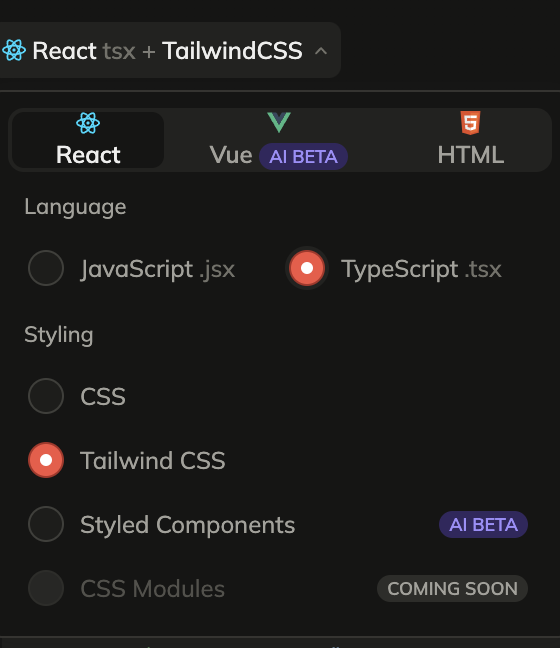
Paso 2: Selecciona React, JavaScript o TypeScript, y Tailwind CSS
Choose React in the framework dropdown, JavaScript or TypeScript as the language, and Tailwind CSS under styling.
Paso 3: Selecciona un componente, capa o frame de Figma
Select the frame, component, section, or layer you want to export. For the first pass, choose a focused screen or component so you can inspect the generated Tailwind output quickly.
Paso 4: Genera y obtén tu código
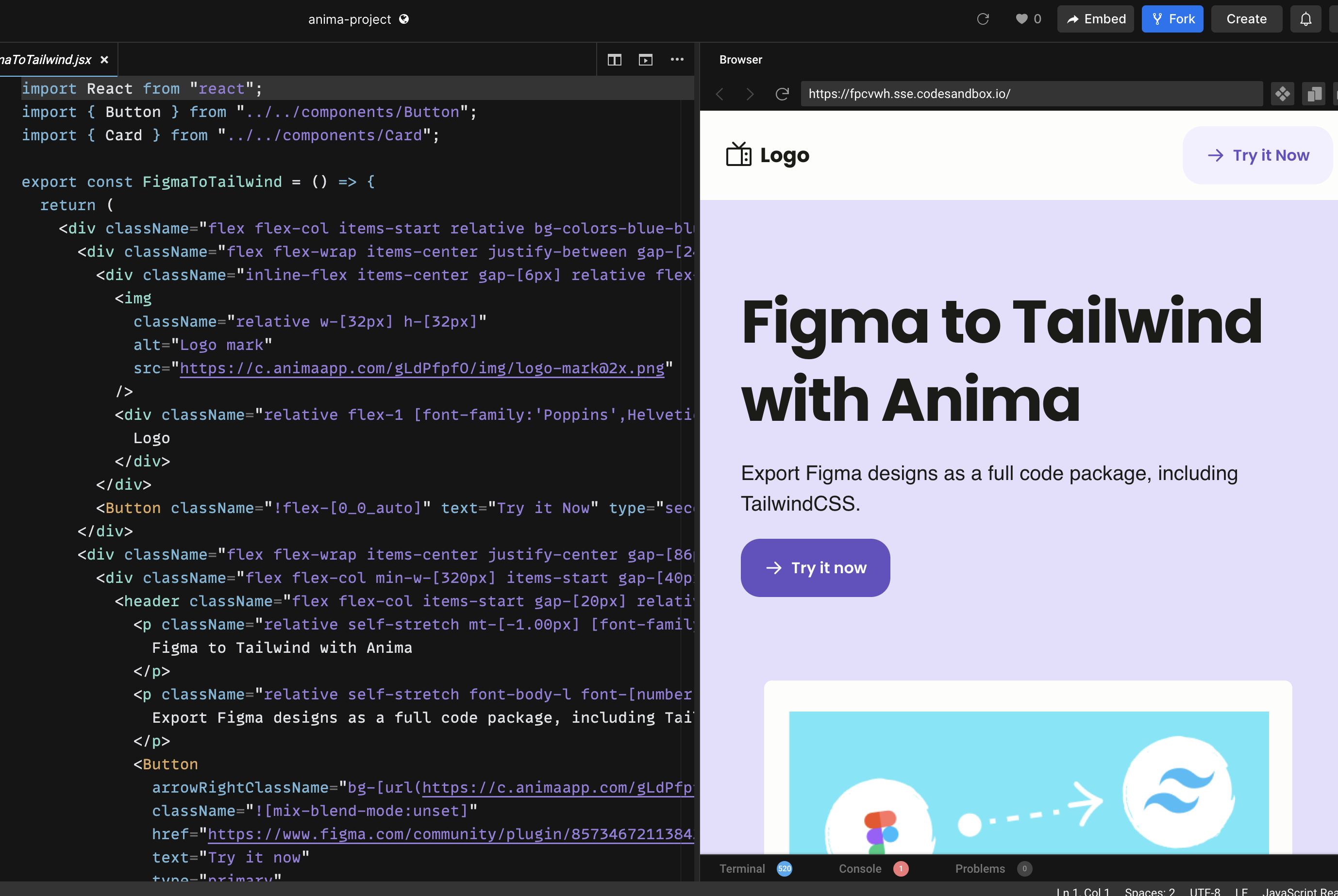
Once the code is generated, copy snippets, download the generated files as a package, or preview the UI and continue in Anima Playground.


Continúa en Anima Playground
Exportar código Tailwind es útil, pero el mejor flujo no termina en “copiar código”. Cuando el diseño está convertido, puedes seguir trabajando en Anima Playground con vista previa en vivo y código editable lado a lado.
In Playground, you can refine layout, add states, create responsive menus, connect forms to data, add authentication, publish, or export the project.
¿Plugin o Playground?
Usa el plugin de Anima cuando empiezas desde Figma y quieres capturar mejor la estructura del diseño. Usa Playground cuando quieras editar por chat, previsualizar, añadir funcionalidad, publicar, exportar o conectar el trabajo con agentes de código.
The best path is often both: start in Figma, generate React + Tailwind with the plugin, open the result in Playground, and vibe code the final details while keeping the design intent intact.
Preguntas comunes sobre Figma a Tailwind
Can Figma export Tailwind CSS by itself?
Figma is primarily a design tool. A plugin like Anima adds the conversion layer between Figma design and frontend code.
Does Anima generate React with Tailwind?
Yes. In the Anima plugin, choose React as the framework and Tailwind CSS as the styling option. You can also choose JavaScript or TypeScript.
Can I publish the result?
Yes. If you continue in Anima Playground, you can preview, refine, and publish the project from the browser. You can also export code when you want to continue development elsewhere.