Figma
Figma Adobe XD
 Sketch
 Discord
 Twitter
 GitHub


 Blog
Blog

Como exportar Tailwind CSS do Figma4 min read
Reading Time: 3 minutesExporte Tailwind CSS do Figma e continue construindo
Quer transformar um design do Figma em código React limpo com Tailwind CSS? O caminho mais rápido é usar o plugin Anima para Figma: selecione um frame, escolha React e Tailwind e depois copie, baixe ou abra o projeto gerado no Anima Playground para continuar editando, visualizando e publicando.
Tailwind é popular porque transforma decisões de design — espaçamento, cor, tipografia, layout e breakpoints — em classes utilitárias reutilizáveis. O Anima ajuda a traduzir essas decisões do Figma para código frontend, para você sair do design e chegar a uma UI funcional sem reconstruir cada camada manualmente.
Resposta rápida: Figma para Tailwind CSS com Anima
- Anima plugin for Figma
- Select the Figma frame, component, section, or layer you want to convert.
- Choose React with JavaScript or TypeScript, then select Tailwind CSS as the styling option.
- Generate the code, then copy snippets, download the package, or continue in Anima Playground.
- Use Playground to edit by prompt, preview, connect data/auth, publish, or hand off to a coding agent.
Por que exportar Figma para Tailwind CSS?
Figma é onde as equipes definem a experiência do produto. Tailwind é onde muitos times frontend querem implementá-la. O desafio é traduzir design em código sem perder estrutura, espaçamento, estilos, cores e comportamento responsivo.
With Anima, you can turn Figma designs into React, HTML, or Vue; JavaScript or TypeScript; CSS or Tailwind CSS; and editable code that can continue into Anima Playground.
Antes de gerar código Tailwind a partir do Figma
- Use Auto Layout. It helps preserve responsive structure and spacing relationships.
- Name important layers clearly. Buttons, cards, nav bars, forms, and sections are easier to understand with clear names.
- Use styles, variables, and components. Repeated colors, typography, spacing, and states are easier to map into reusable code.
- Select the right scope. Start with a focused component or screen, then expand.
Como converter designs do Figma para Tailwind
Etapa 1: execute o plugin Anima no seu arquivo do Figma
Open Anima in Figma. If you are a first-time user, search for Anima in the Figma plugin menu and sign in or create an Anima account.
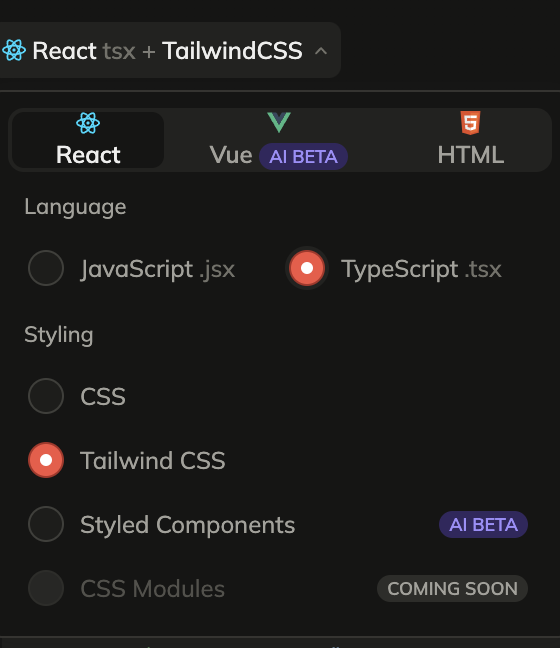
Etapa 2: selecione React, JavaScript ou TypeScript, e Tailwind CSS
Choose React in the framework dropdown, JavaScript or TypeScript as the language, and Tailwind CSS under styling.
Etapa 3: selecione um componente, camada ou frame do Figma
Select the frame, component, section, or layer you want to export. For the first pass, choose a focused screen or component so you can inspect the generated Tailwind output quickly.
Etapa 4: gere e obtenha seu código
Once the code is generated, copy snippets, download the generated files as a package, or preview the UI and continue in Anima Playground.


Continue no Anima Playground
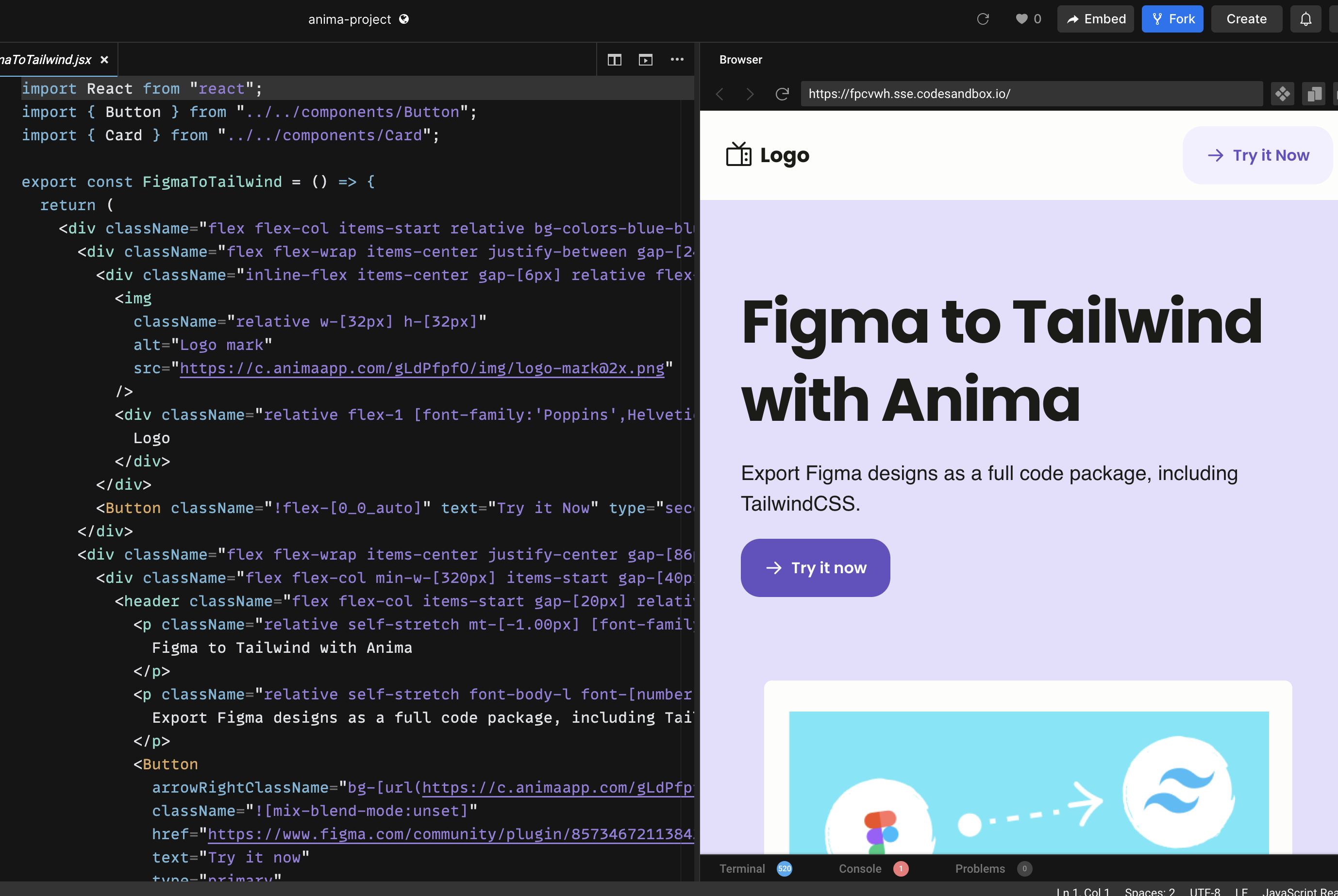
Exportar código Tailwind é útil, mas o melhor fluxo não termina em “copiar código”. Depois que o design é convertido, você pode continuar no Anima Playground com preview ao vivo e código editável lado a lado.
In Playground, you can refine layout, add states, create responsive menus, connect forms to data, add authentication, publish, or export the project.
Plugin ou Playground?
Use o plugin Anima quando estiver começando a partir de um arquivo Figma e quiser capturar melhor a estrutura do design. Use o Playground para editar por chat, visualizar, adicionar funcionalidade, publicar, exportar ou conectar o trabalho a agentes de código.
The best path is often both: start in Figma, generate React + Tailwind with the plugin, open the result in Playground, and vibe code the final details while keeping the design intent intact.
Perguntas comuns sobre Figma para Tailwind
Can Figma export Tailwind CSS by itself?
Figma is primarily a design tool. A plugin like Anima adds the conversion layer between Figma design and frontend code.
Does Anima generate React with Tailwind?
Yes. In the Anima plugin, choose React as the framework and Tailwind CSS as the styling option. You can also choose JavaScript or TypeScript.
Can I publish the result?
Yes. If you continue in Anima Playground, you can preview, refine, and publish the project from the browser. You can also export code when you want to continue development elsewhere.