 Figma
Figma API
API Web to code extension
 Adobe XD
 Discord
 Twitter
 GitHub
'/%3E%3Cpath%20fill='%23b2b2b2'%20d='M241%20382q0%2016%2017%2026%2017%2011%2042%2011t42-11q16-11%2017-26V269H241'/%3E%3Cpath%20fill='%239f7e00'%20d='M241%20379q0%2014%208%2023%209%209%2021%209%2014%200%2021-9%209-9%209-23V269h-59'/%3E%3Cpath%20d='M241%20339v-70h59v110q0%2014-9%2023l-6%205v-68h-15v72q-8%200-14-4v-68zm59%2040c0%2022%2015%2032%2029%2032%2021%200%2030-18%2030-32v-40h-59'/%3E%3Cpath%20fill='%239f7e00'%20d='M266%20277v5h2v12h-3v-5h2v-5h-9v5h2v5h-4v9h3v18h-5v10h34v-10h-5v-18h3v-9h-4v-5h2v-5h-9v5h2v5h-3v-12h2v-5zm42%20101q0%2010%206%2017%206%206%2015%207%2010-1%2016-7%206-7%206-17v-29h-43'/%3E%3Ccircle%20fill='%230044ad'%20cx='329.5'%20cy='372'%20r='6'/%3E%3Cellipse%20fill='%230044ad'%20cx='300'%20cy='340'%20rx='16'%20ry='21'/%3E%3C/svg%3E)


'%3E%3Cpath%20stroke='%23000'%20stroke-width='4'%20d='m-35-37-13%2020m5%203%2013-20m5%203-13%2020m63%2042%206-9m1-2%206-9m5%203-6%209m-1%202-6%209m5%203%206-9m1-2%206-9m-96%200%2013%2020m5-3-6-9m-1-2-6-9m5-3%2013%2020m63-42-6-9m-1-2-6-9m5-3%2013%2020m5-3-6-9m-1-2-6-9'/%3E%3Ccircle%20r='24'%20fill='%23cd2e3a'/%3E%3Cpath%20fill='%230047a0'%20d='M0%200a12%2012%200%201%201%2020%2013%2024%2024%200%201%201-40-26A12%2012%200%201%200%200%200'/%3E%3C/g%3E%3C/svg%3E)


'%3E%3Ccircle%20r='92'/%3E%3Ccircle%20fill='%23fff'%20r='80'/%3E%3Ccircle%20r='16'/%3E%3Cg%20id='c'%3E%3Cg%20id='b'%3E%3Cpath%20id='a'%20d='m0-80%203%2048L0-8-3-32M21-77%2011-30%202-8%205-32M40-69%2019-26%204-7%2013-29'/%3E%3Cuse%20href='%23a'%20transform='scale(-1)'/%3E%3C/g%3E%3Cuse%20href='%23b'%20transform='rotate(45)'/%3E%3C/g%3E%3Cuse%20href='%23c'%20transform='rotate(90)'/%3E%3C/g%3E%3C/svg%3E)


'/%3E%3C/svg%3E)


'/%3E%3C/svg%3E)
'/%3E%3C/g%3E%3Cuse%20href='%23b'%20transform='rotate(45%20140%20300)'/%3E%3Cpath%20d='m299%20285%2046%2015-46%2015%2028-39v48M59%20510l-36%2032%2010-47%2020%2043-42-24m22-409L23%2058l36%2032-48-4%2042-24'/%3E%3C/svg%3E)


'/%3E%3C/svg%3E)
 Blog
Blog
Figma to React: Convert Figma designs to clean React code9 min read
Reading Time: 7 minutesUpdated May 2026
Figma to React
The best way to turn Figma to React is to use a dedicated solution, and the most popular plugin is Anima with almost 2 million installs.
The fastest way to start with Anima is to paste a Figma link into Anima Playground, choose React, and continue from there with editable code, live preview, and AI-powered iteration.
You can also use the Anima Figma plugin when you want to inspect or export React directly from Figma. Both workflows are useful: Playground is best when you want to turn a design into a working React app or prototype, while the plugin is great for designers and developer handoff inside the Figma workflow.
Try Anima Now
Paste a Figma link into Anima and turn it into React.
Figma to React plugin & online
Anima gives you two practical ways to convert Figma designs to React code:
- Online Figma to React in Anima Playground: paste a Figma link, generate React, preview the result, edit by chat, and export or publish when ready.
- Inspect code inside Figma with the Anima Figma plugin: select a frame, component, or flow and generate React code without leaving your design file.
Use Playground when you want to keep building. Use the plugin when you need to inspect code in Figma, export React, or prepare a clear handoff for developers.
How to convert Figma to React
Start with the workflow that matches what you need: online Figma-to-React generation in Playground, or code inspection and export inside Figma with the plugin.
- Online Figma to React: Paste Figma designs into Anima Playground and export React
- Inspect code inside Figma: Use Anima Figma plugin
Online Figma to React: Paste Figma designs into Anima Playground and export React
This is the fastest way to convert a Figma design to React and continue iterating in a browser-based code playground.
- Open Anima Playground
- Paste Figma file link
- Select React as your output format
- Preview the generated app with live, editable code
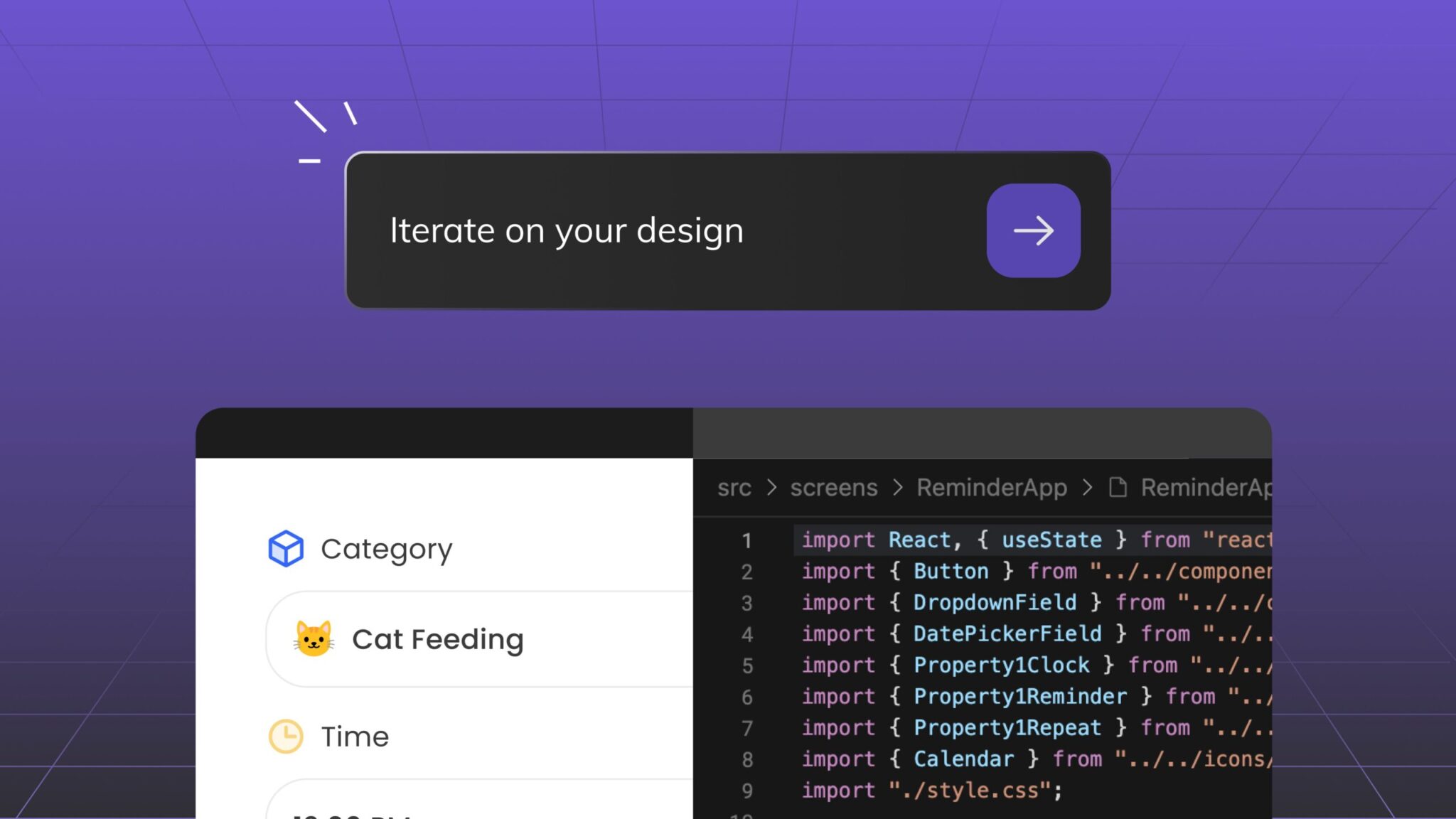
- Use AI chat to adjust layout, responsiveness, styling, copy, or interactions
- Export the code, push to GitHub where available, hand off through MCP, or publish a live prototype
Best for: prototypes, MVPs, landing pages, product UIs, and teams that want to keep iterating after code generation.
Convert multiple Figma screens into React flows
Multi-screen Figma designs are part of the online Playground workflow. You can bring a full Figma flow into Anima Playground, generate React, and continue refining the screens together.
- Paste multiple links to Figma screens link into Anima Playground
- Select React as the output
- Review the generated screens in live preview
- Edit layout, navigation, copy, and responsive behavior in-browser
- Share, publish, or export the updated React project
Best for: multi-screen prototypes, stakeholder review, product flows, and early product validation.
Inspect code inside Figma: Use Anima Figma plugin
Use the Anima Figma plugin when you want to inspect or export React code for a specific button, card, layout block, screen, or component directly from your Figma file.
- Install and launch the Anima plugin for Figma
- Select a component, frame, or UI element
- Choose React as the export format
- Copy the generated code or open it in Anima Playground for live preview and editing
Best for: designers preparing developer handoff, developers working from a specific Figma component, and teams that need quick React snippets from the design canvas.
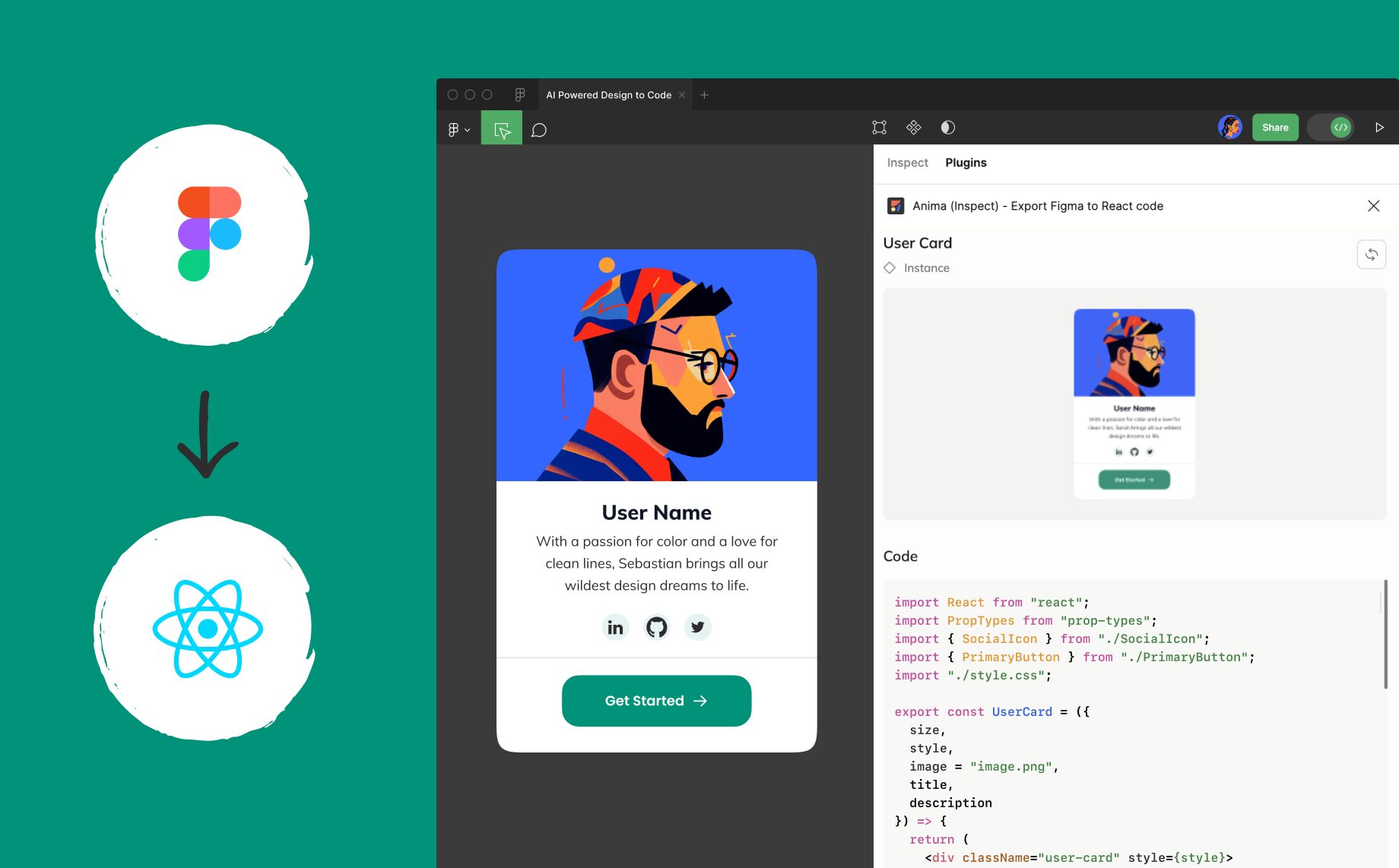
Export full React projects for developer handoff
For larger projects, the plugin workflow can help you move from selected Figma screens or flows into a complete React codebase that developers can inspect, refine, and continue building.
- Select your full flow or multiple screens in Figma
- Choose Get Code → React in the Anima plugin
- Open the project in Anima to preview and refine it
- Export your React project for engineering handoff
Best for: MVPs, product UIs, design-system work, and frontend handoff to engineering or coding agents.
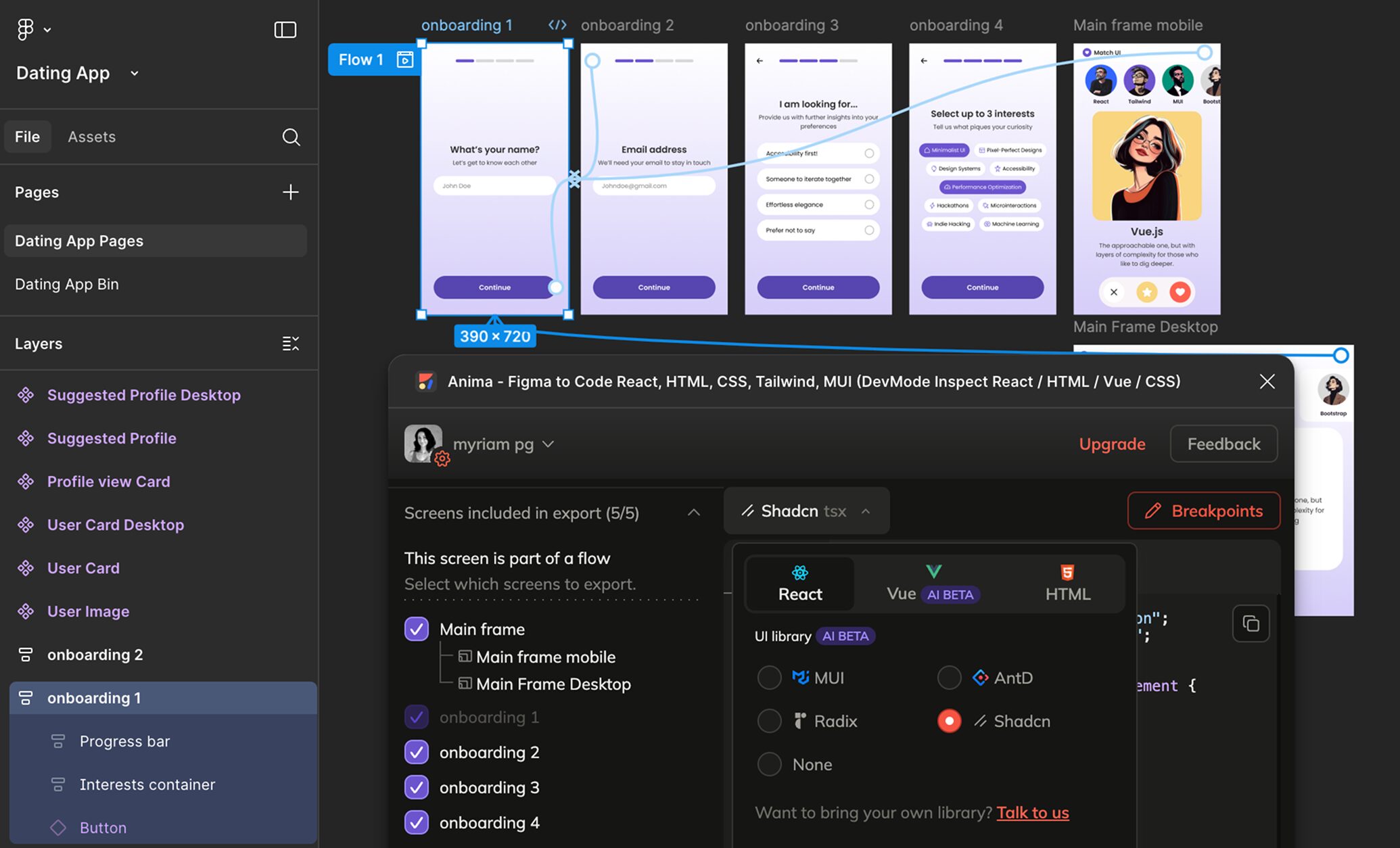
What makes Anima the top choice for Figma to React?
Anima is the most popular plugin for turning Figma to code with almost 2 million installs. It is built for teams that need more than a visual export: Anima turns Figma designs into React code you can inspect, edit, preview, and keep building from.
- React components from real Figma designs: Anima generates readable components from selected frames, screens, and flows instead of flattening your design into a static image.
- Responsive layouts: Anima uses the structure of your Figma file, including Auto Layout and constraints, to help create responsive React UI across screen sizes.
- Design-aware output: Anima helps preserve your spacing, typography, colors, assets, and visual language so the generated React stays close to the original design.
- Code inspect inside Figma: With the Anima Figma plugin, designers and developers can inspect and export React code directly from the Figma workflow.
- Anima Playground continuation: After generation, you can open the result in Playground, preview the app, edit with AI, adjust layout or copy, and continue building in the browser.
- Styling flexibility: Anima supports modern frontend styling workflows, including CSS and Tailwind-oriented output where available.
- Handoff beyond export: Teams can share, publish, export, or hand off the generated React through workflows like GitHub export and Anima MCP for coding agents.
What’s included in the exported React code?
When you convert Figma to React with Anima, the generated project can include the frontend pieces developers need to keep building:
- React components generated from your Figma screens or selected elements
- Layout and styling based on the original Figma design
- Responsive structure for different screen sizes
- Assets, images, and visual styling from the source design
- Editable code you can inspect, copy, download, or continue refining in Playground
The exact output depends on the design and export settings, but the goal is always the same: a useful React starting point, not a flattened image or throwaway mockup.
Customize your React with AI
The biggest advantage of using Anima Playground is that the workflow does not stop at export. Once your Figma design becomes React, you can keep working on it with a design-aware AI agent.
- Ask Anima to adjust spacing, hierarchy, layout, and responsiveness
- Change copy, sections, colors, or interaction states
- Add new screens or extend an existing flow
- Generate variations while keeping the design on-brand
- Publish a live prototype or export the code for your engineering workflow
This is especially useful for teams that want to move from Figma to a working product without getting stuck in an export-copy-paste loop.
Why traditional Figma-to-React methods don’t scale
Manual conversion gives developers full control, but it is slow. Every screen has to be rebuilt from scratch: layout, spacing, styling, components, responsiveness, and interaction states.
Basic plugin exports are faster, but they often stop at the first draft. Teams still need to clean up structure, connect components, adjust responsive behavior, and make the code fit the way the real app is built.
Anima is built for the full workflow: convert the design, preview the React output, keep iterating with AI, preserve the design language, and then export or hand off code when it is ready.
Manual Figma to React vs using Anima
| Workflow | Best for | Tradeoff |
|---|---|---|
| Manual rebuild | Highly custom production apps where engineers need total control from day one | Slowest path; design changes can create repeated rebuild work |
| Basic code export | Quick snippets or visual references | Often needs cleanup before it fits a real React project |
| Anima Playground + Figma plugin | Fast Figma-to-React conversion, live preview, responsive prototypes, and code handoff | Best results come from well-structured Figma files with clear layout and components |
Figma to React vs Figma to HTML: which should you choose?
Choose Figma to React when you are building an app, product UI, interactive prototype, or reusable component system. React is the better fit when your design needs dynamic behavior, state, routing, or developer handoff into a modern frontend stack.
Choose Figma to HTML when you need a landing page, static webpage, fast prototype, or simple frontend export. If that is your use case, read our guide to exporting Figma to HTML.
Why use Anima to convert Figma to React?
Anima combines the speed of automated Figma-to-code export with the flexibility of a live AI coding environment. Instead of stopping at static generated code, you can preview, edit, publish, and hand off your React output.
- ⚛️ React components generated from Figma designs
- 📐 Responsive layouts based on Figma structure and Auto Layout
- 🎯 Developer-friendly output for product teams and engineers
- 🧑🎨 Design-aware AI that helps preserve your design system and visual language
- 🎨 Styling flexibility with CSS, Tailwind, and related frontend options
- 🧪 Live editing and preview in Anima Playground
- 🚀 Workflow after generation: publish, export, share, or hand off to coding agents with Anima MCP
With roughly 1.7M Figma plugin installs, Anima is a proven design-to-code workflow for designers, developers, product teams, and AI-native builders.
Figma to React FAQs
Can I convert Figma to React automatically?
Yes. With Anima, you can paste a Figma link into Anima Playground or use the Anima Figma plugin to generate React code from selected frames, components, or flows.
Can I export React code from Figma?
Yes. The Anima Figma plugin lets you generate React code from inside Figma. You can copy the code, preview it, or continue editing the project in Anima Playground.
Does Anima generate responsive React?
Anima is designed to generate responsive frontend code from well-structured Figma designs. Using Auto Layout, clear constraints, and organized frames helps produce better responsive output.
Can I use Tailwind with Figma to React?
Anima supports modern frontend styling workflows, including Tailwind-oriented output where available. The best setup depends on the selected export settings and the project workflow.
Is Figma to React production-ready?
Generated code should be treated as a strong frontend starting point. For production apps, developers may still connect real data, business logic, state management, tests, and app-specific architecture.
Can I edit the React code after export?
Yes. You can edit the generated code in Anima Playground, export it, copy it, or continue refining it in your development environment.
Can I convert multiple Figma screens to React?
Yes. Anima supports multi-screen Figma workflows, so you can bring full flows into Playground, review the generated UI, and continue iterating before handoff.
What’s the difference between Figma Dev Mode and Anima?
Figma Dev Mode helps developers inspect design specs and assets. Anima goes further by generating editable frontend code and giving teams a live environment to preview, iterate, publish, and export.
Start converting Figma to React
Start with a Figma link, generate React code, and keep building in Anima Playground.
Convert Figma to React. Edit with AI. Stay on brand. Ship faster with Anima.