Figma
Figma Adobe XD
 Sketch
 Discord
 Twitter
 GitHub


 Blog
Blog

Figma zu Tailwind CSS: So exportierst du Tailwind aus Figma3 min read
Reading Time: 3 minutesTailwind CSS aus Figma exportieren und weiterbauen
Du möchtest ein Figma Design in sauberen React Code mit Tailwind CSS verwandeln? Der schnellste Weg ist das Anima Plugin für Figma: Wähle einen Frame aus, entscheide dich für React und Tailwind und kopiere, lade oder öffne das generierte Projekt in Anima Playground, um weiter zu bearbeiten, zu prüfen und zu veröffentlichen.
Tailwind ist beliebt, weil Designentscheidungen wie Abstände, Farben, Typografie, Layout und Breakpoints in wiederverwendbare Utility-Klassen übersetzt werden. Anima hilft, diese Entscheidungen aus Figma in Frontend-Code zu übertragen, damit du vom Design zu einer funktionierenden UI kommst, ohne jede Ebene manuell neu aufzubauen.
Kurzantwort: Figma zu Tailwind CSS mit Anima
- Anima plugin for Figma
- Select the Figma frame, component, section, or layer you want to convert.
- Choose React with JavaScript or TypeScript, then select Tailwind CSS as the styling option.
- Generate the code, then copy snippets, download the package, or continue in Anima Playground.
- Use Playground to edit by prompt, preview, connect data/auth, publish, or hand off to a coding agent.
Warum Figma zu Tailwind CSS exportieren?
Figma ist der Ort, an dem Teams die Product Experience gestalten. Tailwind ist der Ort, an dem viele Frontend-Teams diese Experience implementieren wollen. Die Herausforderung ist die Übersetzung von Design zu Code, ohne Struktur, Spacing, Styles, Farben und responsives Verhalten zu verlieren.
With Anima, you can turn Figma designs into React, HTML, or Vue; JavaScript or TypeScript; CSS or Tailwind CSS; and editable code that can continue into Anima Playground.
Bevor du Tailwind Code aus Figma generierst
- Use Auto Layout. It helps preserve responsive structure and spacing relationships.
- Name important layers clearly. Buttons, cards, nav bars, forms, and sections are easier to understand with clear names.
- Use styles, variables, and components. Repeated colors, typography, spacing, and states are easier to map into reusable code.
- Select the right scope. Start with a focused component or screen, then expand.
So wandelst du Figma Designs in Tailwind um
Schritt 1: Starte das Anima Plugin in deiner Figma Datei
Open Anima in Figma. If you are a first-time user, search for Anima in the Figma plugin menu and sign in or create an Anima account.
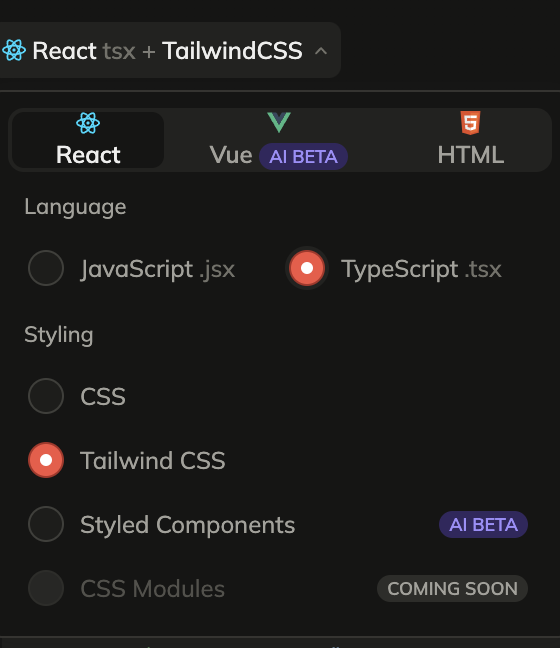
Schritt 2: Wähle React, JavaScript oder TypeScript und Tailwind CSS
Choose React in the framework dropdown, JavaScript or TypeScript as the language, and Tailwind CSS under styling.
Schritt 3: Wähle eine Figma Component, Ebene oder Frame
Select the frame, component, section, or layer you want to export. For the first pass, choose a focused screen or component so you can inspect the generated Tailwind output quickly.
Schritt 4: Generiere und erhalte deinen Code
Once the code is generated, copy snippets, download the generated files as a package, or preview the UI and continue in Anima Playground.


In Anima Playground weiterarbeiten
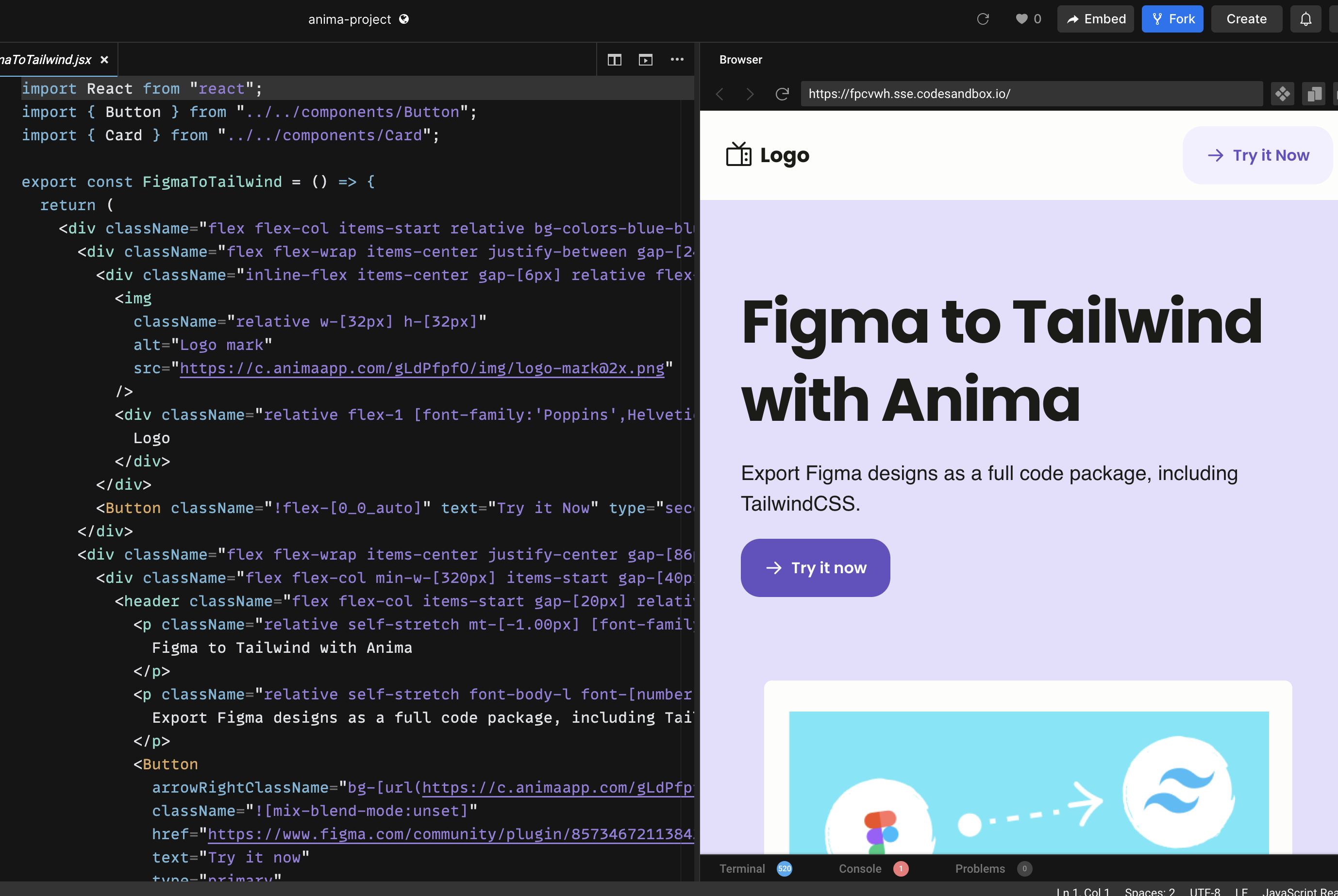
Tailwind Code zu exportieren ist hilfreich, aber der beste Workflow endet nicht bei “Code kopieren”. Nach der Konvertierung kannst du in Anima Playground mit Live Preview und editierbarem Code nebeneinander weiterarbeiten.
In Playground, you can refine layout, add states, create responsive menus, connect forms to data, add authentication, publish, or export the project.
Plugin oder Playground?
Nutze das Anima Plugin, wenn du aus einer Figma Datei startest und die Designstruktur möglichst gut erfassen willst. Nutze Playground, wenn du per Chat bearbeiten, previewen, Funktionen hinzufügen, veröffentlichen, exportieren oder an Coding Agents übergeben willst.
The best path is often both: start in Figma, generate React + Tailwind with the plugin, open the result in Playground, and vibe code the final details while keeping the design intent intact.
Häufige Fragen zu Figma und Tailwind
Can Figma export Tailwind CSS by itself?
Figma is primarily a design tool. A plugin like Anima adds the conversion layer between Figma design and frontend code.
Does Anima generate React with Tailwind?
Yes. In the Anima plugin, choose React as the framework and Tailwind CSS as the styling option. You can also choose JavaScript or TypeScript.
Can I publish the result?
Yes. If you continue in Anima Playground, you can preview, refine, and publish the project from the browser. You can also export code when you want to continue development elsewhere.